

The UserVoice customer feedback Chrome extension lets sales, support, and success teams save a request from any web page. Highlight it in an email, CRM record, support ticket, or call notes, then add it to an existing idea or start a new one. Product gets the customer's words, their account, and a link back to the conversation.
Select the customer's words on the page and they land in the extension.
See matching ideas, with votes, accounts, and revenue, before you save.
Subscribe the customer so they hear when the idea's status changes.
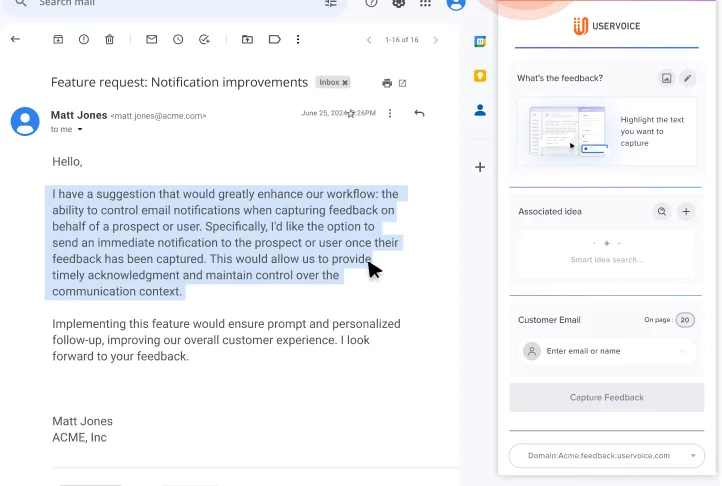
Requests turn up where product never looks: a renewal email, a Salesforce note, a Zendesk ticket, or a call summary. The extension opens in Chrome's side panel beside the page, so your team saves the request on the spot.
What changes when every customer-facing team captures in the moment.
Five steps in one side panel, and the request never passes through a spreadsheet or a forwarded email.
To set up, each person adds the extension from the Chrome Web Store and signs in with your UserVoice domain. Companies with more than one UserVoice site add each domain and switch between them. The help center article walks through each screen.
Every customer-facing team hears requests in a different tool. The extension works the same way in each, so every request reaches product in the same shape.
From the Zendesk ticket or email, agents add the customer's words to the existing idea and subscribe them, so the update replaces the next ticket. See support teams and the Zendesk integration.
Reps capture what a prospect needs from the Salesforce or HubSpot record, and the deal's revenue lands on the idea. See sales teams and win back lost deals.
CSMs capture after every check-in, so every open request for the account is in one place before the renewal. See the customer success solution and the renewals guide.
Product managers get the customer's words, account, source, and importance on the right idea, with fewer duplicates in triage. Then they prioritize feedback by revenue, as product teams do.
Every capture carries an account, so revenue teams see which requests are tied to pipeline, renewals, and expansion. See customer feedback for revenue leaders.
Executive teams see the requests with the most revenue behind them and fund the roadmap work that protects and grows it, without waiting for a quarterly report.
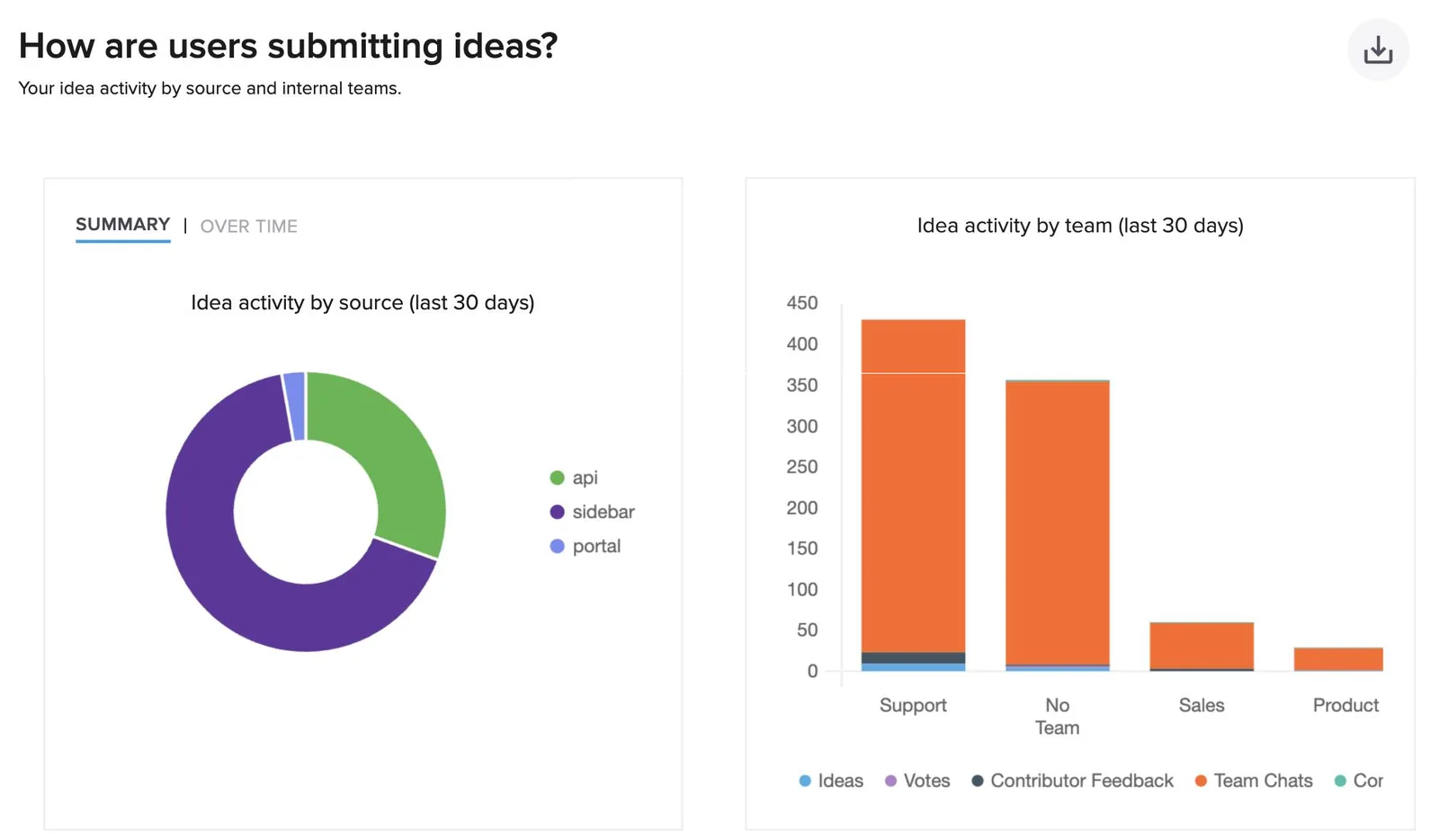
Every UserVoice user at your company can use the extension, including contributors and view-only admins, so customer-facing teams capture without a full admin seat.
No public portal? This setup runs on the extension and Slack.
Most teams use the extension alongside the integrations, because it works on any page in the browser. See every option in capture feedback.
Every capture is searchable by AI the moment it's saved. Read more on AI customer feedback analysis.
Ask in the admin console. See how to ask the agent about feedback.
Which accounts asked for this idea this quarter?
The UserVoice MCP server brings the same data into Claude, ChatGPT, and other assistants. Start with the MCP playbook.
What is support hearing most this month?
The MCP server can create ideas and add feedback, so a request raised in an AI chat lands next to the ones captured in Chrome.
Add this customer's request to the bulk edit idea.
See security and compliance for details.
Every UserVoice user at your company, including contributors and view-only admins.
No. A team member chooses what to capture, confirms the customer, and picks an idea. Nothing is saved until they click Capture Feedback.
No, captured feedback is private to your team. On a new idea, add a public description to keep it that way; otherwise the feedback becomes the idea's description.
Yes, if Subscribe user to updates is checked. They get an email when the idea's status changes. Admins can turn these emails off for the account.
It's built for Google Chrome and installs from the Chrome Web Store. Chromium browsers that accept Chrome Web Store extensions, such as Microsoft Edge, can run it too.
Usually, yes. The integrations work inside Salesforce and Zendesk; the extension works everywhere else, including email, call notes, and internal tools.
Yes. Add each UserVoice domain in the extension and switch between them. Check which site is selected before you save.
Get a free 30-day trial after your demo, see your own customer feedback in a real account.
Book a demo

