Feedback import

Import customer feedback without losing history

Import customer feedback into UserVoice: ideas with their original dates and statuses, the voters behind them, and the accounts that carry revenue. A preview checks every row first.

Ideas
Titles, descriptions, creators, labels, statuses, and original dates.
Voters and feedback
Supporters and their words, attached to existing ideas.
Users and accounts
Plan, revenue, and custom fields, so reach shows revenue.

What users say on G2

Read all 240+ reviews on G2
Spreadsheet of who has interest in which feature can get cumbersome. We have over 1500 suggestions today and UserVoice makes it easy for us to organize everything.
Margaux M.
Senior Product Manager, Mid-Market, verified review on G2
The UserVoice platform was easy for us to implement, and we integrated it into our partner community to solicit feedback from our dealer partners.
Dan T.
Director, Customer Experience Systems, Enterprise, verified review on G2
What you can import

Bring every request you've already collected

Years of requests sit in spreadsheets, old tools, and support exports. Leave them behind and the demand they show starts over at zero. Imports bring that history into UserVoice in four steps, each with its own template.
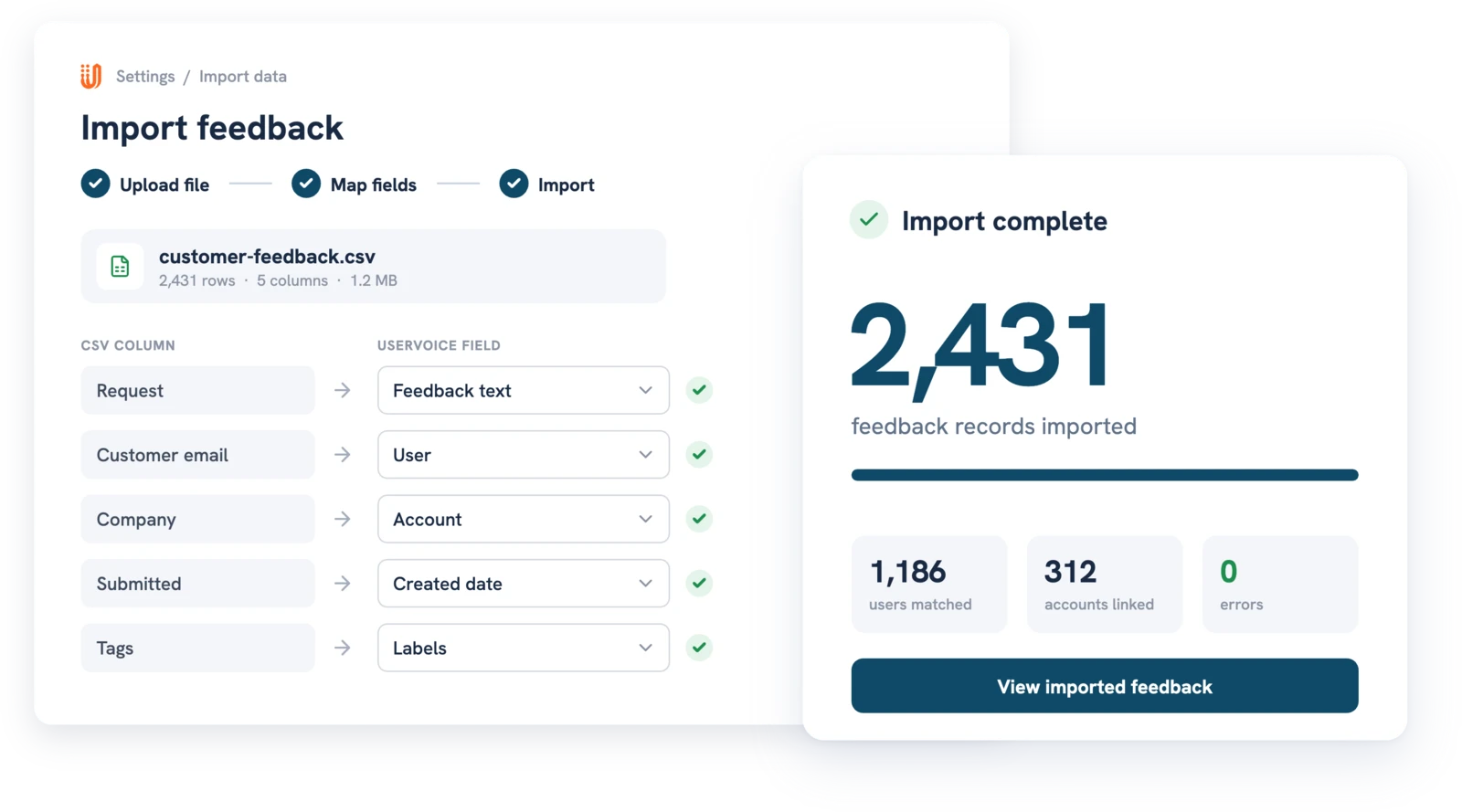
  • Import ideas from the Data menu in the idea grid
  • Attach voters and feedback to those ideas
  • Load user data from the Users page
  • Load account data from the Accounts page
  • Templates include a column for each custom field you've set up
UserVoice feedback import mapping CSV columns to UserVoice fields, with 2,431 records imported
Outcomes

Your history comes with you

What changes when your history comes with you.
Demand doesn't reset
Ideas keep their original dates, statuses, and supporters, so the oldest requests still rank where they belong.
Every request has an account
Users and accounts come in with plan and revenue, so Account Insights shows the revenue behind each idea on day one.
No surprise emails
Imported feedback and status updates send nothing, and you choose per row who's subscribed to future updates.
How it works

Import customer feedback in five steps

Set up forums, categories, and statuses first: the import matches them by name and doesn't create them. Labels are the exception, and up to three levels are created if they're missing. The migration guide has a full checklist.

Start with a handful of rows, check the result, then bring in the rest. Open a few imported ideas and confirm the voters, dates, and statuses look right before you run the full file. For the thinking behind a single home for requests, read about customer feedback management.

A safe import
1
Download the template
Each import has one, built from your own fields.
2
Import ideas
Only a title and forum name are required.
3
Attach voters and feedback
Match each row to an idea by its ID or a unique title.
4
Check the preview
See valid rows, flagged rows, and the reason for each.
5
Confirm and run
The import runs in the background and emails you the results.
Built-in checks

Import customer feedback without guessing

Nothing is written until you've seen what will happen to every row.

A preview before anything runs
The import checks the whole file first and shows how many rows will import and how many won't, grouped by error with row numbers.
Duplicates are skipped
An idea whose title matches an active idea is skipped, and an existing voter isn't added twice. The idea import never overwrites existing ideas.
You confirm what's left out
Flagged rows and unknown columns are listed, and you tick to confirm before the rest import. A file with 1,000 or more errors is rejected whole.
The four imports

Four files, one complete history

Ideas come first, because voters and feedback attach to ideas that already exist.

Import
Where you start it
What it brings in
Ideas
Idea grid, Data menu
Title, description, forum, category, labels, statuses, creator, original dates, custom fields
Voters and feedback
Idea grid, Data menu
People by email, their words, vote dates, source links, and whether they're subscribed
User data
Users page
External ID, email, name, custom user fields, and the user's account
Account data
Accounts page
External ID, name, plan, revenue, LTV, created date, custom account fields
By role

One import, every team working from day one

An import is usually a project for one person, but the result changes how every team works from the first day.

Product operations
Ops owns the move: sets up forums and categories, runs a sample, and checks the preview. See organizing forums, categories, and labels.
Product teams
PMs keep the full history of each request, so product teams see long-standing demand next to new feedback and prioritize by revenue.
Customer success
CSMs bring in requests they tracked in spreadsheets, with each customer as a voter. Customer success teams see every open request for an account in one place.
Revenue operations
RevOps loads accounts with plan and revenue, or connects Salesforce so the CRM stays the source. Revenue teams then see the revenue behind each idea.
Support teams
Support leads attach the customers who asked in tickets to the right ideas, with a source link back to each conversation. New tickets then link to ideas through the Zendesk integration.
Executive teams
Executive teams get a complete view of demand from day one instead of waiting months for new feedback to pile up.
Before you import

Your customers hear nothing unless you choose

Your customers hear nothing from an import unless you choose it.

Feedback is quiet
Imported feedback sends no notifications.
Status updates too
Imported status updates don't email supporters.
Auto-reply per row
An idea's creator gets it only where you set it.
Subscriptions per row
Choose who gets future update emails.
After the import

Keep account data current from here on

Your history is in. From here, a sync keeps users and accounts current so revenue on each idea stays right. Once accounts come from a CRM, the user and account imports turn off and the CRM is the source.
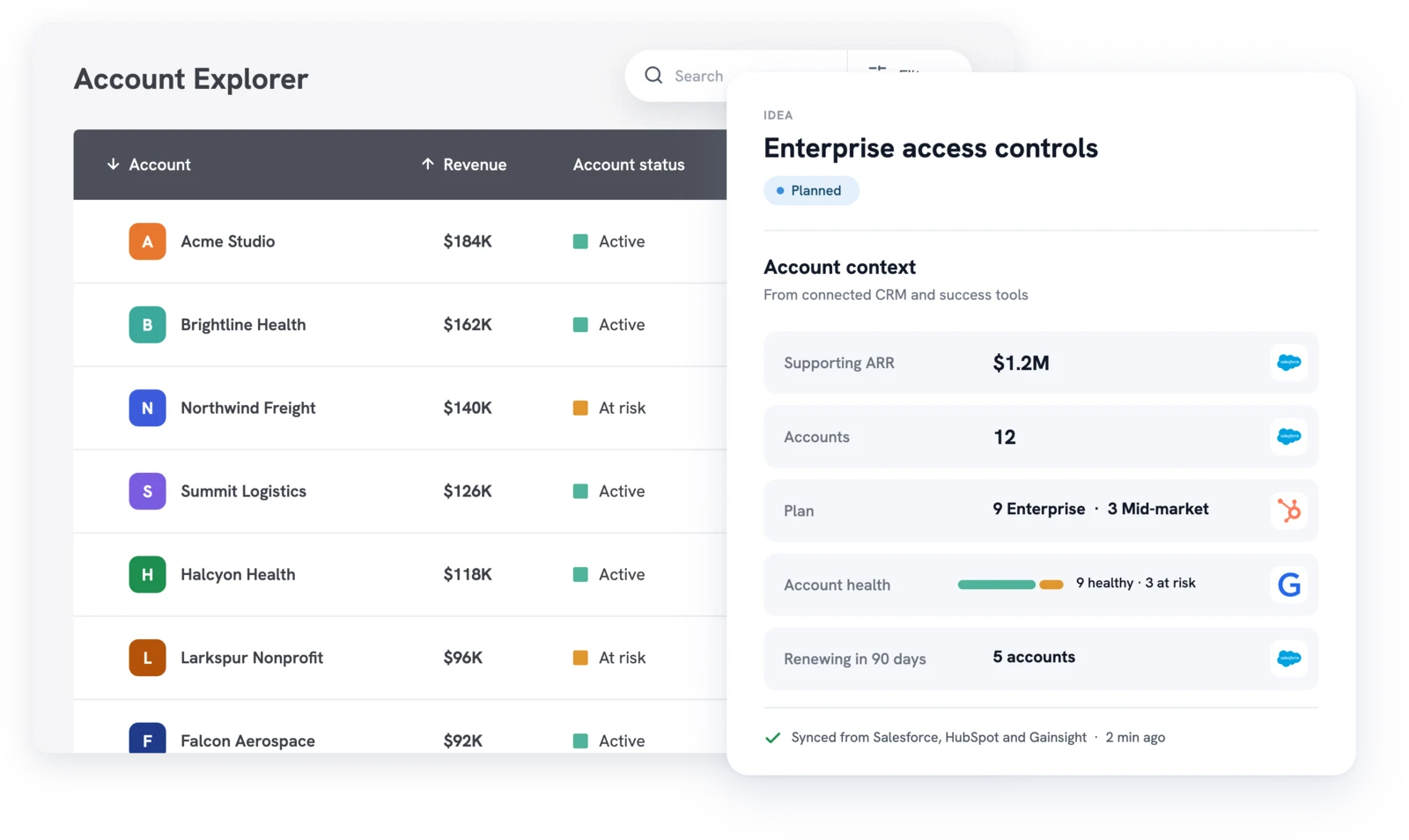
  • Salesforce or HubSpot sync on a schedule, with Force Sync
  • Map status, revenue, plan, and up to 25 custom fields
  • Gainsight adds health and renewal date (paid add-on)
  • The Admin API imports users and accounts in code
Read the CRM sync guide →
UserVoice Account Explorer with account context synced from Salesforce, HubSpot, and Gainsight
AI and MCP

Import customer feedback one request at a time with AI

For a single request, there's no file needed. The UserVoice agent and the UserVoice MCP server save it in conversation, and you confirm before anything changes.

Add a new idea
Post an idea on a customer's behalf, with their words saved as feedback.
Create an idea for offline mode from Acme's request.
Attach someone's words
Save a customer's feedback on an existing idea. They get no email. See the MCP playbook.
Add this quote from Dana at Acme to the bulk edit idea.
Add supporters
Add people as voters on an idea, quietly, from your AI assistant over MCP.
Add the three Acme admins as voters on the SSO idea.

Import customer feedback: your questions, answered

What file format does the import take?

A .csv file under 100 MB. Ideas and voters take up to 50,000 rows a file; users and accounts take up to 100,000. Download the template to get the columns right.

Can the voters and feedback import create new ideas?

No. It attaches people and their words to ideas that already exist. Import ideas first, then match feedback by idea ID or a unique title.

Will an idea import update existing ideas?

No. It only creates ideas. A row whose title matches an active idea is flagged as a duplicate and skipped.

What happens to rows with errors?

They're listed in the preview with the reason and skipped once you confirm. Fix them, often by creating a forum or category, and import those rows again.

Can we import account details on their own?

Yes, unless accounts come from a Salesforce or HubSpot sync. Then the CRM is the source and the account import turns off.

Do you migrate from other feedback tools?

Every move uses the same templates, whichever tool you're leaving. See the migration guide, or read about customer feedback tools before you choose.

Keep exploring

Go deeper where it matters

Bring your feedback with you

Get a free 30-day trial after your demo, see your own customer feedback in a real account.

Book a demo