Customer Feedback Without a Public Portal
Why teams keep customer feedback in-house, and how to run it.
On this page
Many teams never ask customers to post on a portal. Their Sales, Success, and Support teams capture what customers say, and the product team works from that. This guide covers why teams choose an internal program, what they give up, how capture works, and how to open things up to customers later if you want to.
Why teams keep feedback internal
An internal program collects feedback from the people who talk to customers, instead of asking customers to come to you. Teams choose it for a few reasons.
Customers ask for things on calls, in tickets, and in emails. Your teams already hear it; an internal program makes sure it gets written down.
A rep knows who the customer is, what they pay, and what deal or renewal is at stake. That context arrives with every request, in the same shape every time.
Nothing appears on a public roadmap, nothing is publicly declined, and no idea wins because someone ran a voting campaign.
Customer names, deal details, and competitive gaps never sit where other customers or competitors can see them.
Requests from customers who talk to your team carry the same weight as those posted online. Demand is weighed by accounts and revenue, not by who posts most.
There is no portal to launch, brand, or moderate. Your teams start capturing on day one.
What you give up, and how to cover it
An internal program trades some reach for control. Each tradeoff has a practical answer.
| What you give up | How to cover it |
|---|---|
| You hear only from customers who talk to your team. On a portal, customers who would never write up a request still vote and comment on one that exists. | Capture from Support tickets and Slack, not only sales calls, and add each customer who asks to the same idea. Add a public forum when you want the extra reach. |
| Customers don't see progress on a portal | Your teams hear about every status change on ideas they captured on, so they can tell their customers directly. |
| Everything depends on your teams capturing | Roll out with a capture standard and team champions, and check the Activity Report to see who is capturing. |
Start internal, open up later. An internal program is the fastest way to start. Adding a public forum or a private beta forum later doesn't change anything your teams already do.
Who does what
Everyone on your team can capture feedback. Roles decide what else they can do.
Run UserVoice: manage forums, statuses, and settings, triage and merge ideas, and decide what gets built. Admins capture feedback too, including from the Add menu in the admin console.
Admins with View-only permission on ideas. They see ideas, accounts, and reports in the admin console without changing them, and capture feedback. A good fit for team leads.
Capture customer feedback through the browser extension and Slack, and hear back when ideas they captured on change status. They don't see the admin console or settings.
You decide whether view-only admins and contributors see revenue. Read-Only Revenue Access, in your settings, shows or hides revenue for them. It is on by default.
Contributor is its own seat type. Your UserVoice rep can walk through how many of each role your teams need.
Capturing with the browser extension
The UserVoice Feedback Capture extension for Chrome sits in a side panel next to whatever your team is working in: email, a CRM record, a support ticket, or call notes.
- Highlight the customer's words, right-click, and choose Capture Feedback. The text fills in automatically.
- Under Who is it from?, enter the customer's email or name. If they are new to UserVoice, they are added.
- Link the feedback to an existing idea, using the built-in search to find similar ideas, or create a new one.
- Choose whether to subscribe the customer to updates on the idea.
- Select Capture Feedback.
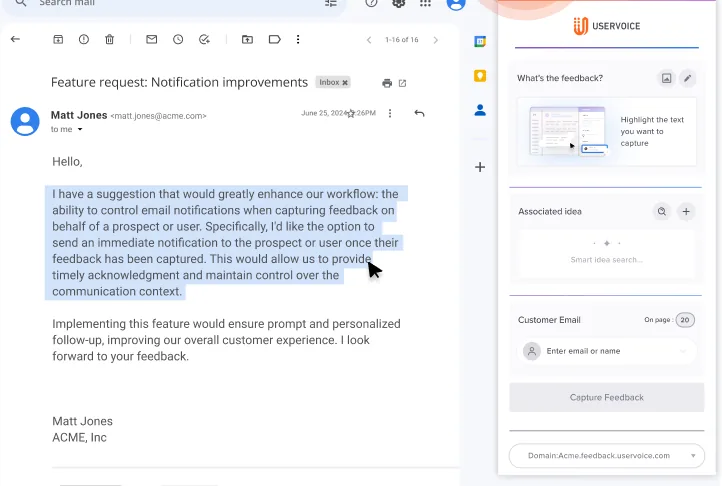
Your team can also flag an idea as important and add a reason, which only admins see.
Write a public description when you create an idea. If you leave the description blank, the customer's feedback becomes the idea's description. A short description in your own words keeps the customer's exact words private.
Capturing from Slack
Any Slack message can become feedback, so a customer comment shared in a deal or support channel doesn't get lost.
- On the message, open More actions and choose Send to UserVoice.
- Choose whether to add feedback to an existing idea or create a new idea.
- Confirm the customer's email. UserVoice suggests the person who wrote the message.
- Search for the idea, or give the new idea a title and forum.
- Choose whether to subscribe the customer to status updates, then submit.
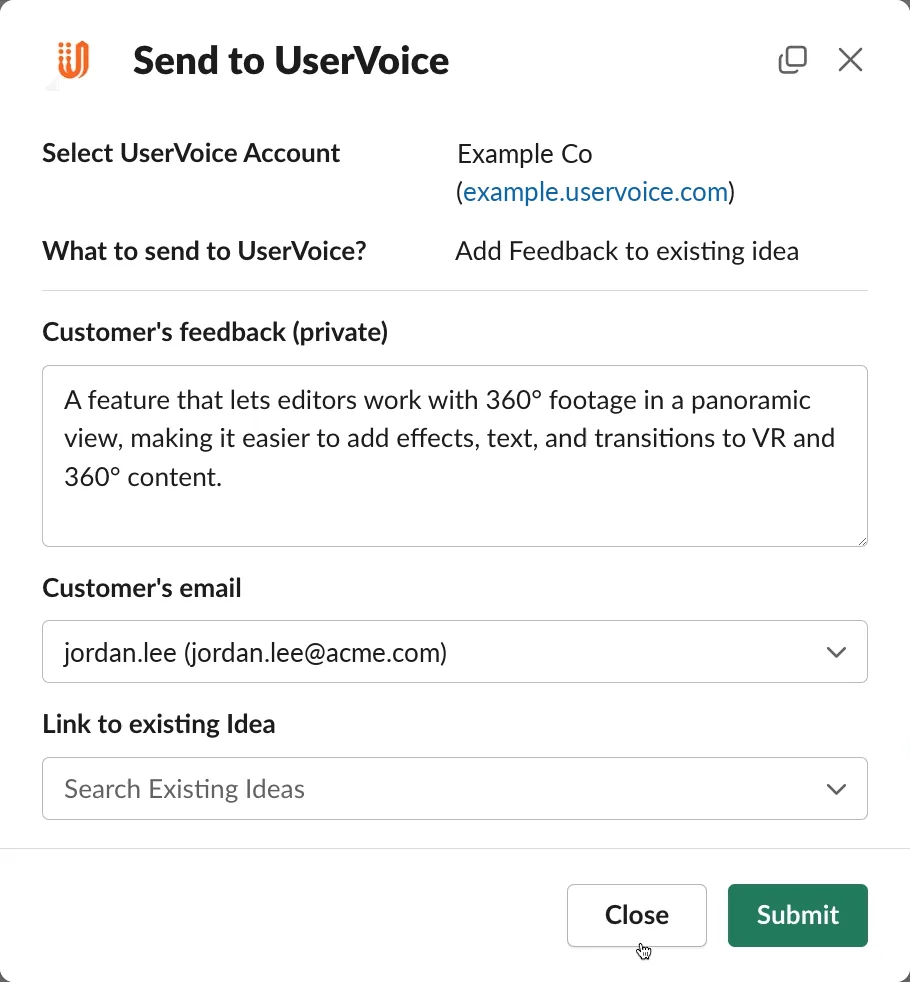
The feedback keeps a link back to the original Slack message. In a private channel, invite the UserVoice app to the channel first.
Notifications in Slack and Microsoft Teams
UserVoice can post new ideas, feedback, votes, comments, and status updates to Slack channels or Microsoft Teams. Each channel can be limited to specific forums or categories, so each team only sees its own area.
Automatic capture from call recording and support tools is coming soon. UserVoice will pull feedback from tools such as Gong and Zendesk without anyone copying it in.
Setting it up
An internal program keeps customers out of your forums. You have two ways to do that, depending on your plan.
Make your forums private
Set each forum to private and authorize your own company: by email domain, through single sign-on, or by invitation. Your teams capture into these forums through the extension and Slack.
Require sign-in for the whole portal
Restrict access to your site so that only your single sign-on users, admins, and contributors can get in. Everyone else is sent to sign in.
Some plans run without a customer portal at all. Your UserVoice rep can confirm which setup fits your plan.
Group your people into teams
Create teams such as Sales, Customer Success, and Support in Settings under Extension, and put each person on one. The Activity Report then shows idea activity by team, and each captured piece of feedback names the capturer's team, so you can see where feedback comes from.
New forums start out public. When you add a forum to an internal program, set it to private before anyone captures feedback into it.
Organize forums the way your product team works. A forum per product, with categories for product areas, lets each product manager follow their own part of the feedback.
Keeping it private
Captured feedback is private to your team. In an internal program, so is everything around it.
| Private to your team | What to watch |
|---|---|
| The customer's feedback text | If you leave a new idea's description blank, the feedback becomes the description |
| Who captured it and where it came from | Slack and Teams channels set to post new feedback include the feedback text |
| Team chat and internal statuses | Only admins see team chat, and internal status updates notify only your team |
| Flags and flag reasons | Only admins see why someone flagged an idea |
Closing the loop with customers
Your teams hear about every public and internal status update on ideas they captured on, so they know when to follow up. Internal status updates can say what a rep needs to know, such as timing or what the work depends on.
Customers can also be subscribed to an idea when your team captures their feedback. In an internal program, decide whether your reps or UserVoice emails tell customers about changes, since customers can't open ideas in your private forums.
Point new-feedback notifications at internal channels. A Slack or Teams channel set to post new feedback includes the customer's words.
When you're ready to add customers
A portal reaches customers your teams never talk to. Voting and commenting on an idea that already exists takes seconds, so customers who would never write up a request still add their support. Internal, customer-facing, and private forums can sit side by side in one site, and adding customers doesn't change how your teams capture.
| Internal only | Customer-facing | Private customer-facing | |
|---|---|---|---|
| Who submits | Your team, on behalf of customers | Customers on your portal, plus your team | Invited customers, plus your team |
| Who sees ideas | Your team | Anyone who visits your portal | Only the customers you invite, and your team |
| Typical use | Feedback from Sales, Success, and Support | Open feedback and a public roadmap | Beta programs |
Use both kinds of status
Public statuses, such as Planned or Shipped, are what customers see on the portal and in their email. Internal statuses track your team's own process and only notify your team.
Capture into the same forums your customers use. When you add a public forum, your teams add customer feedback to its ideas, or post a new idea when it's original. Keeping one set of forums keeps demand for each need in one place.
Example setups
In every setup, your teams capture through the browser extension and Slack, and admins can also add feedback in the admin console.
Internal only
A product team that wants structured feedback from Sales, Success, and Support.
| Forum | Access | Who captures |
|---|---|---|
| A forum per product | Private, your email domain | Sales, Success, Support, and admins |
Adding a public portal
A company that opens its forums to customers. The same forums now take both customer posts and team captures.
| Forum | Access | Who captures |
|---|---|---|
| A forum per product | Public | Customers, Sales, Success, Support, and admins |
Public forums and a beta program
A company that also runs a beta with selected customers.
| Forum | Access | Who captures |
|---|---|---|
| A forum per product | Public | Customers, your teams, and admins |
| Beta program | Private, by invitation | Beta customers, plus the product team |
Read next
Get the full guide
We'll email you the 11-page PDF. It adds one thing that isn't on this page: