Prioritize by Revenue, Not Just Votes
Seeing the accounts and revenue behind every idea, so you build what your business depends on.
On this page
A vote count treats a trial user and your largest customer the same. UserVoice links each supporter to their account, pulls revenue and plan from your CRM, and shows the revenue and accounts behind every idea. Product teams plan with the full picture, and Sales and Success can see what their accounts are asking for.
Why vote counts mislead
Votes tell you how many people asked, not who asked, how much of your business they represent, or whether they're about to renew.
| Idea | Votes | Accounts | Revenue |
|---|---|---|---|
| Dark mode | 412 | 38 | $96K |
| Scheduled report exports | 64 | 14 | $1.2M |
| Salesforce field mapping | 41 | 11 | $940K |
Illustrative example.
By votes, Dark mode wins. By revenue, it comes last. Revenue doesn't replace votes; it puts them in context.
How ideas connect to accounts
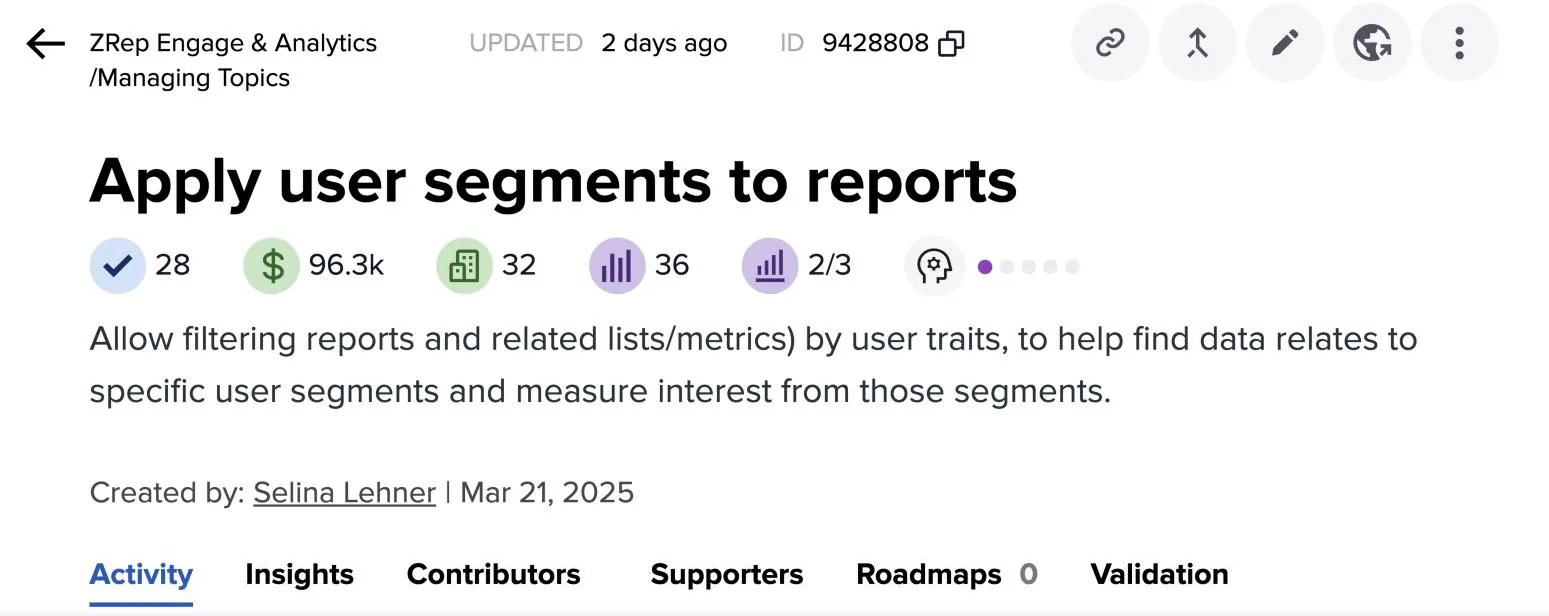
An idea's supporters link it to accounts. Each supporter belongs to an account, and each account adds its revenue to the idea once.
Account details come from Salesforce or HubSpot (one CRM per workspace), from your product or the API, or from work email domains. Contacts become UserVoice users linked to their account, and other people are matched to an account by their work email domain. You choose one revenue field, monthly or annual, and UserVoice adds it up; pick the figure your leadership plans with, and tell your team which one it is.
How someone becomes a supporter
- They vote on the idea on your portal.
- Someone on your team captures their feedback and links it to the idea.
- An admin adds them as a voter.
How revenue is counted
- Each supporting account counts once per idea, however many of its people support it.
- Revenue is each account's current revenue, and updates when the value changes in your CRM.
- Accounts with no revenue still count toward the number of accounts.
Each idea counts an account once. If you add up the revenue of several ideas yourself, an account that supports more than one is counted each time. Impact Reports and segment totals count each account once, so use them for a group of ideas.
Sorting and filtering by value
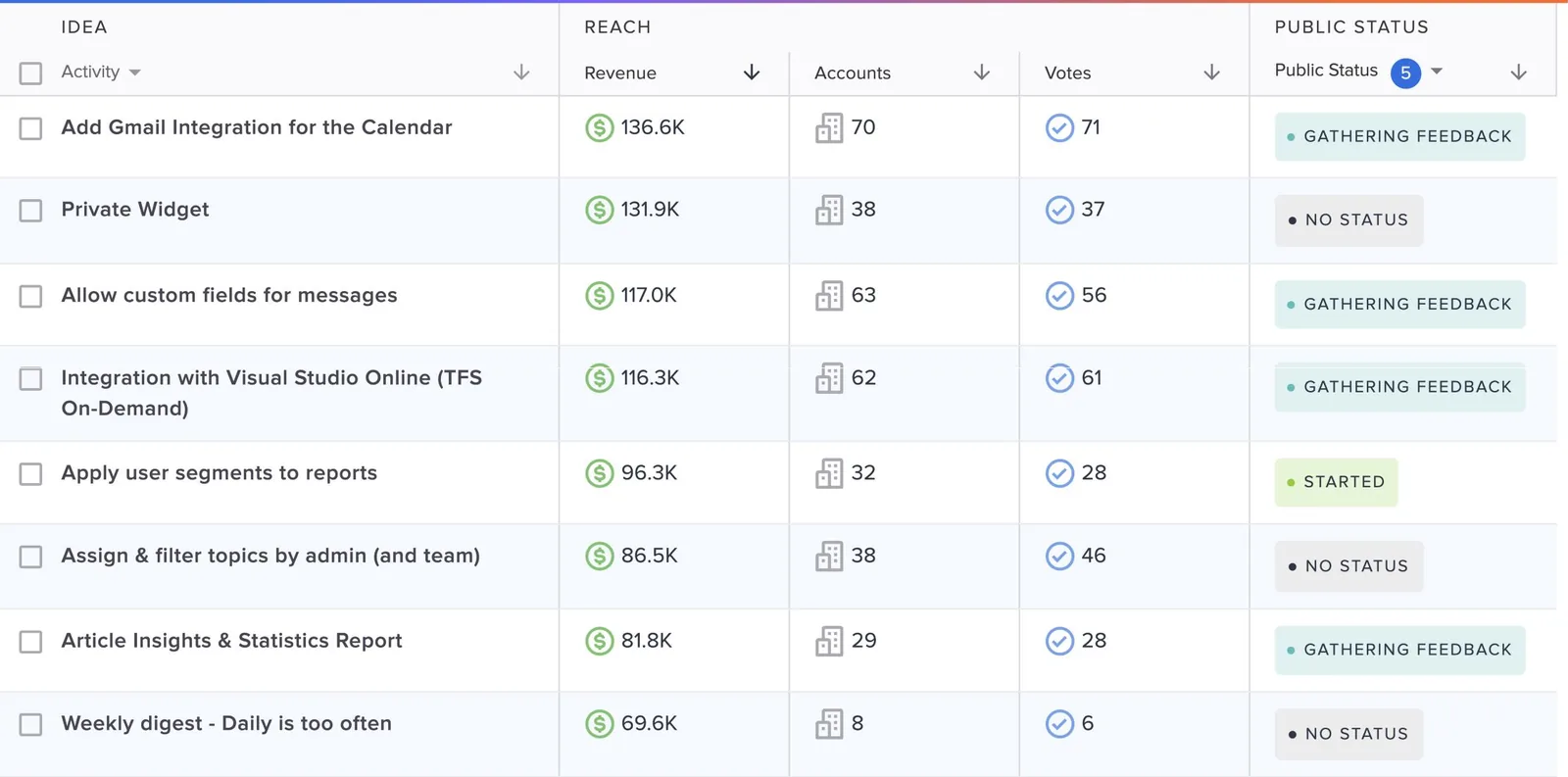
The idea grid puts revenue next to votes, so you can rank requests by the business behind them.
| Where | What you can do |
|---|---|
| Revenue, Accounts, and Votes columns | Sort every idea by total supporting revenue, number of supporting accounts, or votes |
| Account filters | Show only ideas supported by accounts with a given name, plan, revenue, or any synced field, such as account status or a renewal date |
A date filter changes what the columns mean. With a date range applied, Revenue and Accounts count only accounts that started supporting an idea in that period. Clear the date filter to see the full totals.
Segments
A segment is a saved group of customers, defined by user and account properties. Every idea shows its voters, accounts, and revenue within each segment.
| Segment | Defined by | What it shows |
|---|---|---|
| Enterprise customers | Account plan is Enterprise | Which ideas your largest customers support |
| Prospects | Account status is Prospect | What open deals are asking for |
| Lost deals | Account status is Closed-Lost | Requests behind deals you didn't win |
| Renewing soon | Renewal date, synced from your CRM, is within the next 90 days | What renewing customers are waiting on |
| Churned customers | Account status is Churned | What former customers wanted. Ideas that churned and active accounts both want are strong candidates. |
Segments appear as columns in the idea grid and as a filter, so you can sort by revenue from enterprise customers alone, or list only ideas a segment supports.
Segments are shared. Everyone on your UserVoice team sees the same segments, and changes apply for everyone. Agree on names and definitions before you create them.
Deals in progress
When reps capture feedback on a Salesforce Opportunity, each idea shows its open and lost opportunities, with Potential Revenue, Lost Revenue, and % Revenue Won. Sort by Potential Revenue to see which requests hold up open deals, and by Lost Revenue to see which ones cost you deals.
Account Insights and account pages
Account Insights breaks your ideas down by the accounts behind them. The Idea Explorer ranks ideas by account support or revenue, and the Account Explorer starts from accounts.
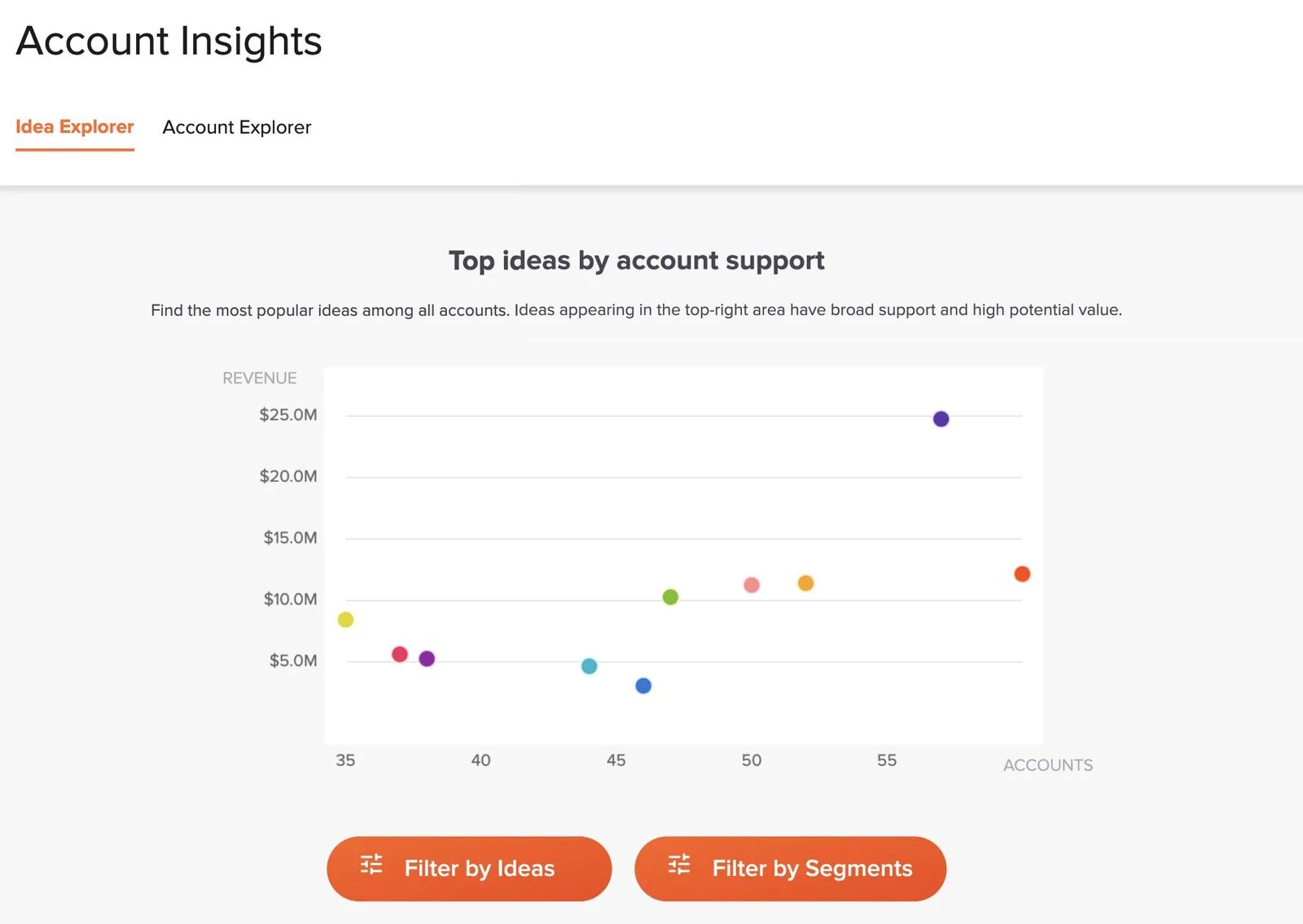
Each account has its own page with its details, revenue, users, and every idea it supports, with the status of each. Open it before a customer call or renewal. With Gainsight connected, the Contributor Console also groups ideas by account health and lists accounts with upcoming renewals.
Putting it to work
Revenue and accounts show up wherever your team makes decisions, from the weekly triage to the quarterly plan.
- Sort the idea grid by Revenue or Accounts. The columns sit next to Votes, so you can see all three at once.
- Add the segments that drive your plan. An Enterprise or Renewing soon segment adds its own Votes, Accounts, and Revenue columns.
- Review by revenue on the Idea Status Board. Sort each status column by revenue or accounts, or filter to the ideas a single account supports.
- Score features with your own formula. Combine revenue, accounts, segment revenue, Salesforce opportunity amounts, and your own fields, such as effort, into a score your team agrees on.
- Brief stakeholders with an Impact Report. Pick a set of ideas and get a summary with the total accounts and revenue behind them, counting each account once, plus the pain points and quotes in customers' own words.
Save the grid view. Save the filters and sort you use as a grid view, so each review starts from the same place.
Read revenue and importance together. Supporters rate how important an idea is to them. An idea with high revenue and low importance can usually wait. One with high importance from at-risk or renewing accounts is worth a closer look.
Ask the UserVoice agent
The UserVoice agent in the admin console answers questions about the revenue behind your ideas in plain language. The UserVoice MCP brings the same questions to assistants such as Claude and ChatGPT.
The agent can also save ideas as a list, add labels, or update internal statuses, and nothing changes until you confirm.
Read-Only Revenue Access decides who sees revenue. It decides who sees revenue in the admin console, and the agent and MCP only show revenue to people who can see it. Admins with access to feedback always see it. For read-only admins and contributors, it is on by default, and only the account owner can change it. Without revenue access, people can't sort or filter by it.
Try it with your AI assistant
1 of 3 prompts in the PDFAttach the PDF to Claude, ChatGPT, or another assistant, then paste:
Using the UserVoice guide I attached, help me choose our revenue field and the segments we should create. Ask me how we sell, price, and plan first.
Two more prompts and the checklist are in the full guide. Get it by email →
Read next
Get the full guide
We'll email you the 10-page PDF. It adds two things that aren't on this page: