The UserVoice Agent – Ask in Plain Language
Ask questions and take action on your feedback in plain language.
On this page
The UserVoice agent lives in the admin console, under AI Tools and on the idea grid as Ask UserVoice. Ask it a question about your ideas, feedback, accounts, or users, and it answers with the numbers and a table you can work with. Ask it to make a change, and it shows you exactly what it will do before anything happens. This guide covers what the agent can answer, how to act on its results, how it keeps you in control, and when to reach for the UserVoice MCP instead.
What the agent is
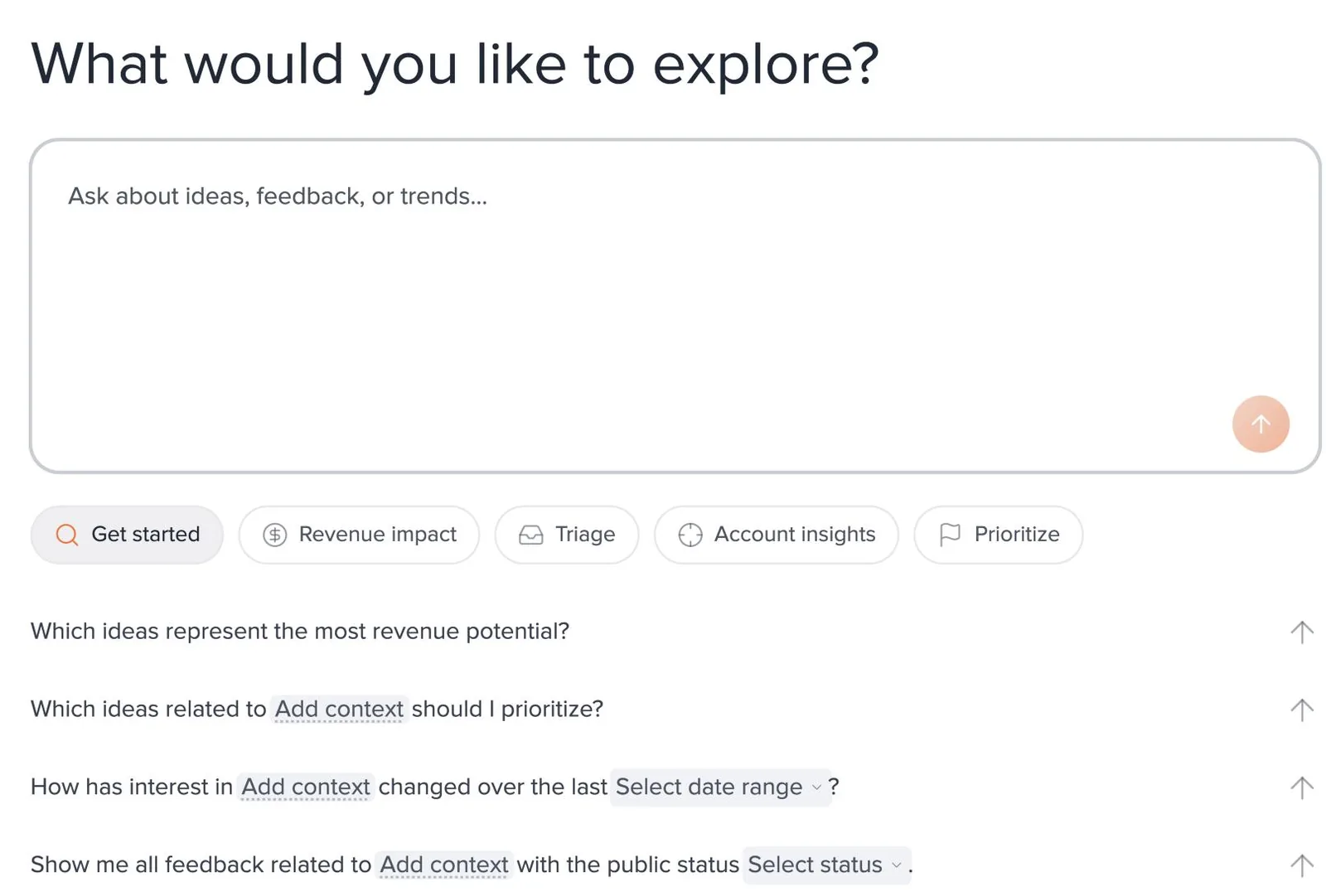
The UserVoice agent is an assistant in the admin console that reads your ideas, feedback, accounts, and users, and answers in plain language. Open it from AI Tools → Ask UserVoice in the navigation, or select Ask UserVoice on the idea grid.
Ideas, captured feedback, votes, statuses, labels, owners, accounts, revenue, and the custom account fields you sync from your CRM.
Results come back as tables of ideas, accounts, users, or themes that you can sort, open, and save.
It can label, assign, merge, save lists, and more, and nothing changes until you confirm.
It sees only what your account can see, and every change is made under your name.
Answers you can work with
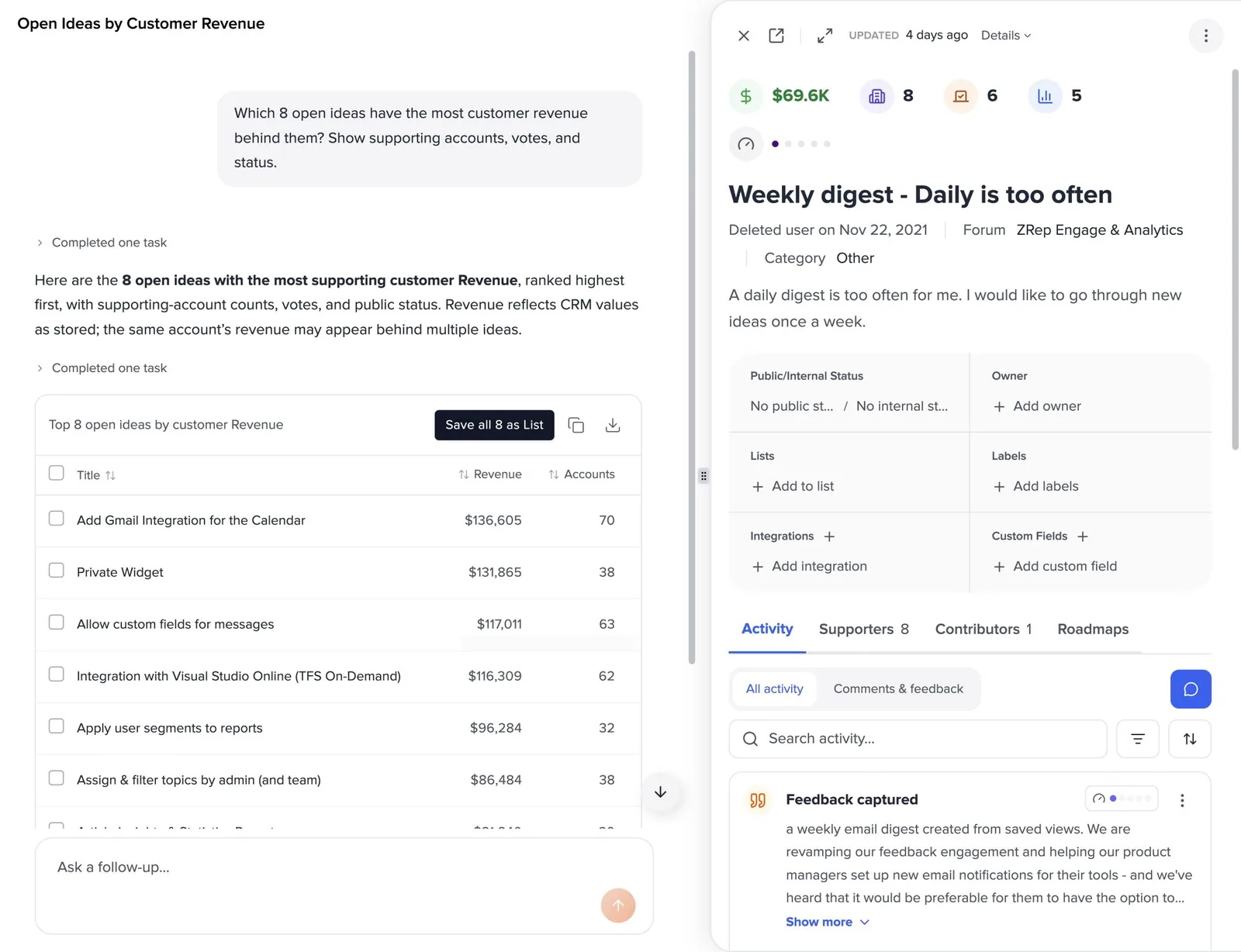
Ask a question, and the agent explains what it found and shows the ideas behind the answer in a table.
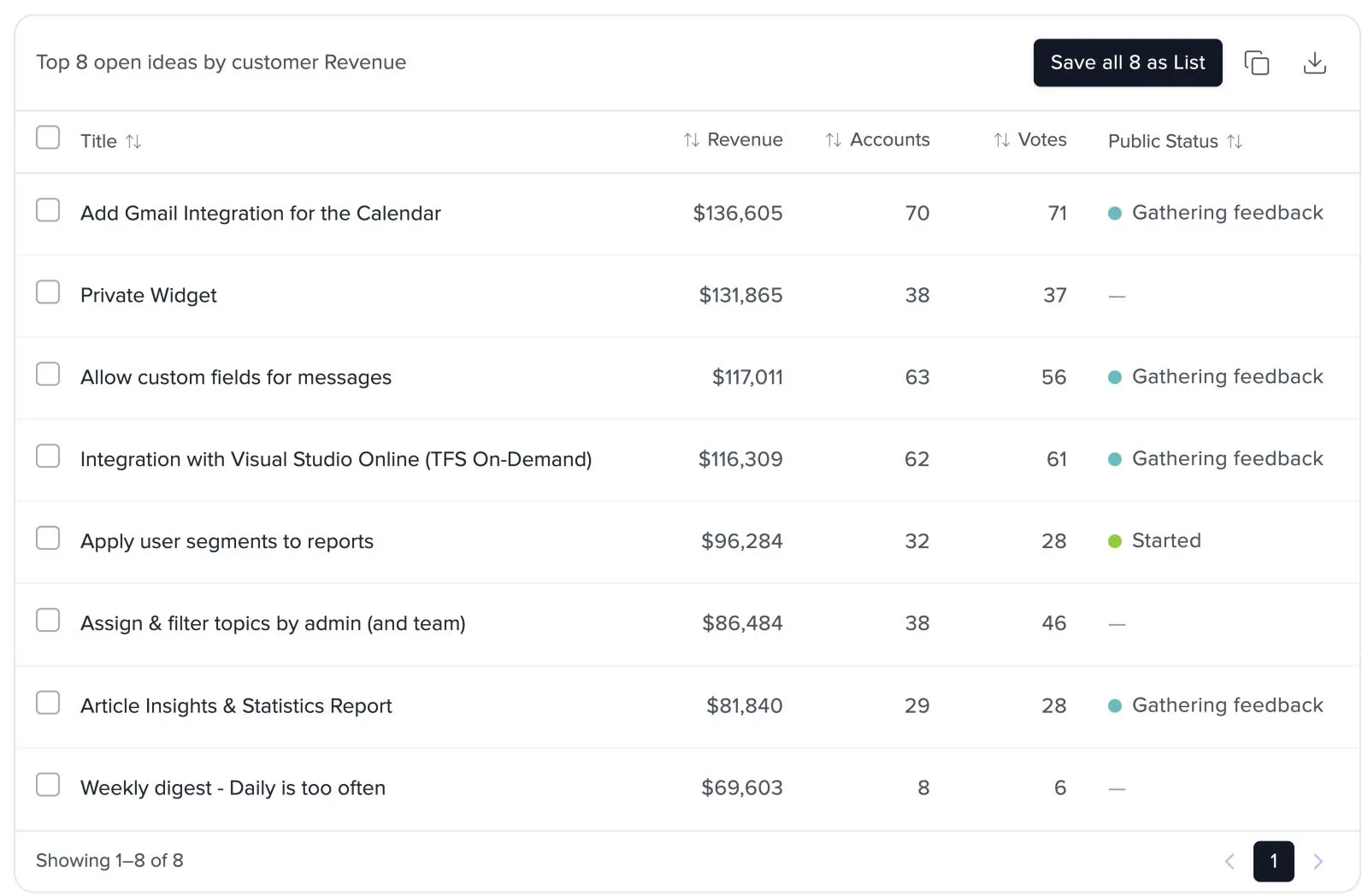
- Sort any column. Click a header to re-rank the results by revenue, votes, or anything else shown.
- See the columns that matter. The agent picks columns to fit the question, such as revenue, accounts, labels, owner, or internal status.
- Go past the first page. Tables page through every result, so a long answer isn't cut off.
- Take it with you. Copy the table, or save the ideas as an idea list.
Act on the results
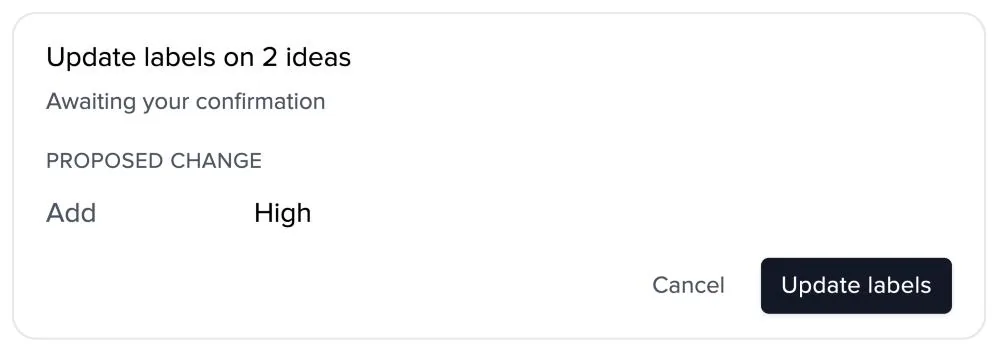
Ask the agent to make a change, and it proposes it first. Review the card, then confirm or cancel.
| Ask it to | For example |
|---|---|
| Save ideas as a list | Save these as a list called “Q4 planning candidates”. |
| Add or remove labels | Add Performance to the ideas about slow reports. |
| Set statuses | Set these ideas to Under review, with a short note. |
| Assign owners | Assign every unowned idea in Integrations to Priya. |
| Merge duplicates | Merge these three into the idea with the most votes. |
| Create ideas and add feedback | Add this customer's feedback to the idea about exports. |
Save a list straight from the table. Tick the rows you want and select Save as List. For any other change, name the ideas in your message; ticked rows only feed the list.
Open any idea in a click
Select an idea in a result, and its idea sheet opens beside the conversation. Read the feedback, check who supports it, or update it, then carry on asking.
Summary numbers on demand
The questions that used to take a report or an afternoon in a spreadsheet take one message.
| Ask | What you get |
|---|---|
| How much revenue is connected to onboarding requests? | Total revenue and accounts behind a topic, counting each account once |
| Which ideas gained the most customer interest in the last 3 months? | Ideas ranked by new votes, feedback, and comments in that period |
| Identify at-risk accounts that have repeatedly supported ideas we haven't addressed. | Accounts and the open ideas they're waiting on |
| Which ideas does Acme support? | Every idea an account supports, with status |
| Which accounts renewing in the next 90 days support ideas still under review? | Accounts filtered on a date field synced from your CRM |
| How many open ideas are in each category, and how many have no owner? | Counts you can act on, without building a report |
Revenue answers need account data. If no CRM is connected, the agent tells you so under the question box. Revenue appears only if your account can see revenue.
Find themes across ideas
Some needs show up across many ideas. Ask the agent to group a set of ideas into themes, and it returns up to twelve problem-focused themes with the supporters, accounts, and revenue behind each, plus a quote in a customer's own words.
Dig into a theme
Select a theme to analyze it from different angles: the workarounds customers use, the case against building it, questions for customer research, the benefits to users, and the smaller themes inside it.
Themes work from up to 100 ideas at a time. For a larger set, the agent themes the 100 with the most supporters and tells you. Narrow by forum, category, or date for a closer look.
Start from the idea grid
Open the agent from the idea grid, and it starts from the ideas on your screen. Ideas you've selected come first.
- Filter the idea grid to the ideas you care about, and select any you want to focus on.
- Select Ask UserVoice on the grid. The agent shows how many ideas are on the page and how many are selected.
- Ask a question about those ideas, or use a prompt such as “Add the label [label] to these ideas”.
The agent sees the current page of the grid. It works from the selected ideas and the rows on screen, not every idea your filters match. For a bigger set, describe it in your question instead.
Trust and control
The agent is built to be safe to hand to your team.
Every change shows a card with what will happen. Cancel, and you'll see “Dismissed — nothing was changed.”
The agent uses your permissions. Revenue appears only if your account can see revenue.
Each change is recorded under your name, like any change you make yourself.
People without permission to edit ideas can ask questions, but the agent won't make changes for them.
Some changes are easier to reverse than others. Deleted, spam, and merged ideas can be restored from each idea's page. Status emails that have gone out can't be called back, so review the message on the card before you confirm.
Your conversations are your own. Past chats are saved under Recents for you to rename or delete. They aren't shared with anyone else.
Prompts by job
The agent's starter prompts are a good place to begin. These cover the jobs teams use it for most.
| Job | Try asking |
|---|---|
| Prioritize | Which ideas have both strong customer demand and business impact? |
| Triage | Which ideas related to [feature] don't have an owner? |
| Revenue | Show me the ideas with the highest total account value that haven't been updated in the last 30 days. |
| Account prep | I have a call with [account] on Thursday. List their open ideas by importance, with the status of each. |
| Cleanup | Which ideas haven't received new votes, comments, or feedback in the last 12 months? |
| Leadership update | Summarize what customers asked for most this month, with the revenue behind each. |
The agent or the MCP?
The agent and the UserVoice MCP use the same abilities. Choose by where you're working.
| The UserVoice agent | The UserVoice MCP | |
|---|---|---|
| Where | In the UserVoice admin console | In Claude, ChatGPT, or another AI assistant |
| Best for | Working with your feedback: triage, prioritizing, account prep, and cleanup | Combining UserVoice with other tools, such as Jira, Slack, Confluence, or your CRM |
| Results | Interactive tables and the idea sheet, right next to your data | Answers and drafts in your assistant's conversation |
| Changes | Confirmed on a card in UserVoice | Approved in your assistant before they run |
Getting better answers
A few habits make the agent's answers sharper.
Name the forum, category, label, status, or account you mean, exactly as it appears in UserVoice.
“The 10 ideas with the most revenue” beats “the important ones.”
Add a date range, forum, or category. Very large answers show the first results and tell you how to see the rest.
Ask a follow-up about the table you just got, such as “Now only the ones without an owner.”
Read next
Get the full guide
We'll email you the 13-page PDF. It adds one thing that isn't on this page: