Rolling Out UserVoice to Sales, Success, and Support
An adoption playbook for your customer-facing teams.
On this page
Buying UserVoice gives your product team a home for customer feedback. Filling it depends on the people who talk to customers every day. This guide covers what to set up first, who to invite, the tools your teams capture with, what a good capture holds, who triages it, how your teams hear back, and how to tell whether it is working.
What a good rollout looks like
A rollout works when capturing feedback becomes part of how your customer-facing teams already work, and when they can see what happens to what they capture.
- Every customer conversation can end in UserVoice. Your teams capture from where they already are: an email, a CRM record, a support ticket, or a message in Slack.
- Requests collect on existing ideas. Your teams add customers to ideas that already exist instead of creating new ones. Demand for the same thing builds up in one place, where the product team can see it.
- Every request names a customer. Each piece of feedback is tied to the person who asked, and through them to their account. The product team sees who is asking, not just what is asked.
- Your teams hear what happened. When an idea's status changes, the people who captured feedback on it get an email. Teams that see results keep capturing.
Who owns the rollout
| Role | What they do |
|---|---|
| Rollout owner | Sets up forums, statuses, and Slack, invites your teams, and answers questions in the first weeks. Often a product manager or product ops. |
| Team champions | One or two people in each team who capture from day one, show teammates how, and pass confusion back to the owner. |
| Product managers | Triage new feedback, merge duplicates, and post status updates on the ideas your teams capture on. |
Set up the basics before launch
Your teams form their view of UserVoice in their first week. Finish the setup before anyone is invited, so their first captures land somewhere that makes sense.
| Setup | Why it matters before launch |
|---|---|
| Forums | Your teams capture into the same forums your customers use, adding to an existing idea or posting a new one when it's original. See Strategies for Forums, Categories, and Labels. |
| Statuses | Status updates are how your teams hear back. Set up the public and internal statuses your product team will use. |
| Slack | Connect the UserVoice app so your teams can send messages to UserVoice, and choose which channels get notifications. |
| Teams | Create a team for each group, such as Sales, Success, and Support. See Invite your teams. |
| Internal questions | Custom questions asked when your teams create a new idea collect deal or renewal context in the same shape every time. |
| Your most common requests | Ask each team lead for the five requests they hear most, and check that each one exists as an idea, so the first captures link to them instead of creating duplicates. |
Point new-feedback notifications at internal channels. A Slack channel set to post New feedback includes the customer's feedback text, which is private to your team. Planning Your Slack Channels and Notifications covers which channels to set up.
Invite your teams
Anyone with a contributor, view-only admin, or admin role can capture feedback. Customer-facing teams usually join as contributors or view-only admins.
| Role | Captures with | Also |
|---|---|---|
| Contributor | The browser extension, Slack, Salesforce, and Zendesk | Hears back on ideas they captured on. Doesn't see the admin console or settings. |
| View-only admin | The same tools, plus the admin console | Sees ideas, accounts, and reports without changing them. Can ask the UserVoice agent and MCP questions. A good fit for team leads. |
| Admin | Every tool, including adding feedback through the UserVoice agent and MCP | Manages ideas, statuses, and settings, and triages. |
- Contributor is its own seat type. Your plan includes a set number of contributor seats. Give one to anyone who talks to customers every week, and ask your UserVoice rep to help size each team.
- You decide whether these roles see revenue. Read-Only Revenue Access, in your settings, shows or hides revenue for view-only admins and contributors. It is on by default, and only the account owner can change it.
Create teams first
- In Settings, open Extension, go to Create teams, and select Add team… for each group, such as Sales, Customer Success, Support, and Product.
- For people already in UserVoice, open them in User roles and access and use the Teams tab. A person can belong to more than one team.
Teams show each group's captures in the Activity Report and in an idea's activity feed. Anyone not on a team appears under No Team.
Send the invitations
- In User roles and access, select Add team member.
- Enter each person's email address, separated by commas. Use the address they use in Slack.
- Choose the Contributor license type, or an admin with View-only permission on ideas.
- Under Teams, select the team they belong to.
- Choose a reply-to address, so replies reach the rollout owner, and select Send invitation(s).
Each person gets an email inviting them to accept and create a profile. It also points them to the extension on the Chrome Web Store.
Invite people with their Slack email address. UserVoice recognizes who is sending a Slack message by the email on their Slack profile. Someone without at least contributor access sees a permission message instead of the capture form.
Where your teams capture
Every capture tool does the same job: it ties a customer's words to an idea and to the customer who said them. Give each team the one closest to its conversations.
| Tool | Where and how | Best for |
|---|---|---|
| Browser extension | A side panel in Chrome. Highlight the customer's words, right-click, and choose Capture Feedback. Emails on the page are suggested as the customer. | Email, web-based CRMs, and call notes |
| Slack | On a message, open More actions and choose Send to UserVoice. The feedback keeps a link to the message. | Customer comments in deal, account, or support channels |
| Salesforce | A UserVoice Feedback card on opportunity pages. It suggests the opportunity's contacts and shows feedback already captured on the deal. | Product gaps raised during a deal |
| Zendesk | An app in the ticket sidebar. Capture Customer Feedback fills in the ticket requester's email. | Requests that arrive in support tickets |
| Admin console | Select + in the left navigation and choose Add feedback, or use Add Feedback on an idea sheet. | Product managers logging what they heard |
| UserVoice agent and MCP | Paste call notes and ask it to find matching ideas and add the feedback. It shows a preview and adds nothing until you confirm. | Several requests from one call or thread |
View-only admins can read through the agent and MCP, but not add feedback. Adding feedback that way needs permission to manage ideas. View-only admins capture with the extension, Slack, Salesforce, or Zendesk.
Feedback connectors, which pull feedback from calls and tickets automatically, are coming soon.
What a good capture holds
A capture is useful when the product team can act on it without asking the person who logged it. That takes four things. Share them in your launch and pin them in your team channels.
What they said, as close to verbatim as you can. Your summary loses the detail that makes a request clear.
The email of the customer who asked, not your own. It ties the request to their account, and to its revenue when your CRM is connected.
What they were trying to do, and what got in the way. The problem lets the product team find the best fix, not just the one requested.
An existing idea when one matches, so demand adds up in one place. A new idea only when nothing matches.
“Customer wants better reporting.” From: the rep's own email. Linked to: a new idea, Reporting improvements.
“Every Friday I rebuild our renewals report by hand, because I can't filter it by region.” From: the customer's email. Linked to: the existing idea Filter reports by region.
Search first, then link or create
| When | Do this |
|---|---|
| An idea asks for the same outcome | Link to it, even if the wording differs. |
| An idea is close but broader | Link to it, and let the customer's words carry the detail. |
| An idea is close but solves a different problem | Create a new idea, and describe the problem. |
| Two ideas could fit | Link to the one with more support, and mention the other in team chat. |
| Nothing matches | Create a new idea with a short title and a public description in your own words. |
Before you submit
- Capture one request at a time. If a customer asks for three things, capture three times, each on its own idea.
- Write a public description for a new idea. Left blank, the customer's feedback becomes the description, and a public forum shows it.
- Leave Subscribe user to updates on. It's on by default, so the customer hears when the status changes.
- Answer the internal questions. Deal stage or renewal context helps the product team weigh the request.
- Don't capture your own opinion as customer feedback. Flag the idea as important and add a reason, which only admins see.
- Route bugs, outages, pricing, and contract questions elsewhere. Capture feature requests, product gaps, and workarounds.
Keep private details out of public descriptions. A public forum shows an idea's title and description. Leave deal names, pricing, and contract terms in the feedback, which is private.
Launch week
Launch with a short announcement, a live demo, and a few people who capture visibly from the first day.
- Post an announcement in each team's main channel. Say what to capture, the tool to use, and who to ask.
- Run a short demo in a meeting your teams already attend. Capture one real request from an email and one from Slack, and add one of them to an existing idea.
- Introduce your champions by name, so people know who to ask.
- Answer every question in one shared channel, so the answers help the next person.
Keep the demo under 20 minutes. Two real captures teach more than a tour of every screen.
A sample announcement
Adapt this to your own channel and names.
Starting today, customer requests go into UserVoice. When a customer asks for something on a call, in an email, or in Slack, it takes under a minute to capture:
- In Chrome, highlight their words, right-click, and choose Capture Feedback.
- In Slack, open More actions on the message and choose Send to UserVoice.
Add it to an existing idea when there is one, and enter the customer's email so the request is tied to their account. You'll get an email when the product team updates an idea you captured feedback on. Questions go to [name] in #[channel].
Triage and close the loop
Captured feedback always lands on an idea, so triage means checking new ideas and new feedback, not clearing an inbox. Give it an owner and a schedule.
| Who | What they do |
|---|---|
| The product manager for each forum or category | Reviews new ideas and feedback in their area, and merges duplicates. |
| The UserVoice admin | Reviews Merge Matches, moves ideas created in the wrong forum, and coaches teammates whose captures miss the customer or the problem. |
| Where to look | How |
|---|---|
| Idea Insights | Recent activity shows new ideas, votes, comments, and feedback since your last login. |
| In your notification settings, turn on Feedback, for when a teammate submits feedback on behalf of a user. | |
| Slack | Post New feedback to an internal product channel, limited to your forums or categories. |
Triage every week. A weekly pass keeps duplicates from piling up, and a new idea from a rep should get its first status within a week or two. Publish the timing, so your teams know what to expect.
How your teams hear back
| What | How it reaches them |
|---|---|
| Status update emails | When the product team posts a public or internal status update and chooses to send email, the people who captured feedback on that idea receive it. Internal updates reach your team only, so they can cover timing or dependencies a rep needs. |
| Contributor Insights | A monthly email, on by default for contributors, summing up the ideas and feedback they captured and recent status updates. Each contributor can turn it off. |
| Internal roadmap | On plans that include it, share a roadmap with Contributors, so your teams see what is planned without asking. |
| Slack | Post Public status updates and Internal status updates to a team channel, limited to the forums or categories that team cares about. |
Post a status update when you merge or decline, too. A clear no is still an answer a rep can take back to the customer.
Measuring adoption
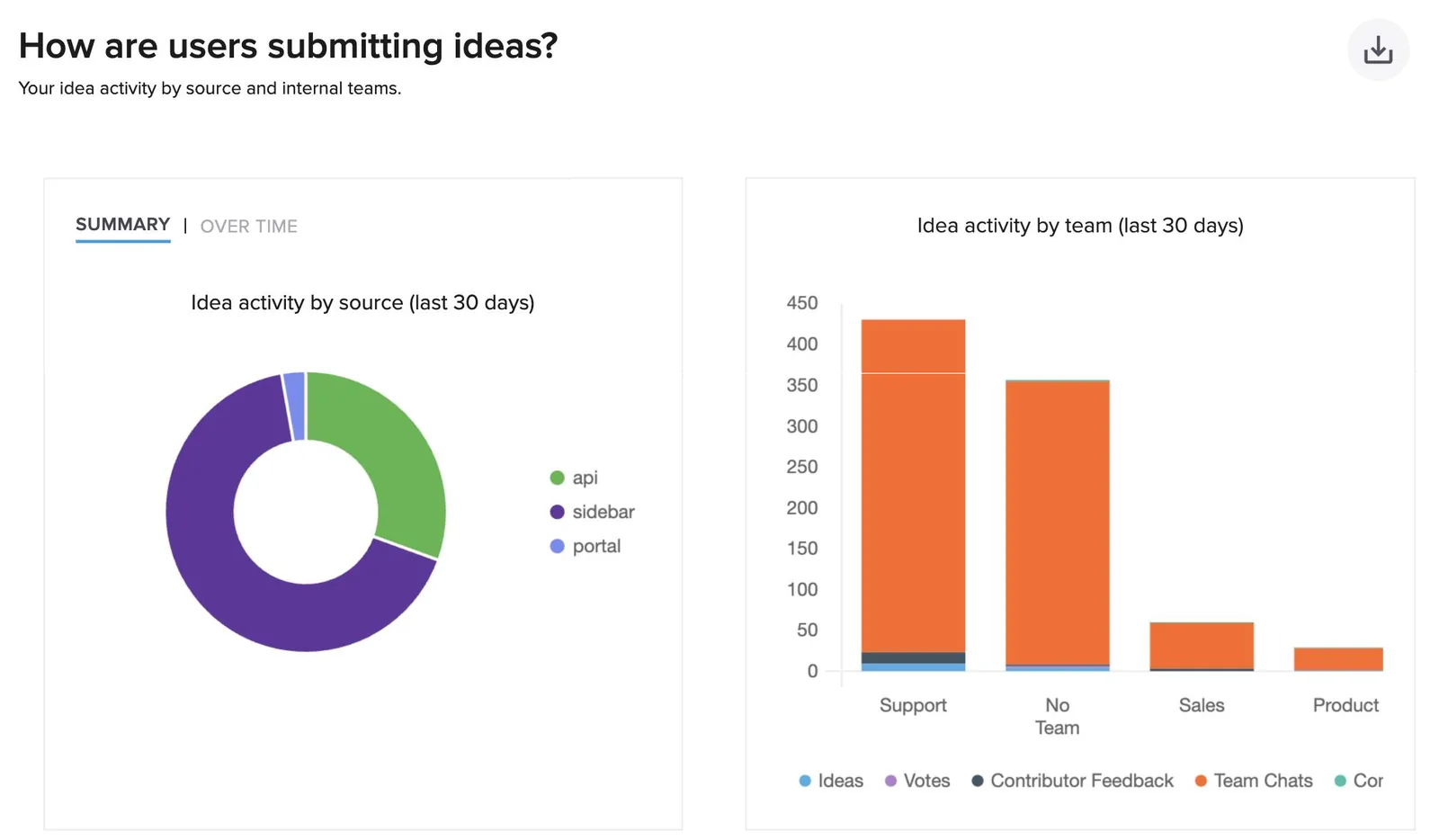
The Activity Report, under Insights in the admin console, shows who is capturing and from where. Check it every week in the first month.
| Where | What it shows |
|---|---|
| Your idea activity overview | Ideas, votes, contributor feedback, and team chats over the period you choose. |
| How are users submitting ideas? | Activity by source, such as the browser extension (shown as Sidebar), the portal, and the API, and activity by team. |
| Your status updates | Public and internal status updates over time, and the users and accounts they reached. |
| An idea's activity feed | Each Feedback captured entry, with who captured it, their team, and where it came from. |
Signals worth watching
- Every team captured feedback in the last week.
- Feedback captured outnumbers new ideas, so your teams search before they create.
- Ideas your teams captured on get status updates.
- Rollout questions shift from how to capture to what happened to a request.
The first 30 days
A schedule that works for many teams. Adjust the timing to your own launch.
| When | Focus | What to do |
|---|---|---|
| Before launch | Setup | Set up forums, statuses, Slack, and teams. Seed your most common requests as ideas. Name a triage owner for each forum or category. Invite your champions. |
| Week 1 | Launch | Invite everyone, post the announcement, run the demo, and answer questions in one channel. |
| Week 2 | Coach | Check the Activity Report by team. Merge duplicates, and show anyone who skipped the customer or the description how to add them. |
| Week 3 | Close the loop | Post status updates on the ideas your teams captured on, and share one example in each team channel. |
| Week 4 | Review | Review adoption with each team lead. Agree on how often the product team posts status updates from here on. |
After the first month
- Review the Activity Report with each team lead every month.
- Invite new hires as part of onboarding, with the four parts of a good capture.
- When an idea your teams captured on ships, say so in their channel and name the people who captured it.
Try it with your AI assistant
1 of 4 prompts in the PDFAttach the PDF to Claude, ChatGPT, or another assistant, then paste:
Using the UserVoice guide I attached, help me plan our rollout to [teams]. Ask me about team sizes, the tools they use, and who will champion it first, then draft a 30-day plan in the guide's format.
Three more prompts and the checklist are in the full guide. Get it by email →
Read next
Get the full guide
We'll email you the 15-page PDF. It adds two things that aren't on this page: