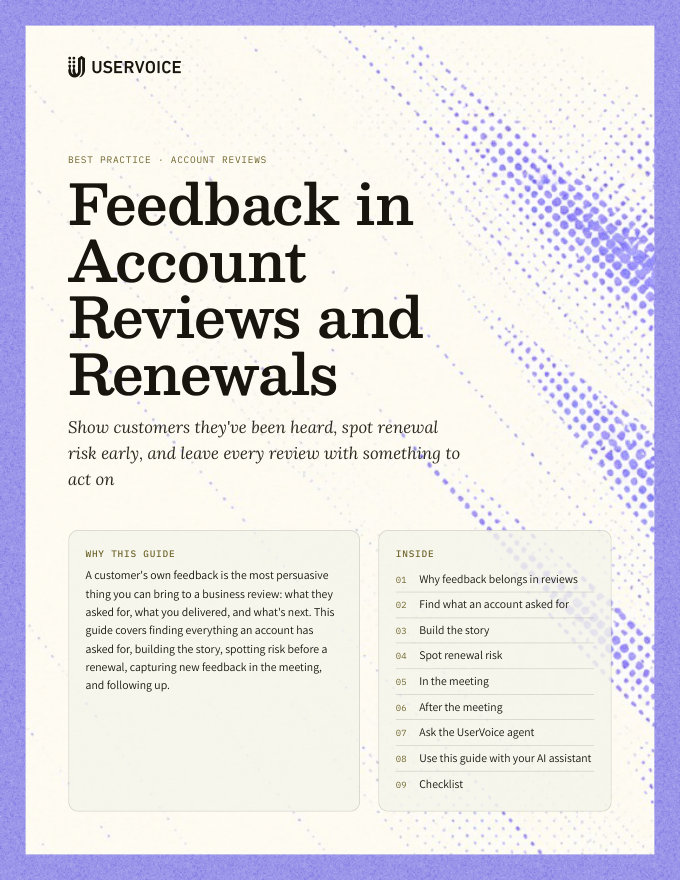
Feedback in Account Reviews and Renewals
Show customers they've been heard, spot renewal risk early, and leave every review with something to act on.
On this page
A customer's own feedback is the most persuasive thing you can bring to a business review: what they asked for, what you delivered, and what's next. This guide covers finding everything an account has asked for, building the story, spotting risk before a renewal, capturing new feedback in the meeting, and following up.
Why feedback belongs in reviews
Usage numbers show what a customer does. Their feedback shows what they need, and whether you've listened.
Showing an idea they asked for, now completed, does more than any adoption chart.
Important requests that have waited too long are often the real reason behind a hard renewal.
Large accounts' needs, captured with their revenue, carry weight with your product team.
Customers who see their feedback acted on share more of it.
Find what an account asked for
Start every review by pulling the account's ideas into one place.
| Where | What you see |
|---|---|
| The account's page | Users, ideas, revenue, and lifetime value, with tabs for the account's ideas, the features they're linked to, and its users |
| Account Insights, Account Explorer | Search for the account, then see its open ideas, closed ideas, and recent activity |
| The Idea Status Board | Filter by the account to see every idea it asked for or supports, in columns by status |
| An idea's Account Snapshot | For any idea, the account's status, revenue, interested users, and average importance |
| The UserVoice agent | Ask “Which ideas does [account] support?” and get every idea with its status |
Build the story
Sort the account's ideas into four groups. Together they tell the customer what happened to everything they asked for.
| Group | Statuses | What to say |
|---|---|---|
| Delivered | Completed | Lead with these. Name the idea, who asked, and what changed. |
| In progress | Planned, Started, In beta | Share what's coming, and when you can say. |
| Being considered | Under review, or no status yet | Explain how you decide, and what would help, such as more detail or more accounts. |
| Not planned | Declined, Not planned | Give the reason and any workaround. Saying it plainly builds trust. |
Start from the Idea Status Board. Set Supported by to the account, and its ideas are already laid out by status. Read across the columns to fill in the four groups. The Idea Status Board – Move Ideas, Tell Customers covers the board in full.
Lead with what you delivered. Opening with two or three completed ideas sets the tone for everything that follows.
Your status names may differ. Map your own public statuses to these four groups once, and use the same grouping for every account.
Spot renewal risk
The warning signs are usually in the feedback months before a renewal. Look for them a quarter ahead.
| Signal | Where to find it |
|---|---|
| Ideas they rated Critical that are still open | Importance ratings on the account's ideas |
| Popular ideas of theirs with no status update in months | Idea Insights, or the agent |
| Ideas you declined that they supported | The account's closed ideas |
| A drop in new feedback from their users | The account's activity |
| Renewing accounts waiting on open ideas | The agent, with a renewal date synced from your CRM |
Bring the risk to product before the review. Share the account's top open ideas, with their revenue, so the product team can say what's realistic before you're in the room.
In the meeting
Treat the review as a feedback session, not just a report.
- Walk through the four groups, starting with what you delivered. The Idea Status Board, filtered to their account, works well on screen.
- Ask which open ideas matter most now, and what's changed for them.
- Capture new requests as they come up, on the existing idea when there is one, using the browser extension during or right after the call.
- Subscribe the customer, so they hear when each idea moves.
- Agree on one or two ideas you'll follow up on with the product team.
Use the customer's words. Capture what they said, not your summary. Product teams trust direct quotes, and the customer recognizes them in follow-ups.
Flag what matters to your team. Flag an idea as important and add a reason. Only admins see it, and it travels with the idea.
After the meeting
Send a short follow-up the same day, and make sure what you heard reached UserVoice.
Follow-up email
Thanks for the time today. A quick recap of where your requests stand:
Delivered: [idea], [idea].
In progress: [idea], expected [timing if you can share it].
Being considered: [idea]. We've shared today's details with our product team.
You'll get an email from [portal name] when any of these changes. If anything else comes up, reply here or add it at [portal link].
[Your name]
- Check that every new request is captured, with the customer's words and the right account.
- Tell the product team which ideas came up, and link them, so the account's revenue shows next to each.
Ask the UserVoice agent
The UserVoice agent in the admin console does the prep in a few messages.
| Ask | You get |
|---|---|
| I have a call with [account] on Thursday. List their open ideas by importance, with the status of each. | A prep list for the meeting |
| Which ideas has [account] supported that we've completed in the last year? | Your “Delivered” group |
| Which accounts renewing in the next 90 days support ideas still under review? | Renewal risk across your book of business |
| Identify at-risk accounts that have repeatedly supported ideas we haven't addressed. | Accounts to check in with first |
Renewal dates come from your CRM. Sync your renewal date as an account field, and the agent can filter on it.
Try it with your AI assistant
1 of 4 prompts in the PDFAttach the PDF to Claude, ChatGPT, or another assistant, then paste:
Using the UserVoice MCP, pull the ideas [account] supports with their statuses and importance ratings (read only). Then, using the UserVoice guide I attached, turn them into a one-slide summary with the four groups.
Three more prompts and the checklist are in the full guide. Get it by email →
Read next
Get the full guide
We'll email you the 10-page PDF. It adds two things that aren't on this page:
- A six-step checklist to put the guide into practice
- Four AI prompts for Claude, ChatGPT, or your assistant of choice, including one that uses the UserVoice MCP to work with your own feedback data