CRM Sync – Revenue on Every Idea
Bring accounts, revenue, and custom fields from Salesforce or HubSpot into UserVoice, so every idea shows who's asking.
On this page
When UserVoice syncs with Salesforce or HubSpot, every idea shows the accounts behind it, their revenue, and the fields your teams already use, such as plan, segment, or renewal date. This guide covers what the sync does, what to decide before you connect, setting it up, how people are matched to accounts, where the data shows up, and how to fix common problems.
What the sync does
The sync copies accounts and contacts from your CRM into UserVoice every night, and keeps them current.
| From your CRM | Becomes in UserVoice |
|---|---|
| Salesforce Accounts or HubSpot Companies | Accounts, with name, website, status, revenue, plan, type, segment, and your custom fields |
| Salesforce Contacts or HubSpot Contacts | The people in UserVoice, linked to their account, with your custom user fields |
Sort and filter ideas by the revenue and number of accounts behind them.
Plan, segment, renewal date, health score: the fields your teams already use.
Changes in your CRM reach UserVoice with the next nightly sync.
UserVoice reads from your CRM. It never writes back to it.
One CRM at a time. Connect either Salesforce or HubSpot. To switch, disconnect the one you have first.
Before you connect
A few decisions up front make setup take minutes instead of days. Bring your CRM admin to the conversation.
| Decide | Why |
|---|---|
| Which field holds account status | UserVoice groups accounts as Active, Churned, Prospect, or Closed-Lost |
| Which field holds revenue | Pick one field, and know whether it's monthly or annual |
| Which fields describe plan, type, and segment | These become filters across UserVoice |
| Which custom fields matter | Up to 25 for accounts and 25 for people, such as renewal date or customer success manager |
| Who connects | A UserVoice admin who can change settings, signed in with a CRM user that has API access to accounts and contacts |
Connecting replaces account data you sent another way. If you've sent account or user details to UserVoice through the API, the widget, or an import, the CRM takes over as the source. Earlier fields, and segments built on them, are removed. Talk to your UserVoice rep before you connect.
The sync depends on your plan. Your UserVoice rep can confirm whether the Salesforce or HubSpot connector is included.
Connect and set up
Setup is a short wizard. It takes a few minutes once you've made the decisions in Before you connect.
- In Settings, open Integrations, and choose Salesforce Connector or HubSpot Connector.
- Select Connect to Salesforce or Connect to HubSpot, and sign in to your CRM in the window that opens.
- Select Set up Salesforce Sync or Set up HubSpot Sync.
- Work through the five steps below, then select Save & Start Sync.
| Step | What you choose |
|---|---|
| 1 · Account status | The status field, and which of its values mean Active, Churned, Prospect, and Closed-Lost |
| 2 · Segments | Optional fields for account type, market segment, and plan |
| 3 · Revenue | The revenue field |
| 4 · Custom fields | Extra account and user fields, each with a value type and a display name |
| 5 · Review | Check everything, then start the first sync |
Allow pop-ups for UserVoice. Sign-in opens in a pop-up window. If nothing appears, your browser blocked it.
Status, segments, and revenue
These fields power the filters and reports most teams use every day.
| Account status | Means |
|---|---|
| Active | Paying customers using your product |
| Churned | Former paying customers |
| Prospect | Still in your sales pipeline |
| Closed-Lost | Considered buying, but didn't |
Supported field types. Status can be a picklist, a boolean, or a text field in Salesforce, and an enumeration, boolean, or text property in HubSpot. Revenue must be a number or currency field.
Map your values
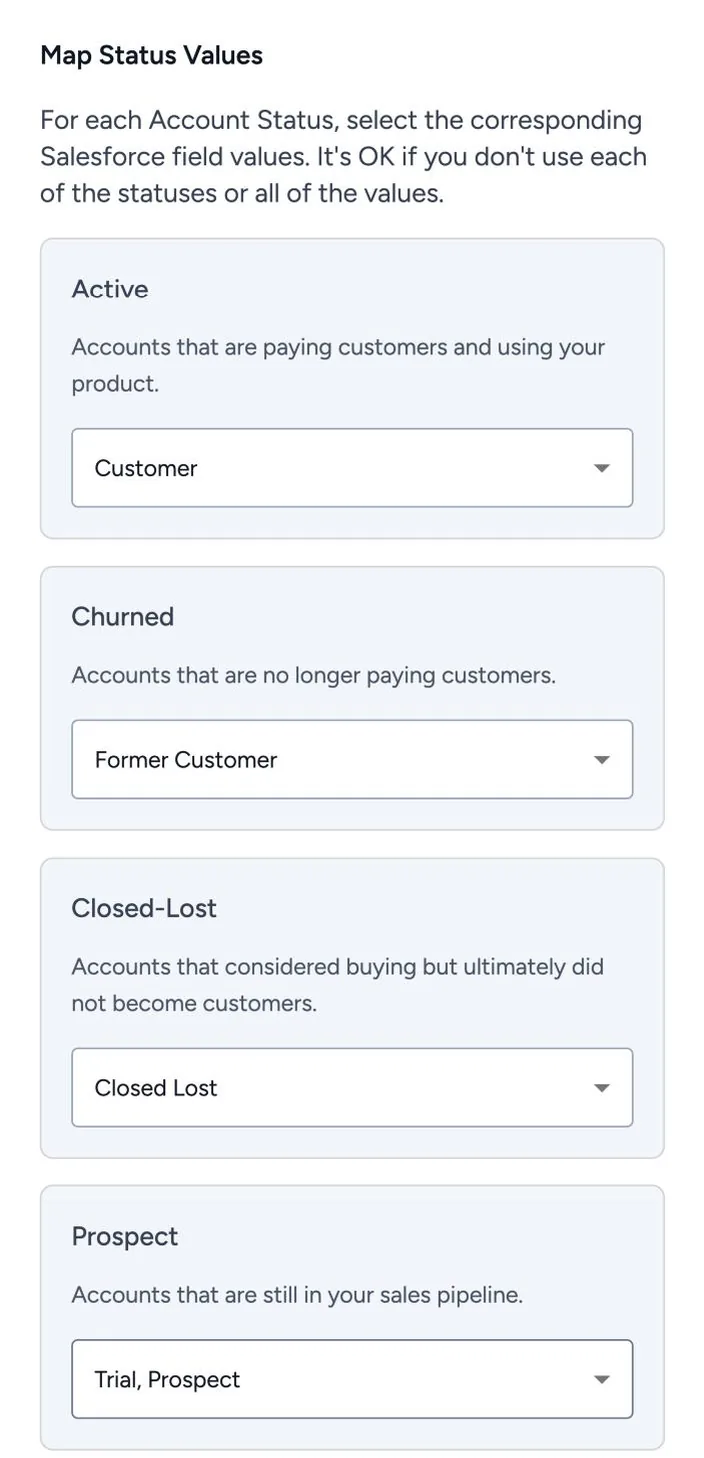
- Map every value you use. You don't need all four statuses, or every value in your field.
- One status can take several values, such as Trial and Prospect both counting as Prospect.
- Segments are optional. Account type, market segment, and plan become filters wherever accounts appear.
- Revenue comes over as stored. UserVoice doesn't convert currencies or periods, so choose one field that's consistent across accounts.
Custom fields
Bring over up to 25 account fields and 25 user fields. Each becomes a filter, a column, and something you can segment and ask the UserVoice agent about.
| Good candidates | Lets you |
|---|---|
| Renewal date | Find renewing accounts waiting on open ideas |
| Customer success manager or account owner | Give each manager a view of their accounts' requests |
| Health score or tier | Weigh requests from at-risk or strategic accounts |
| Industry or region | Compare what different markets ask for |
| Job title or role (user field) | See which roles need an idea most |
- Pick a value type for each field: text, number, currency, yes or no, date, or date and time.
- Name it for your team. The display name is what everyone sees in UserVoice.
- Add more later with Add field on the settings page.
Use a formula field for Salesforce lookups. A lookup field syncs as the related record's ID, not its name. A formula field that returns the name reads better in UserVoice.
How people are matched
UserVoice links each person to a CRM account automatically.
- By email first. A person whose email matches a CRM contact is linked to that contact's account.
- Then by email domain. Otherwise, a person whose email domain matches a domain used by one account's contacts is linked to that account.
- Personal email domains are ignored, such as gmail.com, so they're never matched to an account.
- Shared domains aren't guessed. A domain used by contacts at more than one account isn't matched by domain.
- Only people active in UserVoice are linked. Contacts who have never posted, voted, commented, or had feedback captured aren't added as users.
Capture with the customer's work email. When your teams capture feedback, the customer's work email is what links it to the right account and its revenue.
After the first sync
The first sync takes a few minutes. After that, the settings page shows when the last sync ran, and every field you've mapped.
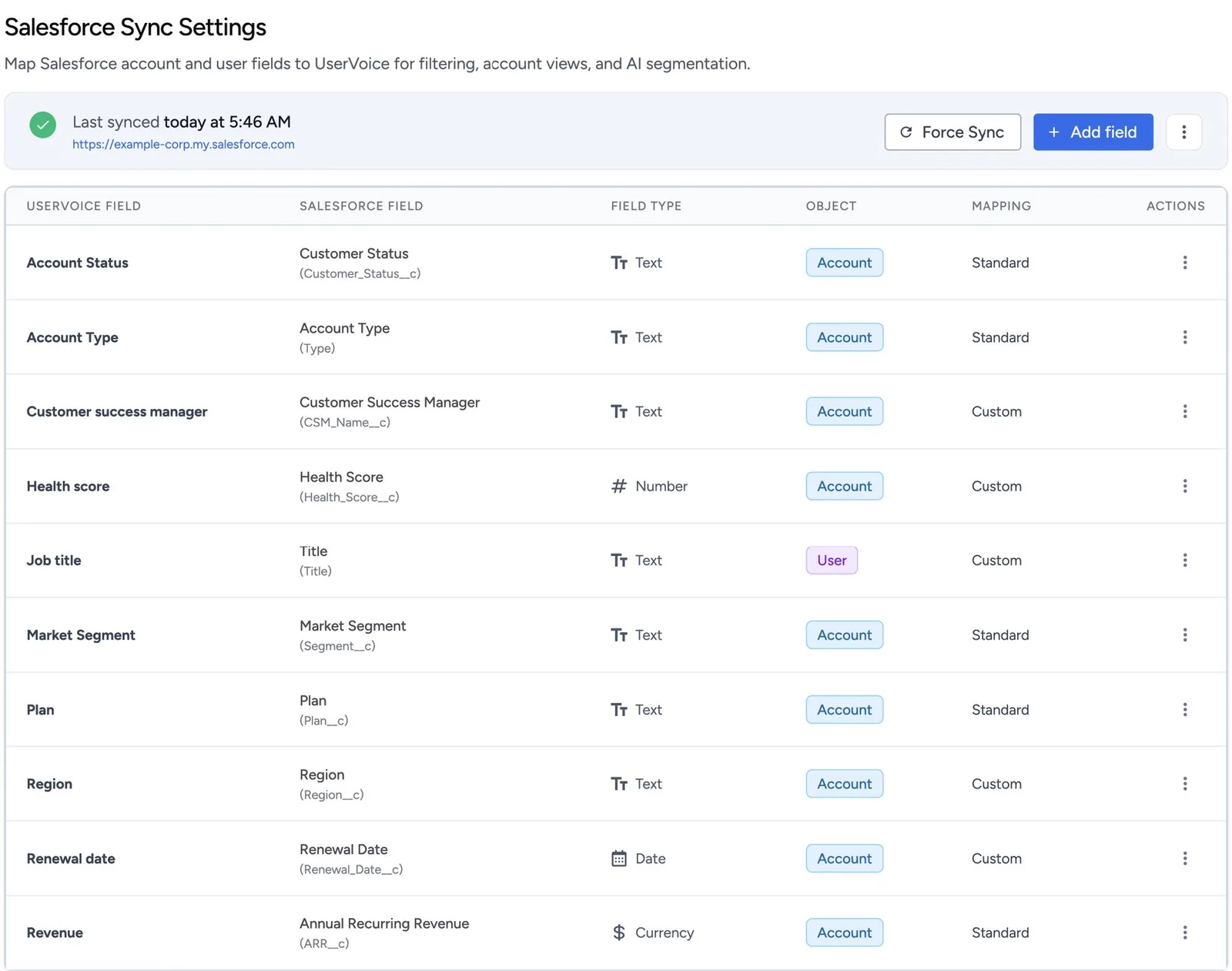
Disconnecting can't be undone. It deletes the synced account data, and any segments or scores built on synced custom fields.
| You see | It means |
|---|---|
| Sync in progress | A sync is running |
| Last synced | Everything is up to date as of that time |
| Sync failed | The last sync didn't finish. See logs shows why. |
| Sandbox | You're connected to a Salesforce sandbox, not production |
| Action | Use it to |
|---|---|
| Force Sync | Run a full sync now, for example after changing fields in your CRM |
| Add field | Map another custom field |
| Reconfigure | Change status, segment, or revenue mappings |
| Reconnect | Sign in again, for example after a password or permission change |
| Disconnect | Remove the connector and all synced account data |
Where the data shows up
Once synced, account data appears wherever you work with ideas.
| Where | What you see |
|---|---|
| The idea grid | Revenue and accounts columns, plus your custom fields, to sort and filter by |
| An idea's Account Snapshot | Each account's status, revenue, and interested users |
| Account Insights | Ideas plotted by revenue and accounts, filtered by status and segment |
| Account and user pages | Each account's ideas, users, and fields |
| Segments | Votes, accounts, and revenue for groups you define |
| The UserVoice agent | Answers to questions like “Which renewing accounts support ideas under review?” |
You decide who sees revenue. Read-Only Revenue Access shows or hides revenue for view-only admins and contributors.
Troubleshooting
Most problems come from sign-in, permissions, or field choices.
| If | Try this |
|---|---|
| Nothing happens when you connect | Allow pop-ups for UserVoice, then try again. |
| “Please disconnect HubSpot before connecting Salesforce” | Only one CRM can be connected. Disconnect the other first. |
| Salesforce says the UserVoice app is blocked | Ask your Salesforce admin to allow the UserVoice connected app. |
| You get a sync failure email | Open the settings page and select See logs. Often the CRM user lost access; select Reconnect. |
| The connector was turned off | Syncing failed for seven days. Reconnect with a CRM user that has API access. |
| A person isn't linked to an account | Check their email matches a CRM contact, or that their domain belongs to only one account. |
| A field shows an ID instead of a name | It's a Salesforce lookup. Map a formula field that returns the name. |
| Revenue looks off | Check the revenue field uses one currency and period across accounts. |
Try it with your AI assistant
1 of 4 prompts in the PDFAttach the PDF to Claude, ChatGPT, or another assistant, then paste:
Using the UserVoice MCP, list the account custom fields and account statuses we have in UserVoice today (read only). Then, using the UserVoice guide I attached, help me plan our [Salesforce or HubSpot] sync. Ask me how our teams prioritize first.
Three more prompts and the checklist are in the full guide. Get it by email →
Read next
Get the full guide
We'll email you the 14-page PDF. It adds two things that aren't on this page: