Switch to UserVoice Without Losing a Single Vote
Bring over your ideas, supporters, and feedback from Canny, Aha! Ideas, Productboard, Pendo Listen, or a spreadsheet, and keep new feedback coming in.
On this page
Whether you're coming from Productboard, Canny, Aha! Ideas, Pendo Listen, or a spreadsheet, the move follows the same path: set up your structure, bring in your accounts, import your ideas and the people behind them, clean up, and switch over. This guide covers each step, what carries over, the ways feedback can come into UserVoice afterward, and a sample timeline.
Plan the move
A migration is a chance to start clean. Decide what's worth bringing before you export anything.
| Bring over | Consider leaving behind |
|---|---|
| Open ideas, with their supporters and what customers said | Ideas with no activity in a year or more |
| Ideas you've shipped or declined that customers still ask about | Closed ideas nobody has looked at since |
| Statuses and the last update customers saw | Test posts, spam, and duplicates you already know about |
| Accounts and users, so revenue shows up from day one | Workflow tags that only made sense in your old tool |
One person owns the file, the mapping, and the go-live date.
Choose a date after which new feedback goes to UserVoice only.
Import a few dozen ideas, check them, then import the rest.
You don't have to do it alone. UserVoice can help you plan the move and run the import. Ask your UserVoice rep.
Get your data out
Every tool exports differently. Here is where each one keeps the ideas, votes, and feedback you'll bring over.
| Coming from | How to export | Good to know |
|---|---|---|
| Canny | Export each board from Settings, Boards, Export Data. For every voter's email and for comments, use Canny's API; your Canny account owner has the API key. | The board export has vote totals but not who voted. |
| Aha! Ideas | Build a list report of ideas and a second one of idea votes, then export each from Share, Export. Comments come from the Aha! API. | Merged ideas add their votes to the main idea, so bring over the main ideas only. |
| Productboard | Export notes with their linked features, and export features. Both arrive as files by email. | Portal votes come out as notes. Bring over the features that have portal cards or customer notes, not your whole backlog. |
| Pendo Listen | There's no bulk export in the app. Ideas, votes, and feedback items come out through Pendo's API, which depends on your Pendo plan. | Comments can't be exported. UserVoice can help with the move. |
| A spreadsheet | Use it as it is. Add a sheet with one row per supporter if you know who voted. | A votes column on its own can't become supporters. |
Vote totals may not match exactly. Some tools count votes with no person attached, or from people who've since been deleted. UserVoice brings over people, so totals can come out a little lower.
Build your structure first
The import matches forums, categories, and statuses by name, and won't create them. Set them up in UserVoice before you import.
Map your old tool's terms
| You're coming from | Their term | In UserVoice |
|---|---|---|
| Canny | Boards, posts, votes, categories, tags | Forums, ideas, supporters, categories, labels |
| Aha! Ideas | Ideas portal, ideas, votes and proxy votes, categories | Portal, ideas, supporters, categories |
| Productboard | Features with portal cards, notes, portal votes | Ideas, feedback, supporters |
| Pendo Listen | Ideas, votes, feedback items, product areas | Ideas, supporters, feedback, categories |
| A spreadsheet | Rows, a votes column, a notes column | Ideas, supporters, feedback |
- Forums, categories, and statuses must exist first. Names must match your file, though capitalization doesn't matter.
- Labels are created for you. Any label in your file that doesn't exist yet is added, nested up to three levels.
- Custom idea fields import too. Create the fields first, and each gets its own column in the template.
Bring in accounts and users
Bring in your accounts before your ideas. Then every supporter lands on the right account, and revenue appears next to each idea from the first day.
| Option | What it brings in |
|---|---|
| Salesforce or HubSpot | Accounts and contacts kept in sync, with revenue, plan, segment, and up to 25 custom account fields and 25 contact fields |
| Account import | Accounts from a file, with revenue, plan, lifetime value, and your custom account fields |
| User import | Users from a file, with their account and your custom user fields |
Each import takes up to 100,000 rows per file. Once you sync accounts from your CRM, the CRM becomes the source and the account and user imports turn off.
Single sign-on keeps people matched. If customers sign in to your portal with SSO, they arrive as the same users you imported, with their votes and account already in place.
Import your ideas
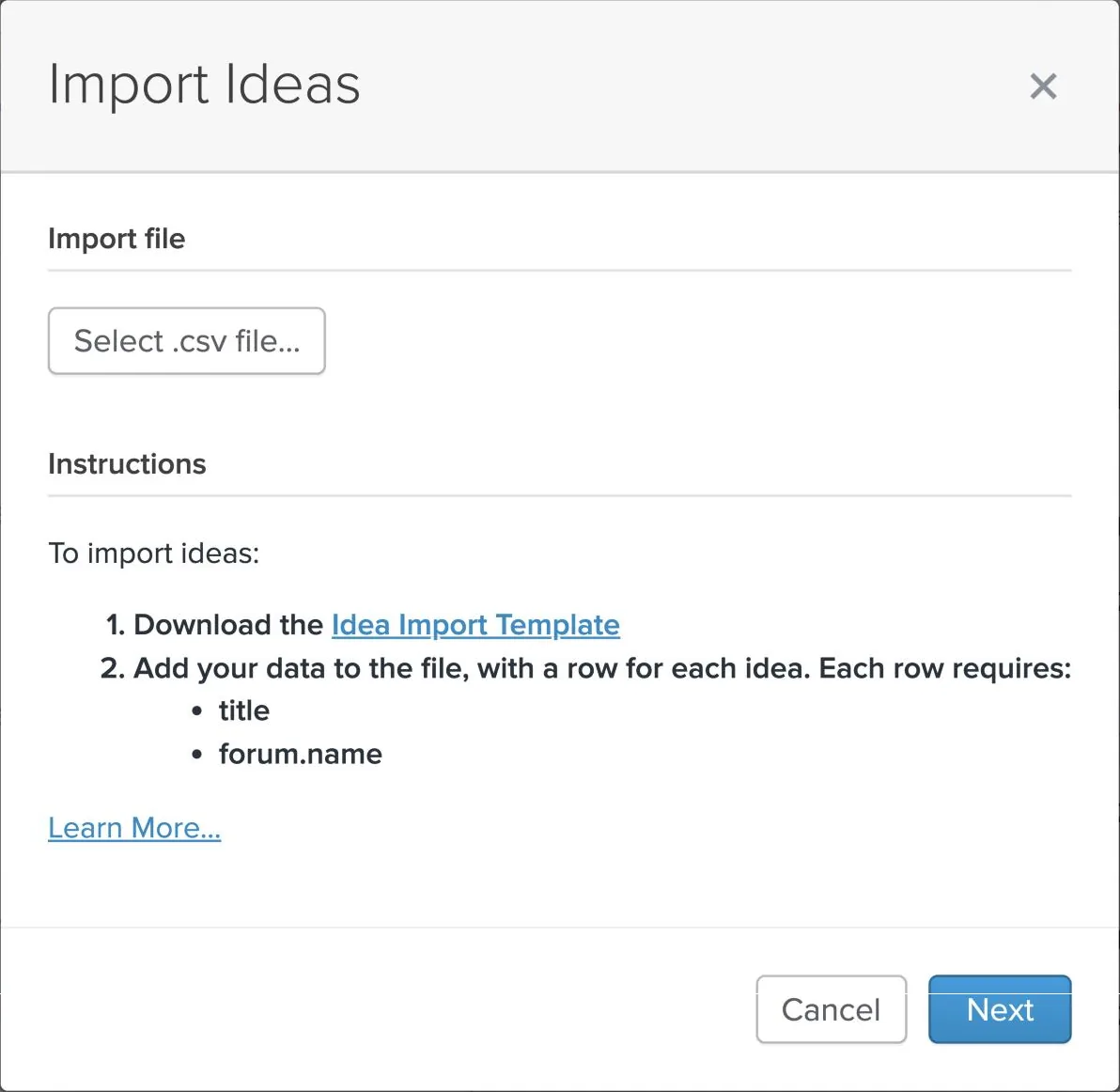
Export ideas from your old tool, put them in the UserVoice template, and import them from the idea grid.
- On the idea grid, open the Data menu and choose Import ideas.
- Download the Idea Import Template.
- Copy your export into it. Each row needs a title and a forum.
- Upload the file. UserVoice checks every row first and lists any problems.
- Fix any problems, then confirm. You'll get an email when the import finishes.
What carries over
| From your old tool | In UserVoice |
|---|---|
| Title and description | Yes |
| Forum and category | Yes, matched by name |
| Original date posted | Yes, so ideas keep their age |
| Who posted it | Yes, by email. Without one, the idea is credited to you. |
| Public status, internal status, and the latest status update | Yes, with the update's date and author |
| Labels and custom fields | Yes |
| Votes | As supporters, in a second import (next section) |
| Comments | Through the UserVoice API (Bring over history from other tools) |
A title that matches an open idea is skipped. This keeps a second run from making duplicates. To re-import a corrected idea, fix it in UserVoice instead.
Up to 50,000 ideas per file. Dates can't be in the future. The template has a column that decides whether posters get an acknowledgment email, so customers don't hear about old ideas unless you want them to.
Bring over supporters and feedback
UserVoice counts people, not votes. Bring over who supported each idea, and what they said, so each idea shows the accounts and revenue behind it.
- On the idea grid, open the Data menu and choose Import voters/feedback.
- Add one row per person per idea: the idea's title or ID, the person's email, and whether they get status updates.
- Add the original vote date, so supporters keep their place in your trends.
- Add the person's own words, who captured them, and a link to the source. They come in as feedback on the idea.
A vote count can't tell you who's asking. An idea with 40 supporters from your largest accounts outweighs one with 200 from free trials. Importing people keeps that difference.
Supporters added by import can't be removed. Check the file on a small test idea before you import everything.
Bring over history from other tools
Some feedback lives outside your old feedback tool, in support tickets, sales calls, and comment threads. There are two ways to bring it in.
Feedback connectors COMING SOON
Connect Zendesk, Gong, Fathom, or HubSpot, and UserVoice uses AI to find feedback in tickets, calls, and records, then attaches it to the right ideas. Choose a start date, and it works back through your history, so months of past conversations arrive alongside your imported ideas.
The UserVoice API
Your developers can use the API for anything the spreadsheet doesn't cover, keeping the original dates:
- Comments on ideas, with who wrote them and when.
- Feedback on ideas, with its source and date.
- Ideas and users, for an ongoing sync from another system.
The API has a per-minute limit. Large backfills should pace their requests. Your UserVoice rep can help plan one.
Clean up after the import
Imports bring over old duplicates and inconsistent labels. A first pass of cleanup makes the data trustworthy before your team starts using it.
Review Merge Matches on the idea grid. Merging moves every supporter, comment, and piece of feedback to the idea you keep, and can be undone.
With the AI Label Recommendations add-on, UserVoice suggests labels based on ideas you've already labeled. Accept them in bulk.
Give each category an owner, so imported ideas reach the right product manager.
Ask the UserVoice agent in the admin console which imported ideas have no category, no owner, or no supporters.
Clean up in the idea grid, not your spreadsheet. Once the ideas are in UserVoice, merging there keeps every supporter and their feedback together.
Keep feedback coming in
After the move, feedback should reach UserVoice from wherever it starts, with as little copying as possible.
| Channel | Who uses it | Best for |
|---|---|---|
| Portal and widgets | Customers | Posting and voting on ideas, on your site or inside your product |
| Browser extension | Anyone on your team | Capturing feedback from email, your CRM, or your support tool |
| Slack | Anyone in Slack | Sending a customer's message to an idea, with a link back |
| Contributor Console | Contributors | Adding feedback and finding the right idea |
| Admin console | Product and admin teams | Creating ideas and adding feedback during triage |
| The UserVoice agent and MCP | Product and admin teams | Creating ideas and adding feedback by asking, with a confirmation first |
| The UserVoice API | Your developers | Syncing from your own systems |
Feedback connectors. Zendesk, Gong, Fathom, and HubSpot connectors will find feedback in tickets and calls on their own.
Switch over
Go live on a set date, and make it easy for customers and your team to find the new home.
- Use your own address. If your plan includes a custom domain, point an address such as feedback.yourcompany.com at your portal.
- Turn on single sign-on, so customers sign in once and land as themselves.
- Update your links. Links to ideas in your old tool, in help articles, support macros, emails, and Slack, still point there. Point them at your UserVoice portal.
- Close posting in the old tool, and add a note pointing to UserVoice.
- Tell customers. Let them know their ideas, votes, and statuses came with them.
Announce it with something new. Post a status update on a few popular imported ideas on launch day, so customers see the portal is active.
A sample timeline
A typical move takes about four weeks. Larger accounts or CRM work can stretch the first week.
| When | What happens |
|---|---|
| Week 1 | Decide what to bring. Set up forums, categories, statuses, and custom fields. Connect your CRM or import accounts and users. |
| Week 2 | Export from your old tool and map it to the templates. Import a small test batch of ideas and supporters, and check it. |
| Week 3 | Import everything. Merge duplicates, fill in labels, and assign owners. Set up the browser extension and Slack for your team. |
| Week 4 | Turn on your custom domain and single sign-on, update your links, close posting in the old tool, and announce the move. |
Keep your old tool's export. Save the original file until you've checked the import, so you can compare if a number looks off.
Try it with your AI assistant
1 of 4 prompts in the PDFAttach the PDF to Claude, ChatGPT, or another assistant, then paste:
Using the UserVoice MCP, read our forums, categories, and statuses (read only). Using the UserVoice guide I attached, map the columns in this export from [old tool] to the UserVoice idea import and voters/feedback import, flag any forum, category, or status values that don't match what we have, and list anything that won't carry over. Here are the column headers and a few sample rows: [paste].
Three more prompts and the checklist are in the full guide. Get it by email →
Read next
Get the full guide
We'll email you the 15-page PDF. It adds two things that aren't on this page: