Teaching Customers to Use Your Portal
Ready-to-use help articles that teach your customers to search, vote, post, and follow ideas.
On this page
Customers share better feedback when they know how the portal works and what happens next. This guide gives you help content to publish under your own name: where to share ideas, searching first, voting, writing a good idea, following updates, and common questions. Copy each section into your help center, replace the parts in [brackets], and send customers the one-page summary.
How to use this guide
Each section from Where to share ideas through Common questions is a short help article, written to your customers. Copy it into your help center or onboarding emails, and make it yours.
- Replace [Company], [product], and [portal link] with your own names and address.
- Match the statuses in Follow what happens to the ones you use.
- Remove anything you haven't turned on, such as importance ratings or the in-product widget.
- Publish the articles, and link them from your portal's welcome message.
- Send the one-page summary from the full guide with your launch announcement.
Written to be copied. The articles use plain language and short steps, so customers can follow them without screenshots. Add your own if you like.
Search before you post
Help article: Finding an existing idea
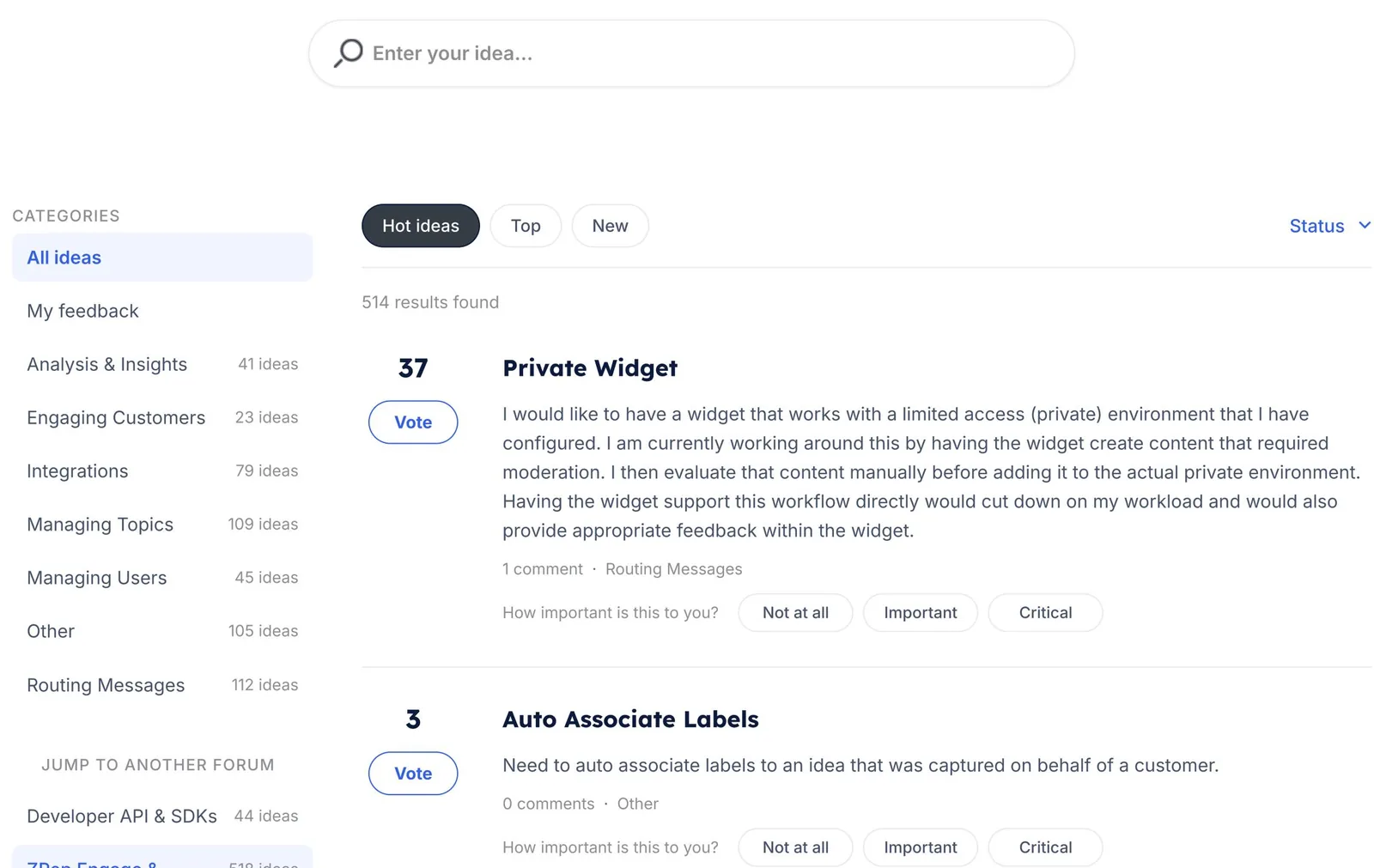
1. Type your idea into the box at the top of the forum.
2. As you type, similar ideas appear. If one matches, open it and vote.
3. If none match, keep going and post your idea.
Tip: try a couple of different words. Someone may have described the same need another way.
Vote and say how important it is
Help article: Voting on ideas
• Select Vote on any idea you'd use.
• Choose how important it is to you: Not at all, Important, or Critical. Be honest. It helps us tell a must-have from a nice-to-have.
• Add a comment to say how you'd use it. Details help more than votes alone.
When you vote, we'll email you when the idea's status changes.
Only if importance is on. Remove the importance line if you haven't turned on importance ratings. Your UserVoice admin turns them on in your forum settings.
Write a great idea
Help article: Writing an idea we can act on
• What are you trying to do? Describe the task or goal.
• What gets in the way today? Say what's slow, missing, or confusing.
• How do you work around it? Workarounds tell us how much it costs you.
• Who else is affected? Your team, your customers, or both.
Keep it to one idea per post, so others can vote on exactly what they need.
An example
- “Our managers spend an hour every Monday exporting last week's activity into a spreadsheet to share with leadership. A weekly summary email would save that time.”
- “Add reports.”
Follow what happens
Help article: Following your ideas
What our statuses mean:
• [Under review]: we're considering it.
• [Planned]: we plan to build it.
• [Started]: we're working on it.
• [Completed]: it's available now.
• [Not planned]: we don't plan to build it, and we'll say why.
Choosing your emails: in your portal settings, under email notifications for ideas you support, turn status updates and new comments on or off.
Use your own statuses. List the public statuses your customers see, with one line each. Closing the Loop with Statuses covers designing them.
Common questions
Help article: Questions about [portal name]
Who can see my idea? [Everyone who visits the portal / Only signed-in customers]. Your email address is never shown.
Can I add to an idea after posting? Yes. Add a comment with more detail at any time.
I shared feedback with my account manager. Do I need to post it too? No. Our team adds it to the right idea for you, and you'll still get updates.
Who do I contact with a problem? For help with [product], contact [support channel]. The portal is for ideas and feedback.
Try it with your AI assistant
1 of 4 prompts in the PDFAttach the PDF to Claude, ChatGPT, or another assistant, then paste:
Using the UserVoice MCP, list our forums and public statuses (read only). Then, using the UserVoice guide I attached, rewrite the help articles in sections 02 to 07 for [Company] with those exact names, in our brand voice: [describe voice]. Our portal is [portal link].
Three more prompts and the checklist are in the full guide. Get it by email →
Read next
Get the full guide
We'll email you the 11-page PDF. It adds three things that aren't on this page: