Planning Your Slack Channels and Notifications
Route new demand and product updates to the right Slack channels, with the right filters, and keep private feedback private.
On this page
Slack notifications put new demand and product progress where your teams already work. Sent everywhere, they become noise. This guide covers setup, every notification type and filter, splitting channels by audience and signal, a starter layout, and keeping feedback private.
Connect Slack and add a channel
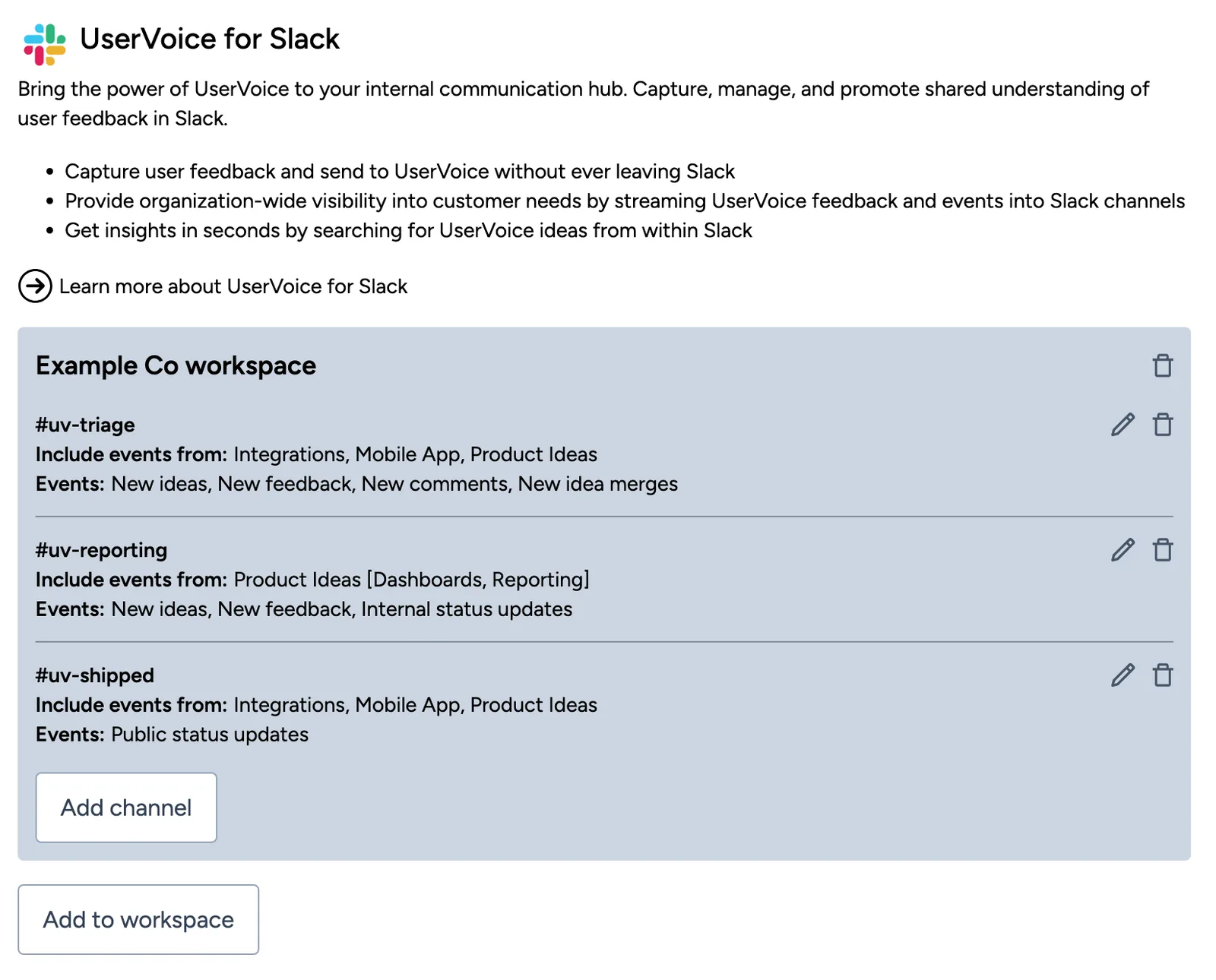
The UserVoice app connects your Slack workspace once. After that, each channel gets its own configuration: which forums and categories it hears about, and which events it posts.
- In Settings, open Integrations and choose Slack.
- Select Add to workspace and approve the UserVoice app in Slack. If your workspace requires approval for new apps, a Slack admin approves it.
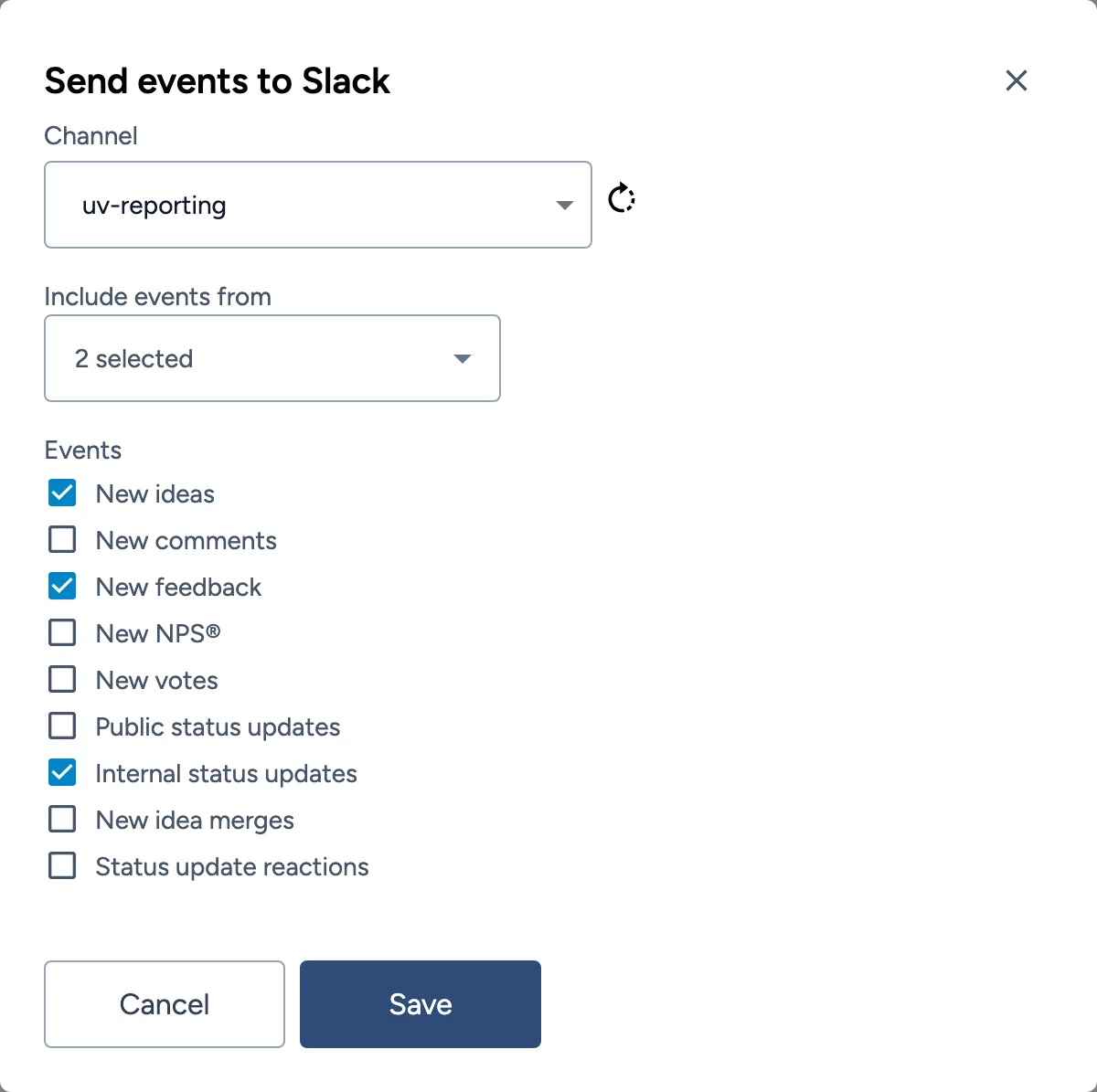
- Under your workspace, select Add channel. The Send events to Slack form opens.
- Under Channel, search for the channel. Use the refresh button if a new channel is missing.
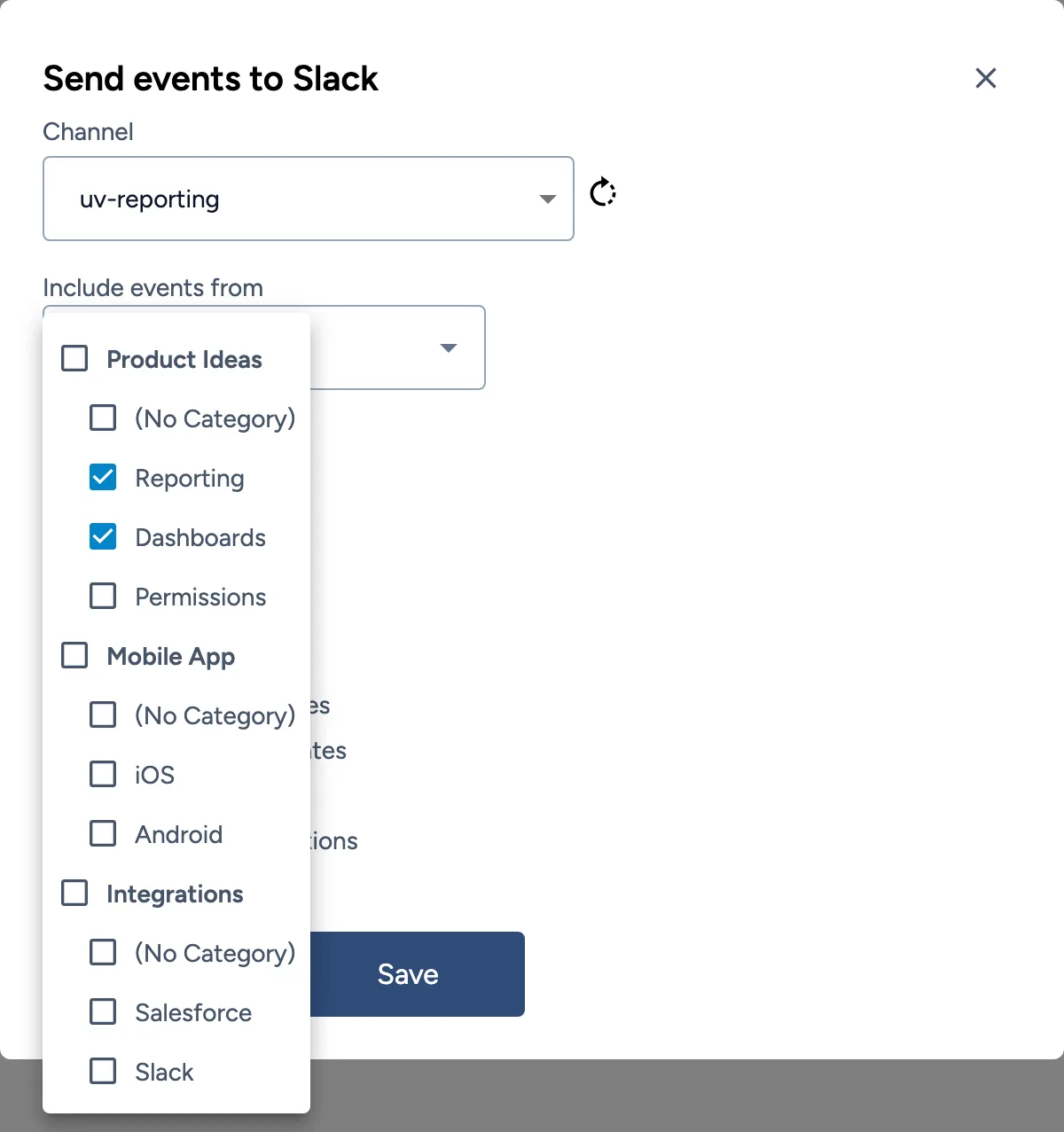
- Under Include events from, choose the forums and categories this channel covers.
- Under Events, check the notification types this channel posts, then select Save.
A new channel starts with every event checked. Uncheck what this channel's audience doesn't need before you select Save. New votes and new comments are the usual sources of noise.
- Who sets it up: admins with access to Settings, not view-only admins or contributors.
- Private channels: invite the UserVoice app to the channel in Slack first, and be a member yourself to choose it. Public channels need no invite.
- One configuration per channel. A channel that's already set up doesn't appear in the list again. Edit its configuration instead.
Microsoft Teams works the same way. Under Integrations, choose Microsoft Teams, paste a Teams workflow webhook URL, and choose forums and events. Every event except status update reactions is available. Teams messages have no actions.
What it looks like
The notification types
Nine events can post to a channel. Check only what the channel's audience acts on. Volume is our estimate.
| Event | Posts when | Volume |
|---|---|---|
| New ideas | Someone posts an idea in your portal, widget, or Slack, or an admin creates one | Medium |
| New feedback | A teammate captures feedback for a customer, from any capture tool | Medium to high |
| New comments | Someone comments on an idea | Medium to high |
| New votes | Someone votes for an idea | High |
| Public status updates | An idea's public status changes, with the update customers see | Low |
| Internal status updates | An idea's internal status changes, with the team's note | Low to medium |
| New idea merges | An idea is merged into another | Low |
| Status update reactions | A customer reacts to a status update and writes a comment | Low |
| New NPS® | A user answers an NPS survey, if you collect NPS in UserVoice | Varies |
- No double posts. An idea created from the browser extension or Zendesk posts once, as New feedback.
- Bulk changes post one summary. Updating or merging many ideas at once posts a single message with the count.
- Reactions need words. A thumbs up or down with no comment doesn't post.
What a message shows
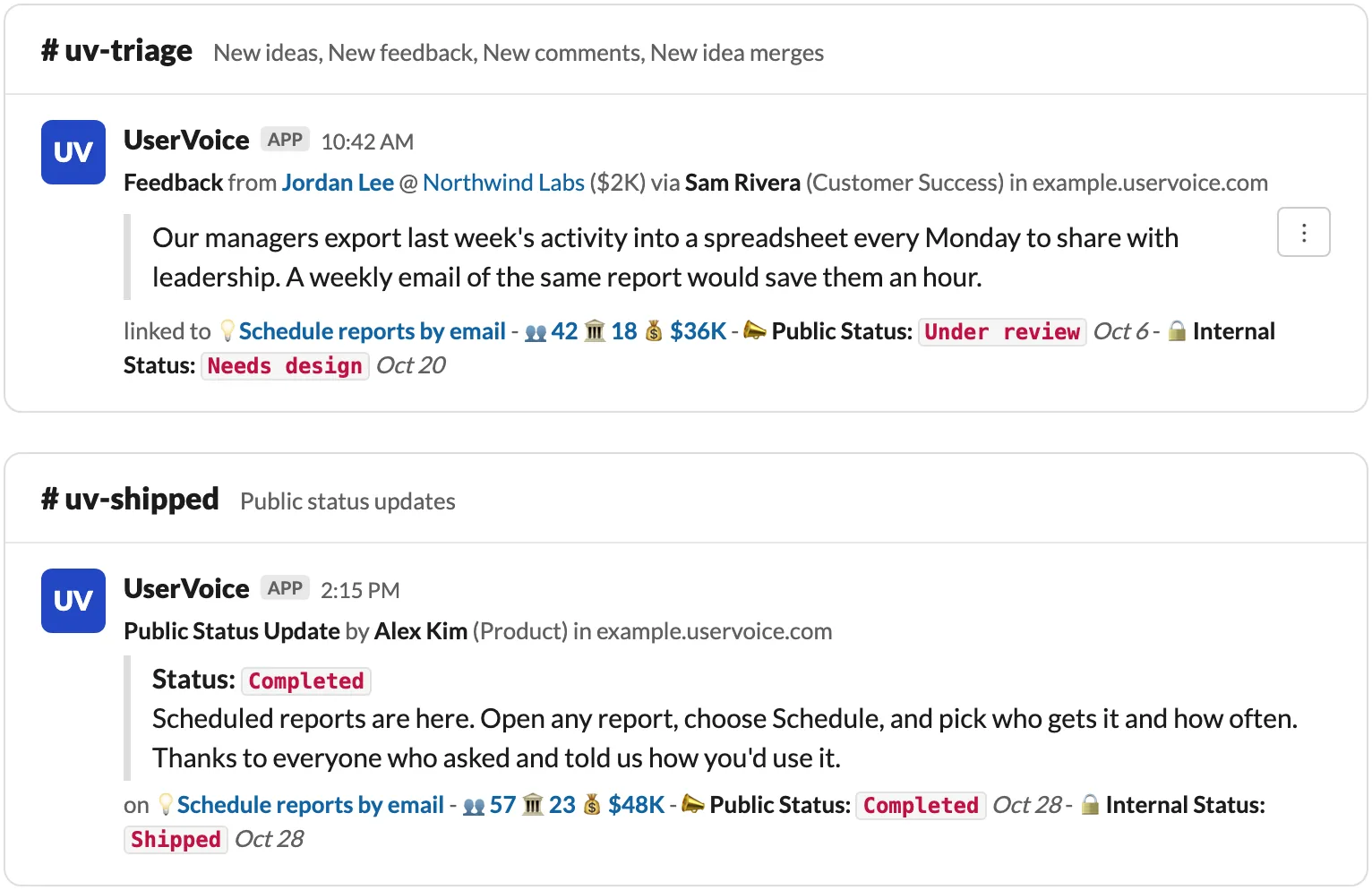
Each message has a first line with the event and who it's from, a quote, and an idea line with voters, accounts, revenue, and both statuses. Feedback adds the customer's account and the teammate who captured it.
| On | Actions in the message menu |
|---|---|
| New ideas | Add Voter, for contributors and admins. Edit Idea, Merge Idea, Delete Idea, and Assign Owner, for admins. |
| New feedback | Change Linked Idea, or Link to Existing Idea and Link to New Idea when it has no idea, for contributors and admins. Edit Feedback and Delete Feedback, for admins. |
| New comments | Edit Comment and Delete Comment, for admins. |
UserVoice matches the person acting by their Slack email. If it doesn't match a UserVoice user, they see a permission message.
Every message carries accounts, revenue, and the internal status. That includes public status updates, so a channel like #uv-shipped stays internal too.
Filter by forum and category
Each channel listens to the forums and categories you choose under Include events from, and to the events you check. Those are the only two filters.
| Choose | The channel gets |
|---|---|
| A whole forum | Everything in that forum, including categories you add to it later |
| Single categories | Only ideas in those categories. Categories you add later aren't included. |
| (No Category) | Ideas in that forum with no category yet. Useful for a triage channel. |
| Several forums | Everything in each one, in a single channel |
- Filter by product area with categories. If each product area is a category, each area's channel can follow just its categories.
- There's no filter for labels, statuses, accounts, or segments. To follow a set of ideas across areas, use a grid view or an idea list in the admin console instead.
- New forums aren't added automatically. When you create a forum, add it to the channels that should hear about it.
- NPS ignores the forum filter. A channel with New NPS® checked gets every response.
Select whole forums unless the channel serves one area. A whole forum keeps new categories covered. Choose single categories only for an area's own channel, and check it when your categories change.
Split channels by audience and signal
Start from who reads the channel and what they do with it. Then pick the forums and events that serve that job.
- By audience. Each team acts on different events, as the table shows.
- By product area. One channel per area, so each product manager sees only their own demand.
- By signal type. New ideas, feedback, and comments need action. Status changes need awareness. Keep them apart.
| Who | Belongs in | Events | Why |
|---|---|---|---|
| Product managers and the UserVoice admin | Triage | New ideas, New feedback, New comments, and New idea merges | They review, merge, and route new demand |
| Product area owners and designers | Their area's channel | New ideas, New feedback, and Internal status updates, for their area | They own demand and progress in one area |
| Engineering leads | Their area's channel or #uv-eng-[area] | Internal status updates, for the areas they build | They see what's been planned and committed |
| Sales, Success, and Support | #uv-shipped | Public status updates | They tell customers what changed |
| Leaders | #uv-shipped, if they want it | Public status updates, or none: a monthly report serves them better | They want outcomes, not activity |
A starter layout
Three kinds of channel cover most companies. Add more only when a team asks for its own.
| Channel | Events from | Events | Members |
|---|---|---|---|
| #uv-triage | All forums | New ideas, New feedback, New comments, and New idea merges | Product managers and the UserVoice admin |
| #uv-[area] | That area's forum or categories | New ideas, New feedback, and Internal status updates | The area's product manager, designer, and engineering lead |
| #uv-shipped | All forums | Public status updates | Sales, Success, Support, and anyone who talks to customers |
- A small company can start with #uv-feedback (New ideas, New feedback, New comments, and Internal status updates) and #uv-shipped. Add an area channel when one product manager can't keep up.
- A large company can point triage at (No Category) in each forum, and add #uv-eng-[area] and #uv-shipped-[product] channels. Launch with a few channels and add more as teams ask.
- Keep public status updates out of triage. A status change is news, not work.
Leave New votes off at first. Votes are the highest-volume event and rarely need action one at a time. Watch vote counts in the idea line of other messages, or in a grid view sorted by voters.
Keep channels useful
A channel works when the people in it act on what it posts, and everyone else stays out. Channels drift as teams, forums, and people change, so review them.
- Discuss in a thread, so the conversation stays with the idea and the channel stays scannable.
- Name channels the same way: one prefix, such as uv-, then the audience or area. Put the events and areas in the channel description.
- Use a channel for a team and personal alerts for yourself. Email notifications and Slack direct messages for mentions and assignments are set in My Notifications.
| When | Check |
|---|---|
| Every quarter | Each channel has an owner who reads it, its events and areas match its job, and nobody outside your company has joined |
| You add a forum or category | Add it to the channels that should hear about it. Channels following single categories don't pick up new ones. |
| Someone changes teams or leaves | Move them between channels, or remove them from private channels and from UserVoice |
| A channel is shared, renamed, or archived | Remove its configuration if it now includes guests or is no longer used |
| A channel's owner mutes it | It's too noisy. Uncheck an event, narrow its areas, or split it in two. |
Unlinking a workspace deletes every channel configuration. Removing the Slack workspace under Integrations also stops admins signing in with Slack from that workspace. Edit or delete single channels instead.
Keep feedback private
Channel notifications are written for your team. Treat every channel that gets them as internal.
| In the message | Why it's private |
|---|---|
| Feedback text | What a customer told your team, with their name. It's private to your team in UserVoice. |
| Internal status updates | Your team's workflow and notes, which customers never see |
| The idea line | On every event, including public status updates: supporting accounts, revenue, and the internal status |
| Comment and NPS authors | Customer names next to what they wrote |
Never send notifications to a channel with customers or guests. That includes Slack Connect channels, channels shared with another company, and channels with guest accounts. UserVoice posts to any channel you choose, so check who's in it before you add it, and again when the channel is shared later.
- Share idea links with care. When someone pastes an admin console idea link in Slack, the preview shows the idea's accounts, revenue, and internal status. A portal link shows only what customers see. Paste portal links in shared channels.
- Use a private channel for sensitive areas, such as ideas tied to pricing, security, or unannounced work, and invite only the people who need them.
- Tell customers in your own words. Copy the public update text, not the Slack message, when you pass news to a customer.
Try it with your AI assistant
1 of 4 prompts in the PDFAttach the PDF to Claude, ChatGPT, or another assistant, then paste:
Using the UserVoice MCP, read our forums and categories, and how many new ideas each got in the last 90 days (read only). Using the attached guide, ask me about our teams, then propose Slack channels with their events, areas, and members, sized to that volume.
Three more prompts and the checklist are in the full guide. Get it by email →
Read next
Get the full guide
We'll email you the 12-page PDF. It adds two things that aren't on this page: