Reporting on Feedback to Leadership
Show what customers are asking for, who's asking, and what you've done about it, with a monthly update template.
On this page
Leaders don't need every idea. They need to know what customers want most, how much business is behind it, and whether your team is acting on it. This guide covers the reports in UserVoice that answer those questions, how to build a monthly update from them, and a template you can reuse.
What leadership wants to know
Start from the questions leaders ask, then pick the report that answers each one.
| They ask | Answer it with |
|---|---|
| What do customers want most? | The idea grid sorted by revenue or accounts, or Account Insights |
| How much business is behind it? | Revenue and accounts on each idea, from your CRM |
| Are we listening, and where is feedback coming from? | The Activity Report's activity overview and sources |
| Are we acting on it? | The Activity Report's status updates section |
| What changed this month? | The Insights email, and Idea Insights' recent activity |
| What's coming next? | Your roadmap, with the ideas linked to each feature |
Lead with accounts and revenue, not raw counts. “Twelve accounts worth [revenue] asked for this” lands better than “this idea has 200 votes”.
The Activity Report
Under Insights, the Activity Report shows how much feedback is coming in, from where, and what you've done with it. Choose the last 30, 90, or 365 days, or a custom range.
| Section | What it shows |
|---|---|
| Your idea activity overview | New ideas, votes, comments, and feedback, from customers directly or from your internal teams, with active users and accounts |
| Your status updates | How many statuses you updated, and the voters, accounts, and revenue they reached |
| Your idea activity by forum | Activity in each forum, and the categories with the most activity |
| How are users submitting ideas? | Activity by source, such as the portal, widget, Slack, and your teams |
| Site traffic | Portal and widget visits |
Download it for your deck. Select Download full report (PDF), or download any section as an image to drop into slides.
Show you're closing the loop
Leaders want to know feedback leads somewhere. The status updates section shows it in numbers.
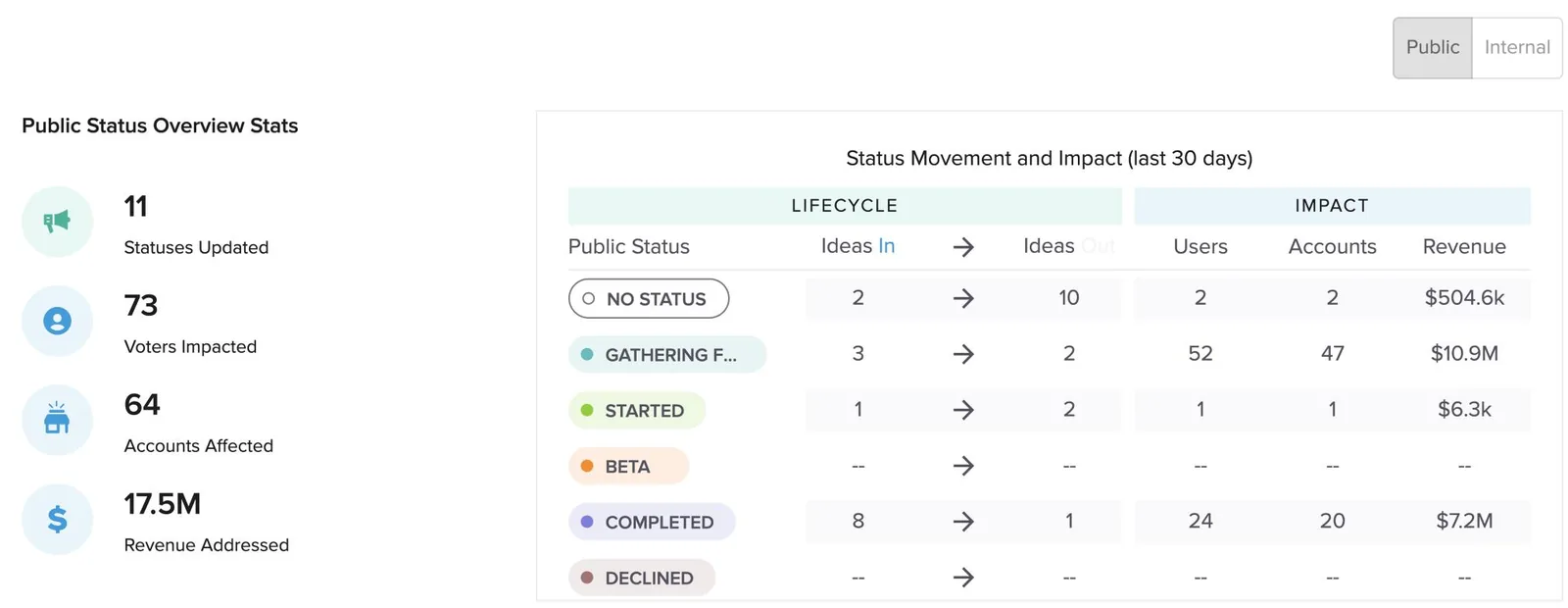
- Revenue addressed is the revenue of the accounts behind the ideas you updated.
- The status movement table shows ideas moving into and out of each status, and who they affect.
- Switch between public and internal statuses to show customer-facing progress or your team's workflow.
Account Insights
With your CRM connected, Account Insights shows which ideas have the broadest support and the most revenue behind them.
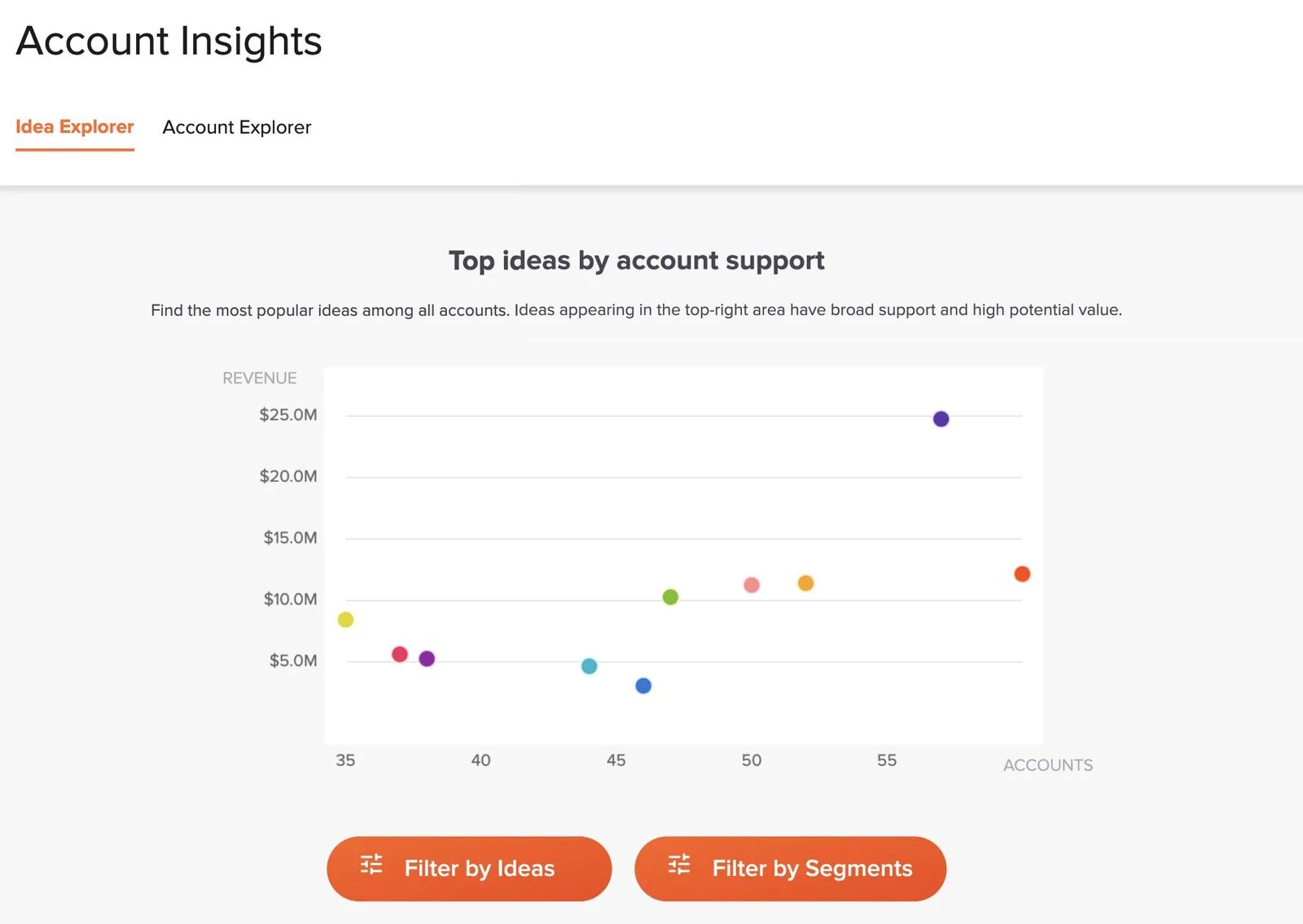
- Idea Explorer plots ideas by revenue and accounts. Filter by forum, status, or account traits such as plan, segment, industry, or company size.
- Account Explorer lists accounts with their revenue, status, and ideas, so you can answer “what does this customer want?”
Idea Insights
Idea Insights, under Insights, is a quick read on what's new and what needs attention. Show all ideas, or only the ones assigned to you.
| Section | Use it to |
|---|---|
| Recent activity | See new ideas, votes, comments, and feedback since your last login or over the last 1 to 90 days |
| Ideas that need tidying up | Find inactive ideas and ideas with no public status update in months |
| Ideas by status | Show leadership the shape of the backlog, and open any status's ideas in one click |
Report the backlog's health, not just its size. “40 ideas had no status update in six months” is a clear, fixable number. Clearing it is a good monthly goal.
The Insights email
The Insights email sends admins a summary of trending ideas and status updates. It's on monthly by default.
- Trending ideas: the ideas that gained the most support, ranked by supporters or by accounts.
- Status updates: how many public and internal updates went out, and how many voters they reached.
- Open My Notifications in Settings, or Email Subscriptions from your profile menu.
- Under Insights, choose Daily, Weekly, or Monthly.
- Choose whether trending ideas are ranked by supporters or accounts, and which forums to include.
- Select Preview Insights Email to check it.
Rank by accounts for leadership. Account-ranked trending ideas show demand from customers, not just from the most active individuals.
Saved views and idea lists
Build your recurring report once in the idea grid, then open it each month.
| Build | How |
|---|---|
| A saved view | Filter and sort the idea grid, add columns such as Revenue, Accounts, Importance, and Public Status, then select Save View. |
| A shared view | Share a saved view with specific admins or all admins, so leaders open the same report you do. |
| An idea list | Hand-pick ideas, such as this quarter's candidates, into a list you can share. |
Open ideas, sorted by revenue, with accounts and status.
Ideas marked Completed in the last month, with supporters.
Popular ideas with no status update in 90 days.
Ideas supported by your largest or renewing accounts.
Ask the UserVoice agent
The UserVoice agent in the admin console answers reporting questions in one message, with a table you can sort and save.
| Ask | You get |
|---|---|
| What were the top 10 open ideas by revenue this quarter? | A ranked table with revenue, accounts, and status |
| How many ideas did we receive each month this year, by forum? | Counts you can drop into a chart |
| Group this quarter's new ideas into themes, and rank the themes by revenue. | Themes with their supporters, accounts, revenue, and a customer quote |
| Which accounts renewing soon support ideas still under review? | Accounts and the ideas they're waiting on |
Revenue is as stored in your CRM. Say whether it's monthly or annual when you present it, the same way your CRM does.
Try it with your AI assistant
1 of 4 prompts in the PDFAttach the PDF to Claude, ChatGPT, or another assistant, then paste:
Using the UserVoice guide I attached, help me design a monthly feedback update for [audience]. Ask me what they care about most first.
Three more prompts and the checklist are in the full guide. Get it by email →
Read next
Get the full guide
We'll email you the 12-page PDF. It adds three things that aren't on this page: