From Feedback to Roadmap
Turn the ideas customers ask for into features, roadmaps, and updates they can follow.
On this page
Ideas tell you what customers need. Features are what you decide to build. This guide covers how the two connect in UserVoice, how to set up and read your roadmaps, how to share them with your team and your customers, and how to keep everyone who asked informed when work moves.
Ideas and features
An idea is a need in a customer's words. A feature is the work you plan to do about it. One feature usually answers several ideas.
| Ideas | Features | |
|---|---|---|
| Who creates them | Customers, and your team on their behalf | Your product team |
| What they hold | Votes, feedback, comments, and the accounts behind them | Your plan: description, roadmap status, and product area |
| Where they live | Forums, on the idea grid | Roadmaps, under Roadmaps & Features |
| Who sees them | Customers, if the forum is public | Your team, or customers when you share a roadmap |
Link ideas to a feature, and it shows the users, accounts, and revenue behind every linked idea.
Supporters keep their votes and their email updates on the idea.
Customers ask in many ways. A feature brings those requests together into one piece of work.
Set up your roadmaps
A little setup makes your roadmaps easy to read. Do it once, before you add features.
| Set up | Where | Tip |
|---|---|---|
| Roadmap statuses | Features settings, General Properties | These are your board's columns, shared by every roadmap. Keep the list short, such as Planning, Designing, Building, and Released. |
| Product areas | Features settings, General Properties | Group features the way your product is organized, so viewers can filter by area. |
| Custom fields | Features settings, Feature Custom Fields | Add what your team plans by, such as an owner, a target quarter, or an effort score. |
| Roadmaps | The + menu, then Create new, then Roadmap | Use separate roadmaps for separate audiences or product lines. Each feature belongs to one roadmap. |
Plan your audiences before you name roadmaps. A roadmap you'll share with customers should hold only features you're comfortable showing them. Keep exploratory work on an internal roadmap.
Roadmaps depend on your plan. Your UserVoice rep can confirm whether Roadmaps & Features is included.
Link ideas to features
Linking is what makes a feature worth more than a name. Link from wherever you're working.
| From | How |
|---|---|
| An idea | Open the idea sheet, choose the Roadmaps tab, then Link to Feature. Or choose Add to Roadmap to create a feature from the idea and place it on a roadmap in one step. |
| Many ideas at once | Select ideas on the idea grid and use the Roadmap quick action to link them all to one feature, or create a new one. |
| A feature | Open the feature's Feedback tab and add ideas under Linked ideas. |
- Link every idea the feature answers, including small variations. Each one adds its supporters to the total.
- Merge duplicates first. Two copies of the same idea split their supporters; see Turn a Messy Backlog into a Clear Signal.
- Unlink from the idea's Roadmaps tab if scope changes.
Search the grid before you build a feature. Filter the idea grid by keyword, label, or category to find every idea the feature should carry.
Read your roadmap
The roadmap board shows each feature as a card, in a column for its roadmap status.
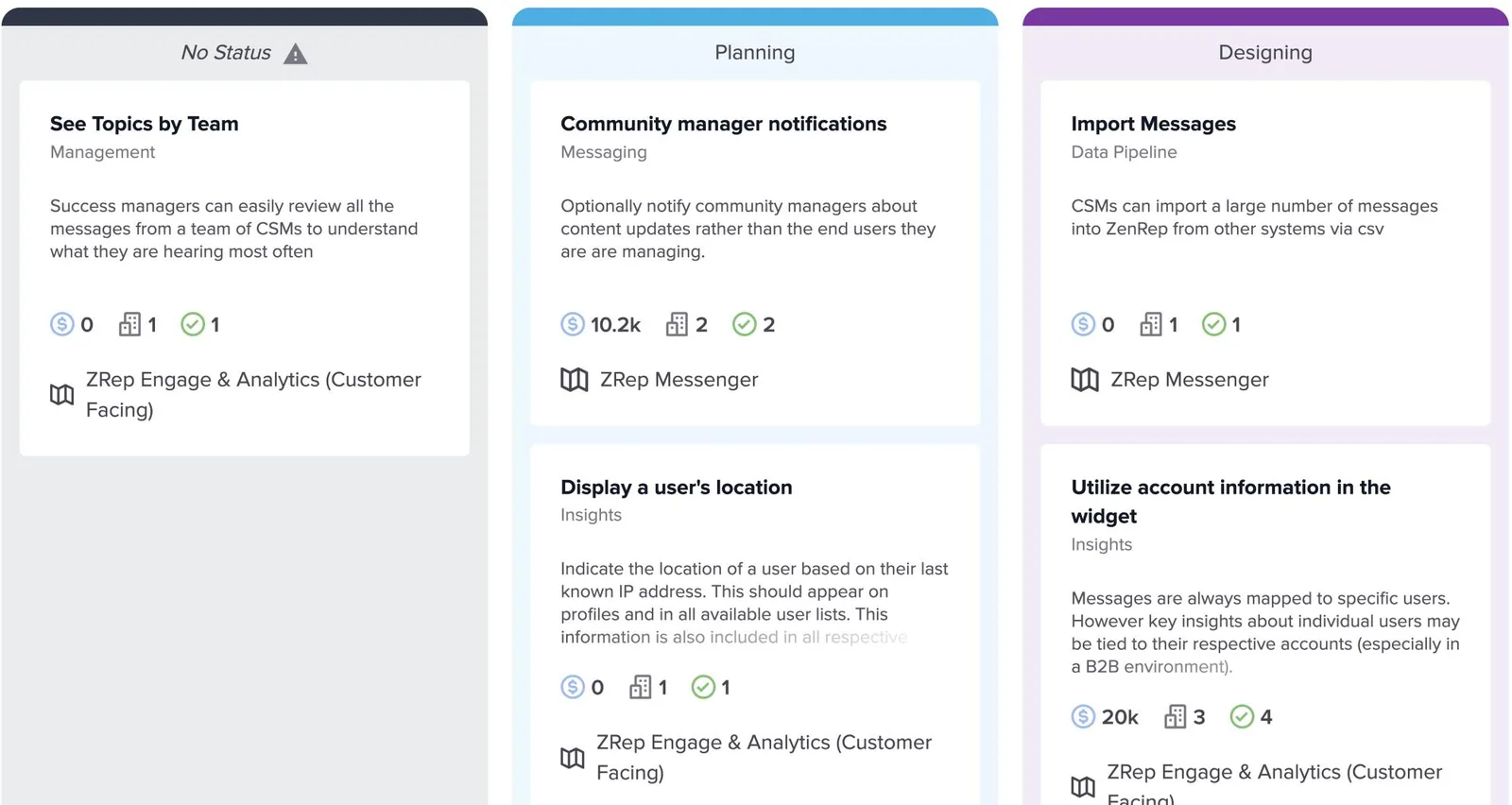
- Drag a card to another column to change its status, or within a column to change its order.
- Filter by roadmap or product area, or search. With no roadmap chosen, you see features from every roadmap.
- Switch views: the board, a list view with every field as a column, or a graph that plots features on any two numeric fields.
Prioritize features
Because features roll up the ideas linked to them, you can compare planned work by the customers behind it.
| Compare by | What it tells you |
|---|---|
| Revenue | The revenue of the accounts supporting the linked ideas, as stored in your CRM |
| Accounts | How many customer companies want it |
| Users | How many people support it, across every linked idea |
| Your own fields | Effort, confidence, or strategic fit, from custom numeric fields |
Use the graph view for tradeoffs. Plot revenue against effort, with bubble size for accounts. Features high on revenue and low on effort stand out.
Put it on your portal
A public roadmap can appear on your portal's homepage, so customers see what's coming next to the ideas they voted on.
- Only public roadmaps can appear on the portal. Share the roadmap publicly first.
- Each column shows up to five features, with a link to the full roadmap for the rest. Empty statuses are hidden.
- Cards show the counts you allow in the roadmap's share settings.
- Portals with custom HTML can place the roadmap anywhere on the page.
Keep the portal roadmap current. A roadmap that hasn't moved in months tells customers the opposite of what you want. Review it in your monthly rhythm.
Close the loop
The customers who asked are the ones who most want to know when work moves. Update both the feature and the ideas linked to it.
| When you | Who hears about it |
|---|---|
| Change a feature's roadmap status | People who follow that feature on a shared roadmap get an email |
| Change the status of a linked idea | The idea's subscribed supporters get an email with your message |
- Move the feature to its new roadmap status.
- Open the feature, and select its linked ideas on the idea grid.
- Update the ideas' status together, with a short message, and leave notify on.
A feature's status doesn't change its ideas. Update linked ideas yourself, so supporters hear the news. Closing the Loop with Statuses covers writing those updates.
Link features and ideas to Jira or Azure DevOps. Changes to a feature's name, supporters, or status are sent to its linked Jira issues, so engineering sees the demand behind the work.
A roadmap rhythm
Roadmaps stay trusted when they change on a schedule people can count on.
| How often | What to do |
|---|---|
| Weekly | Link new ideas to existing features during triage, so their totals stay current. |
| Monthly | Review the board. Move cards, update linked ideas' statuses, and check the public roadmap reads well. |
| Quarterly | Compare features by revenue, accounts, and your own fields, and decide what moves into planning. |
| When something ships | Move the feature, update every linked idea with a message, and link the ideas in your release notes. |
Try it with your AI assistant
1 of 4 prompts in the PDFAttach the PDF to Claude, ChatGPT, or another assistant, then paste:
Using the UserVoice guide I attached, help me design roadmap statuses, product areas, and custom fields for [product]. Ask me how our team plans and what we share with customers first.
Three more prompts and the checklist are in the full guide. Get it by email →
Read next
Get the full guide
We'll email you the 12-page PDF. It adds two things that aren't on this page: