

Introducing the Idea Status Board: See Every Idea’s Status at a Glance, and Move It in One Drag
See every idea arranged by status on one board. Drag a card to a new column and post the status update to subscribers in the same motion.
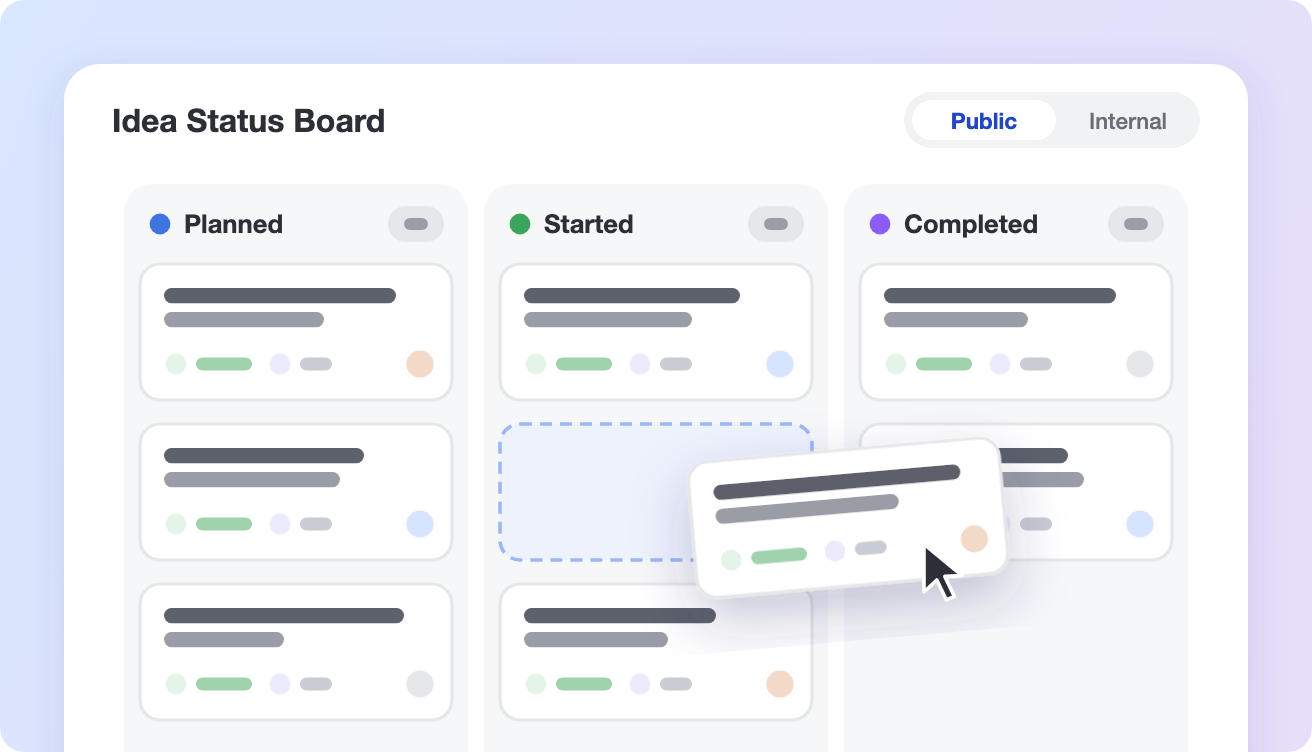
Every idea in UserVoice has a status. Under review, Planned, Started, Completed: each one tells your customers where their request stands, and each one tells your team what to work on next. Until now, seeing those statuses meant scanning a list or opening ideas one at a time.
Today we’re introducing the Idea Status Board, a board view of your ideas arranged in columns by status. It shows the whole pipeline on one screen, and changing an idea’s status is as simple as dragging its card.
See the whole pipeline at once
The Idea Status Board puts each status in its own column, with an idea card for every idea in it. Switch between your public statuses (the ones customers see on your portal) and your internal statuses (the ones your team uses to track work) with a single toggle.
Each card carries the numbers that matter when you prioritize:
- Supporters
- Supporting accounts
- Supporter revenue
- Owner, plus the idea’s labels
Sort every column by supporters, revenue, accounts, or recently moved, and hide the columns you don’t need. Column headers also show when a public status limits what customers can do, such as Comment only or Vote only, so there are no surprises when an idea moves.
Move an idea, close the loop
Drag a card to a new column and the familiar status update panel opens with the new status already picked. Write your update, choose whether to email the idea’s subscribers, and post. It’s the same status update you already know, with the same templates and notification options, just one drag away.
Want to tidy up without emailing anyone? Leave Email subscribers unchecked and the idea moves quietly.
This matters because closing the loop is what keeps a feedback program alive. When customers hear that their request moved to Planned or shipped, they keep sharing what they need. The Idea Status Board makes that update part of the same motion as changing the status, so it doesn’t get skipped.
Organize it your way
Group the board into rows by owner, category, label, or forum to see the pipeline the way your team actually works. Rows aren’t only for looking: drag a card into another owner’s row to reassign it, or into another category or label row to recategorize it. If you change your mind, Undo is right there in the confirmation.
Then narrow the board to exactly the ideas you care about. Filter by:
- Forum, category, owner, and label
- The customer account supporting the idea
- When the status last changed, or when the idea was created
- A keyword search
Filtering by account is especially useful before a customer call or QBR. Pick the account, and the board shows every idea they support and where each one stands.
Share a view with your team
The Idea Status Board remembers your filters, rows, sort, and hidden columns, so it looks the way you left it every time you come back. When you want a teammate to see what you’re seeing, click Share to copy a link to that exact view. Opening a shared link never overwrites your own saved view; you can return to yours or save theirs as your new default.
Teammates who can view ideas but not edit them see the board in view-only mode, so everyone can follow progress without risk of moving something by accident.
Get started
The Idea Status Board is available today for every UserVoice account. In the admin console, open Ideas & Feedback and select the Idea Status Board, next to Idea Lists.
Learn more about how to use Idea Status Board in UserVoice Academy.
If you’d like a walkthrough of how teams use the Idea Status Board to run their review meetings and close the loop with customers, book a demo and we’ll show you on your own data.
Get a free 30-day trial after your demo, with your own customer feedback in a real account.
Book a demoMore product updates
All updates →


See what’s new on your own feedback
Get a free 30-day trial after your demo, see your own customer feedback in a real account.
Book a demo

