The Idea Status Board – Move Ideas, Tell Customers
Every idea on one board: group by owner or category, filter, share a view, and post status updates as you move cards.
On this page
The Idea Status Board shows your ideas as cards in columns, one for each status. Move a card, and you post a status update. Group the board by owner, category, label, or forum, filter it to what matters, and share the exact view with your team. This guide covers reading the board, moving ideas, rows, filters, sharing, and the routines teams use it for.
What the board is
The Idea Status Board is a view of your ideas in columns by status. Open it from Ideas & Feedback.
Each column is a public status, or switch to Internal to see your team's internal statuses.
Drag a card to another column, and you post a status update, with a message and an email if you want.
Group cards by owner, category, label, or forum. Dragging across rows changes those too.
Filters, rows, sort, and hidden columns travel in a link you can send to a teammate.
| Use the board to | Use the idea grid to |
|---|---|
| See where every idea stands at a glance | Work through a long list, with many columns |
| Move ideas between statuses | Edit many ideas at once |
| Run a triage or review meeting | Sort and filter by any field, and save the view |
Read the board
Each card is an idea. Each column shows how many ideas are loaded of how many have that status.
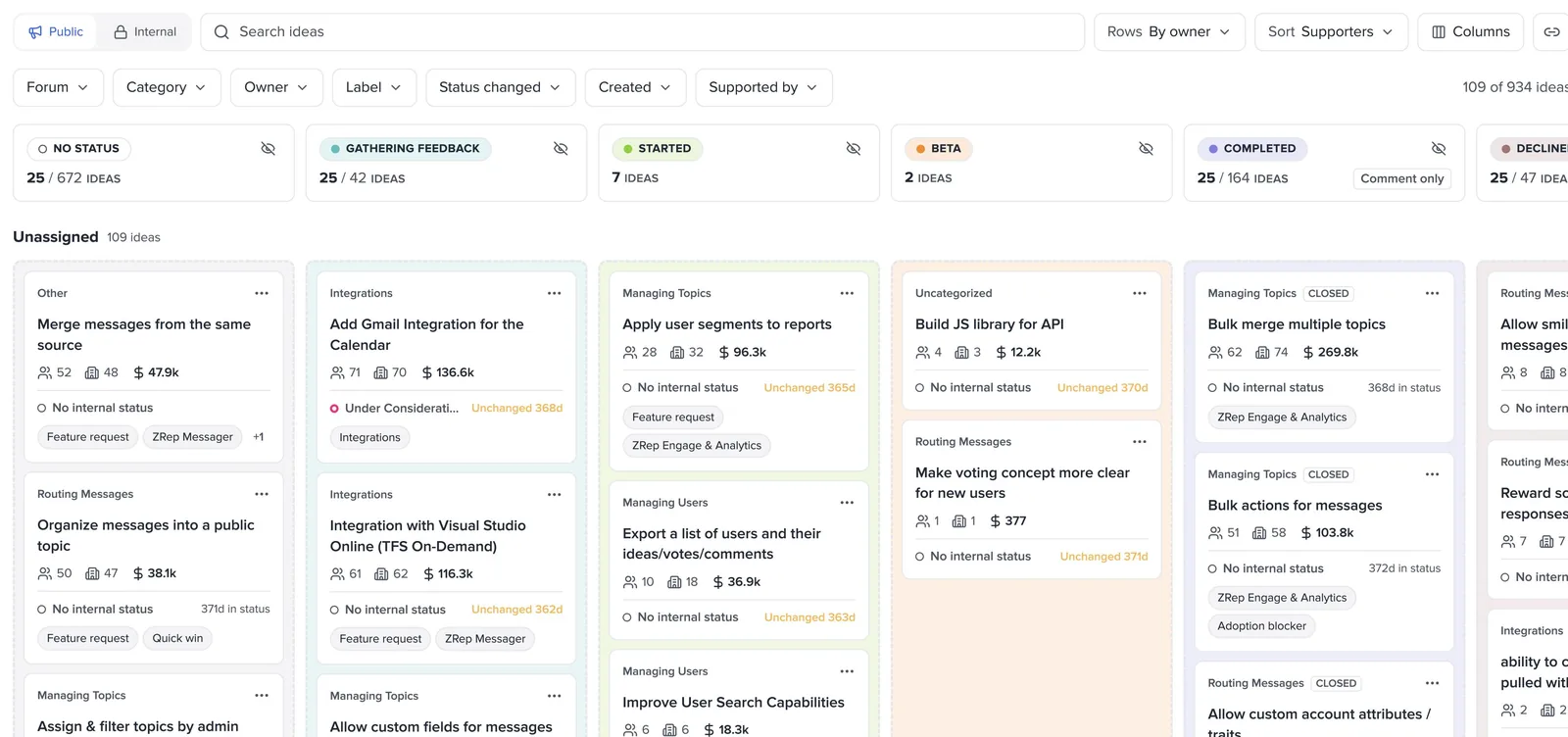
- Each card shows the forum or category, supporters, accounts, and revenue, the internal status, how long it's been unchanged, the owner, and up to two labels.
- Columns load 25 ideas at a time. “25 / 60 ideas” means 25 of the column's 60 are showing; select Load more at the bottom of the column for the rest.
- Select a card to open its idea sheet beside the board.
Move an idea
Moving a card opens the same status update panel as the idea page, with the new status already picked.
- Drag the card to another column. Or open the card's … menu and choose a status under Move to public status.
- In Post public status update, check the status, and write a message if you like.
- Tick Email subscribers to tell everyone following the idea, or leave it unticked to move it quietly.
- Select Post Status. Or select Cancel, and the card goes back.
Cards can't be dropped on No status. To clear a status, choose No Status in the panel's status list instead, so it never happens by accident.
Group into rows
Choose Rows to group cards. Owner, category, and label rows also let you change those fields by dragging.
| Rows | Dragging a card to another row |
|---|---|
| By owner | Assigns the idea to that owner |
| By category | Moves the idea to that category, in the same forum |
| By label | Swaps that label for the row's label. Drop it on No label to remove the label. |
| By forum | Groups only. Ideas can't move between forums from the board. |
- Change a row and a status in one move by dragging to a different row and column.
- Undo a row change from the confirmation that appears after the move.
- A status update can't be undone, because it may already have emailed people. Post another update instead.
Filter, sort, and search
Narrow the board to the ideas you're working on. Filters combine, and each filter can take several values.
| Filter | Use it to |
|---|---|
| Forum and Category | Focus on one product area. Category lists the chosen forums' categories. |
| Owner | See one person's ideas, or Unassigned ones |
| Label | Focus on a theme, or find ideas with No label |
| Status changed | Find ideas that moved recently, or haven't moved in 90+ days |
| Created | Focus on new ideas, or old ones |
| Supported by | See every idea one account supports |
- Sort each column by supporters, revenue, accounts, or recently moved.
- Columns hides statuses you don't need. Columns where customers can't vote or comment are labeled, such as Comment only.
- Search narrows the filtered board to matching ideas.
Ways to use it
Teams use the board for a handful of recurring jobs. Each needs only a filter or two.
| Job | Set up the board | Then |
|---|---|---|
| Weekly triage | Public, No status column, rows by owner | Move new ideas to their first status, and assign owners by dragging across rows |
| Stuck ideas | Status changed: 90+ days ago | Post an update on each, even if it's “still considering” |
| Account review | Supported by: the account | Walk the customer through what's completed, started, and planned |
| Leadership update | Public, sorted by revenue | Show what's moving and the revenue behind it |
| Team standup | Internal, rows by owner | Move ideas through your internal workflow |
| Release day | Started and Beta columns, rows by category | Move shipped ideas to Completed, and email subscribers |
Who can move ideas
Anyone who can see ideas can use the board. Moving cards needs permission to edit ideas.
| Access | On the board |
|---|---|
| Can edit ideas | Move cards between statuses and rows, and post status updates |
| View only | See the board, filter it, and share views. A note under the toolbar says the board is view only. |
Status emails follow the same rules as the idea page. Moving a card posts a normal status update, so subscribers and the contributors who captured feedback hear about it the same way.
Read next
Get the full guide
We'll email you the 10-page PDF. It adds one thing that isn't on this page: