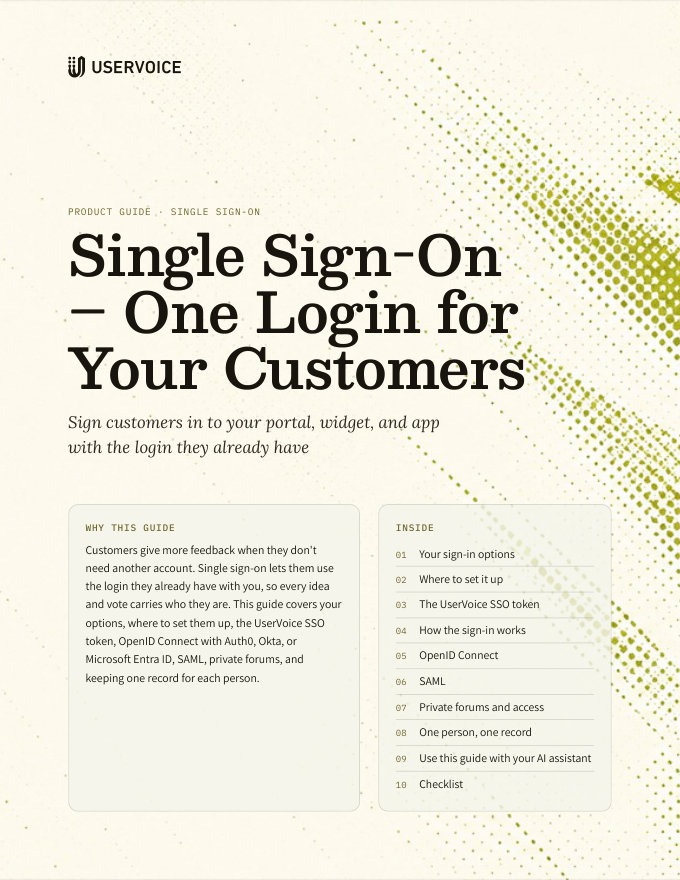
Single Sign-On – One Login for Your Customers
Sign customers in to your portal, widget, and app with the login they already have, using the UserVoice SSO token, OpenID Connect, or SAML.
On this page
Customers give more feedback when they don't need another account. Single sign-on lets them use the login they already have with you, so every idea and vote carries who they are. This guide covers your options, where to set them up, the UserVoice SSO token, OpenID Connect with Auth0, Okta, or Microsoft Entra ID, SAML, private forums, and keeping one record for each person.
Your sign-in options
UserVoice offers three kinds of single sign-on, plus its own sign-in. You can turn on more than one.
| Option | How it works | Fits |
|---|---|---|
| UserVoice SSO token | Your site signs customers in, then sends UserVoice a short token, signed with your SSO key, that says who they are | Products with their own login, and any app or site where you want full control |
| OpenID Connect (OIDC) | UserVoice sends customers to your identity provider, such as Auth0, Okta, or Microsoft Entra ID, and reads who they are from it | Teams that already run an identity provider and don't want to write code |
| SAML | Your identity provider sends UserVoice a signed SAML response | Enterprise and internal portals on an identity provider that prefers SAML |
| Built-in sign-in | Email and password, or Google, Microsoft, Facebook, or Slack | Open portals where customers don't share a login with you |
Match how customers already sign in to you. If they log in to your product, use the SSO token or your identity provider. Use the built-in options only for people you don't already know.
Where to set it up
Every sign-in option lives on one settings page. An admin who can change settings sets it up.
- In Settings, open User authentication.
- Turn on or off the built-in options: UserVoice email and password, Google, Microsoft, Facebook, and Slack.
- Under Single Sign On (SSO), add your SSO token or SAML sign-in. Under OpenID Connect (OIDC), add your identity provider.
- Give each one a Button Label and Button Icon, such as “Sign in with Acme.”
- Choose whether to Hide from End-User Sign-In Pages (Portal) or Hide from Admin Sign-In Pages.
Hiding a button doesn't turn the option off. It only removes the button from that sign-in page. To stop an option working, turn it off or remove it.
One option means no sign-in page. On a private portal with a single sign-in option, customers go straight to your login instead of choosing a button.
The UserVoice SSO token
The token is a JSON Web Token (JWT) your server creates for a signed-in customer and signs with your SSO key, using HS256.
| Field | What to send |
|---|---|
| The customer's email address. Required. | |
| display_name | The name shown on their ideas and comments |
| guid | Their user ID in your product. It shouldn't change, and it lets an email change keep the same person. |
| exp | When the token expires, as a Unix timestamp. Keep it to a few minutes. |
| avatar_url and url | A picture, and a link to their profile in your product |
| locale | Their language, such as en or fr |
| allow_forums and deny_forums | Forum IDs this person can or can't see, for private forums |
- Find the SSO key in Settings, under User authentication, in Single Sign On (SSO). Copy it to your server's secrets.
- Reset the key there if it may have leaked. Tokens signed with the old key stop working straight away.
Always set an expiry. A token without exp signs the customer in with a session that never expires. Create tokens on your server, never in browser or app code, and keep the SSO key secret: anyone with it can sign in as any customer.
How the sign-in works
You give UserVoice two addresses on your site. UserVoice sends customers there to sign in and out.
- In the SSO settings, enter your SSO remote sign-in URL, the page on your site where customers log in, and your SSO remote sign-out URL.
- A customer selects Sign in on your portal. UserVoice sends them to your sign-in URL, adding a
returnparameter with the address to come back to. - Your site signs them in as usual, creates an SSO token, and sends them back to the
returnaddress with?sso=and the token added. - UserVoice checks the token, and the customer is signed in. Signing out of the portal sends them to your sign-out URL.
| Where | How to pass the token |
|---|---|
| Any portal link | Add ?sso= and the token, so a link from your product or app opens the portal signed in |
| The widget | Pass the token to the widget on the page. See The Feedback Widget – Ideas from Your App. |
| A mobile app | Open portal links with the token added. Native screens use the API instead. See Mobile Apps – Feedback and Voting in Your App. |
OpenID Connect
With OIDC, UserVoice signs customers in through your identity provider. You register UserVoice as an app there, then copy a few addresses across.
- In your identity provider, create a web application for UserVoice. Set its callback or redirect URL to
https://yourcompany.uservoice.com/auth/oidc/callback, using your UserVoice address. - Copy its Client ID and Client Secret.
- In UserVoice, under OpenID Connect (OIDC), add a provider and fill in the fields in the table below.
- Save, then sign in to your portal in a private browser window with a test customer.
| Field | What to enter |
|---|---|
| Provider Base URL | Your identity provider's address, such as https://acme.us.auth0.com |
| Authorization URL, Token URL, User Info URL | The provider's authorize, token, and user info endpoints. See the addresses for common identity providers below. |
| Token Scope | openid email profile |
| Email, GUID, and Name JSON Path | Where each value sits in the user info response: usually email, sub, and name |
| Avatar URL JSON Path | Optional. Usually picture. |
| Remote Logout URL | Optional. Where customers go when they sign out. |
Addresses for common identity providers
| Provider | Authorization, token, and user info URLs |
|---|---|
| Auth0 | https://your-domain/authorize https://your-domain/oauth/token https://your-domain/userinfo |
| Okta | https://your-domain/oauth2/default/v1/authorize https://your-domain/oauth2/default/v1/token https://your-domain/oauth2/default/v1/userinfo |
| Microsoft Entra ID | https://login.microsoftonline.com/tenant/oauth2/v2.0/authorize https://login.microsoftonline.com/tenant/oauth2/v2.0/token https://graph.microsoft.com/oidc/userinfo |
- Check your provider's own documentation for the exact addresses. They change with custom domains and authorization servers.
- UserVoice reads the user info endpoint, so the email, ID, and name must be in that response. Ask for the openid, email, and profile scopes.
- Use a stable ID as the GUID. The provider's
subnever changes, even when a customer changes their email.
Only connect a provider that verifies email addresses. UserVoice trusts the email your identity provider sends. If anyone can sign up there with an unverified email, they could sign in as someone else, including one of your admins.
SAML
SAML is set up as an SSO sign-in with a certificate. UserVoice asks your identity provider to sign the customer in, and reads who they are from its signed response.
- In your identity provider, add a SAML app for UserVoice using the metadata at
https://yourcompany.uservoice.com/saml/metadata.xml. The reply (ACS) address is/saml/consumeon the same domain. - Have it send the customer's email, name, and a stable ID, and sign its assertions.
- In UserVoice, under Single Sign On (SSO), set the SSO remote sign-in URL to your identity provider's SAML sign-in address.
- Upload its signing certificate under SAML Single Sign-On Certificate, as a PEM or DER file.
- Sign in to your portal in a private browser window to test.
| UserVoice reads | From these attribute names |
|---|---|
| email, email_address, mail, or emailaddress | |
| Name | display_name, full_name, name, or first_name |
| ID (GUID) | uid, guid, upn, objectidentifier, or the NameID |
Renew the certificate before it expires. When your identity provider rotates its signing certificate, upload the new one to UserVoice the same day, or sign-in stops working.
Private forums and access
Single sign-on can decide who sees what, so access follows your own records.
| To | Do this |
|---|---|
| Let every signed-in customer into a private forum | In the forum's access settings, turn on Authorize SSO & OIDC Users |
| Choose forums person by person | Send allow_forums and deny_forums in the SSO token, from your own plans or roles |
| Keep the whole portal private | Restrict the site to signed-in customers, and leave a single sign-in option so they go straight to your login |
- Deny wins. A forum in
deny_forumsstays hidden, even if another rule allows it. - Forum access needs a GUID. Send
guidin the token, so UserVoice can keep each person's forum list. - Admins are separate. Hide your customer sign-in from the admin sign-in page if admins should use a different login.
One person, one record
Customers may reach UserVoice from your portal, the widget, an app, and your support tools. Keep them as one person, so their votes and updates stay together.
- Use the same email everywhere. UserVoice matches people by email first, then by GUID. The API matches by email alone.
- Send a stable GUID from SSO and OIDC, such as your user ID or the provider's
sub. - Use the same ID in the widget's identify call, so account and revenue details line up with the same person.
- Turn off email and password once SSO is live, if every customer has your login. Otherwise people create a second account.
Admins can't be signed in by an untrusted token. If a customer token carries an admin's email, UserVoice refuses it unless the token is marked trusted. Keep admin sign-in on your admin login, and don't mark customer tokens as trusted.
Try it with your AI assistant
1 of 4 prompts in the PDFAttach the PDF to Claude, ChatGPT, or another assistant, then paste:
Using the UserVoice guide I attached, help me choose between the UserVoice SSO token, OpenID Connect, and SAML for our portal. We use [Auth0 / Okta / Entra ID / our own login], and our customers are [describe them].
Three more prompts and the checklist are in the full guide. Get it by email →
Read next
Get the full guide
We'll email you the 12-page PDF. It adds two things that aren't on this page:
- A eight-step checklist to put the guide into practice
- Four AI prompts for Claude, ChatGPT, or your assistant of choice, including one that uses the UserVoice MCP to work with your own feedback data