The Feedback Widget – Ideas from Your App
Put the UserVoice widget in your product so customers post ideas and vote where they work, with their account and revenue attached.
On this page
Customers have ideas while they use your product, not when they visit a feedback site. The UserVoice widget lets them post an idea or vote without leaving the page, and tells you who they are and which account they belong to. This guide covers where to place it, installing it, identifying customers, single sign-on, targeting, privacy, testing, and measuring.
What the widget does
The widget is a small panel inside your web product. Customers open it, describe an idea, and post it to your forum without leaving the page.
The Post Idea experience asks for the idea, a title, and a category if the forum uses them. Files can be attached if your forums allow attachments.
As the customer types, the widget shows related ideas from the forum. They can vote on one, or skip and post their own.
Your product tells the widget who is signed in, so the idea arrives with the person, their account, and its revenue.
The poster is subscribed to their idea, so status updates reach them by email like any portal idea.
| The widget | Your portal |
|---|---|
| Inside your product, at the moment of the idea | A site customers visit on purpose |
| Posts to the forum you choose | Shows all the forums a customer can see |
| Best for quick ideas and votes | Best for browsing, comments, and following the roadmap |
Ideas from the widget are ordinary ideas. They appear in the idea grid with every other idea, get your default public and internal status, and go through the same spam check as portal ideas.
What customers see
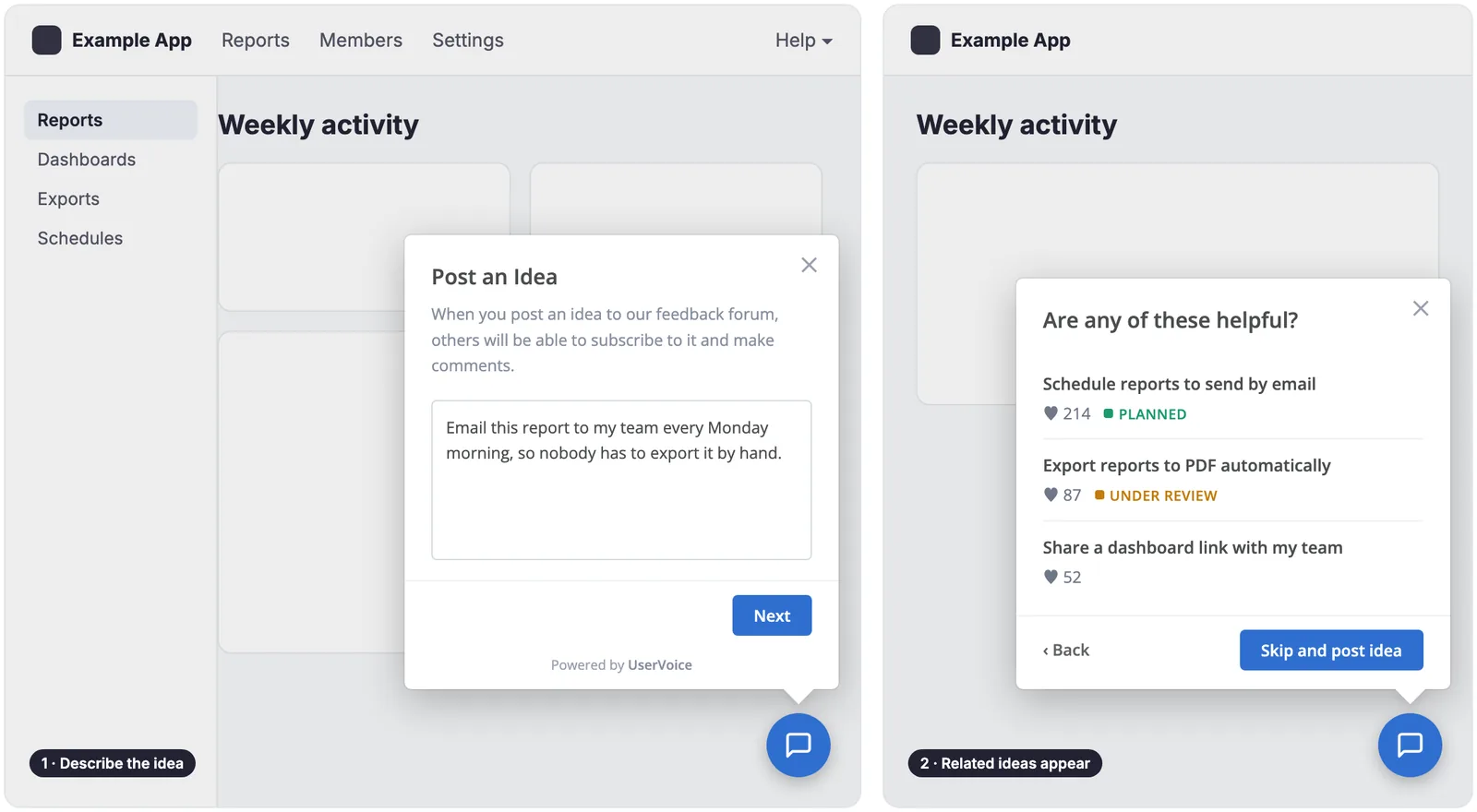
- The customer selects the widget button and describes their idea.
- The widget shows related ideas already in the forum, with supporters and status.
- They open a match and vote, or select Skip and post idea.
- Either way, they're subscribed, and hear from you when the status changes.
Where to put it
Put the widget where customers notice a gap, and nowhere it gets in the way of their work.
| Place | Why it works | How |
|---|---|---|
| Help menu | Customers look there when something is missing. It's always available and never in the way. | A “Share an idea” item that opens the widget |
| Inside a feature | Ideas arrive about that feature, while the customer is using it | A small link on the feature's page, posting to that product area's forum |
| Empty states | An empty report or list is where customers wish for more | “Missing something? Tell us.” under the empty-state message |
| New features | Early reactions shape the next release | A link in the release banner or what's-new panel |
| Every page | Always one click away | The floating button in a corner of the window |
Start with the help menu and one or two features. A link where customers already look for help collects more useful ideas than a button on every screen. Add the floating button later if you want more volume.
Keep it out of critical flows. Don't open the widget automatically during checkout, sign-up, or onboarding. Let the customer choose to open it.
Install it
An admin sets up the widget in Settings. A developer on your team adds the code to your product.
- In Settings, open Widgets.
- Under Step 1: Customize your widget design, choose Post Idea as the starting experience, then the trigger position, accent color, and trigger color. The preview updates as you go.
- Under Step 2: Copy the embed code to your page, select Copy to clipboard, and send the code to your developer.
- Your developer adds it to the page template of your product, once per page, and fills in the identify section with the signed-in customer's details.
The embed code, shortened
<script>
// Include the UserVoice JavaScript SDK (only needed once on a page)
UserVoice=window.UserVoice||[];(function(){ ... })();

// Set colors
UserVoice.push(['set', { accent_color: '...', trigger_background_color: '...' }]);

// Identify the user and pass traits
UserVoice.push(['identify', { email: ..., name: ..., account: { ... } }]);

// Add default trigger to the bottom-right corner of the window
UserVoice.push(['addTrigger', { mode: 'feedback', trigger_position: 'bottom-right' }]);
</script>The Widgets page also links to the developer documentation. Under Advanced setup it shows your JavaScript API key, your SSO key, and a link to the widget developer documentation. If you don't see Widgets in Settings, talk to your UserVoice rep.
Identify customers and accounts
The identify call tells the widget who is signed in to your product. With it, every idea and vote carries the person, their account, and its revenue.
| Field | What to send |
|---|---|
| The customer's email address. Needed for UserVoice to save the person. | |
| name | Their full name |
| id | Their user ID in your product. It shouldn't change. Defaults to the email. |
| created_at | When they signed up, as a Unix timestamp |
| type | A user type you segment by, such as Owner or Admin |
| account.id and account.name | The company they belong to, so several people roll up to one account |
| account.revenue | The account's recurring revenue, as a number |
| account.plan | The plan the account is on |
| account.ltv and account.created_at | Lifetime value, and when the account started |
A known email skips a step. When the identify call includes an email, the widget doesn't ask the customer for one.
Details that trip teams up
- Custom traits start with cf_. Add your own fields, such as
cf_regionon the person orcf_segmenton the account. Fields with other names are ignored. - Send revenue as a plain number, such as 1200.00, with no currency symbol, in the same period your team uses everywhere else.
- Older code may send monthly_rate. UserVoice still reads it as revenue when revenue isn't sent.
- Account details depend on your plan. Check with your UserVoice rep before you build on them.
One value that's too long drops the whole call. Names, emails, IDs, types, account names, and plans can be up to 255 characters. If any one is longer, the widget sends none of the details, so the idea arrives without its account.
With Salesforce or HubSpot connected, your CRM is the source of accounts. UserVoice then ignores account details from the widget, and matches each person to a CRM account by their email domain. Keep sending the email and name.
Sign customers in with SSO
Identify fills in who the customer is. Single sign-on also signs them in, so they're never asked to log in to UserVoice.
| Approach | What it does |
|---|---|
| Identify only | Fills in the customer's email and name, and sends account details. Ideas can only go to public forums. |
| SSO token | Signs the customer in as the same person as on your portal. They can post to private forums they have access to. |
- Find the SSO key on the Widgets page, under SSO authentication.
- On your server, your developer creates a token for the signed-in customer, signed with the SSO key using HMAC-SHA256. It can include an expiry time.
- The page passes the token to the widget with
UserVoice.push(['set', {{ sso: token }}]), along with the identify call.
Keep the SSO key on your server. Anyone with the key can sign in as any of your customers. Create tokens on your server, never in browser code, and set them to expire.
Use SSO whenever your product has a sign-in. It's the same token your portal uses, so a customer's ideas, votes, and email updates stay together wherever they give feedback.
Choose the forum, trigger, and look
The embed code covers the basics. A few options let you send ideas to the right forum and open the widget from your own interface.
| Option | What it does | Set it with |
|---|---|---|
| Forum | Sends ideas to one forum. Without it, ideas go to your default forum. | forum_id, the number in the forum's portal address |
| Your own trigger | Opens the widget from your link, button, or menu item instead of the floating button | data-uv-trigger on the element, or addTrigger with its selector |
| Open from code | Opens or closes the widget when something happens in your product | show and hide |
| Embedded | Shows the widget inside your page layout, not as a pop-up | data-uv-embed on a container |
| Floating button | Places the button in a corner of the window | trigger_position: top-left, top-right, bottom-left, or bottom-right |
| Colors | Matches your product's colors | accent_color, trigger_color, and trigger_background_color |
| Wording | Changes the widget's text, such as its title | strings, for example post_idea_title |
Point each feature's link at its own forum. Set a different forum_id on each page, so ideas about reporting land in your reporting forum. If the forum has categories, the widget asks for one, and requires it if the forum does.
The default forum must be open. If no forum is set and your default forum is closed, set forum_id to an open forum.
Pass only what you need
Every detail you send is stored in UserVoice and visible to your admins. Send what helps you prioritize, and nothing else.
| Send | Leave out |
|---|---|
| Email and name, so you can follow up | Phone numbers, addresses, and personal details |
| Account ID, name, plan, and revenue, to prioritize | Payment details, contract terms, and anything regulated |
| A few custom traits you'll filter by, such as region or segment | Every field your product happens to have |
- Visitors in the EU and Brazil are asked for consent when they post. Customers signed in with SSO aren't asked, and nobody is asked twice.
- Ideas in private forums stay private. Without SSO, the widget only posts to public forums.
- Your legal and security teams may want to review which fields you send before launch.
If you wouldn't filter or sort by it, don't send it. A short list of fields is easier to keep accurate, and easier to explain to customers who ask what you collect.
Test before launch
Install the widget on a test or staging version of your product first, and walk through it as a customer would.
- Sign in to your product as a test customer, open the widget, and check that it doesn't ask for an email.
- Type an idea that matches an existing one, and check that related ideas appear and you can vote.
- Post a new idea. Check it lands in the right forum, with a category, and your default status.
- Open the idea in the admin console, and check the person, their account, plan, and revenue.
- If you use SSO, post to a private forum, and check the idea is under the test customer's name.
- Try each trigger you added, on a narrow window as well as a wide one.
- Remove the test ideas, then release to everyone.
Test with an account that has revenue. An idea that arrives without its account or revenue usually means a field was missing or too long in the identify call.
Measure it
The Activity Report, under Insights, shows whether customers find the widget and use it.
| Report section | What it tells you about the widget |
|---|---|
| How are users submitting ideas? | Ideas from the Widget source, next to the portal, Slack, and your teams |
| Site traffic | How many people are using the widget, next to portal visits |
| Your idea activity overview | New ideas, votes, and active users and accounts overall |
Choose a custom date range around your launch to see the change in ideas and votes.
If most widget activity is votes, customers are finding existing ideas, which is good. If it's all new ideas, check for duplicates.
If one feature's forum gets nothing, its link may be hard to find. Move it, or reword it.
Download any section as an image for your next update.
Try it with your AI assistant
1 of 4 prompts in the PDFAttach the PDF to Claude, ChatGPT, or another assistant, then paste:
Using the UserVoice guide I attached, suggest where the widget should go in [product]. Ask me about our main screens, help menu, and empty states first.
Three more prompts and the checklist are in the full guide. Get it by email →
Read next
Get the full guide
We'll email you the 14-page PDF. It adds two things that aren't on this page: