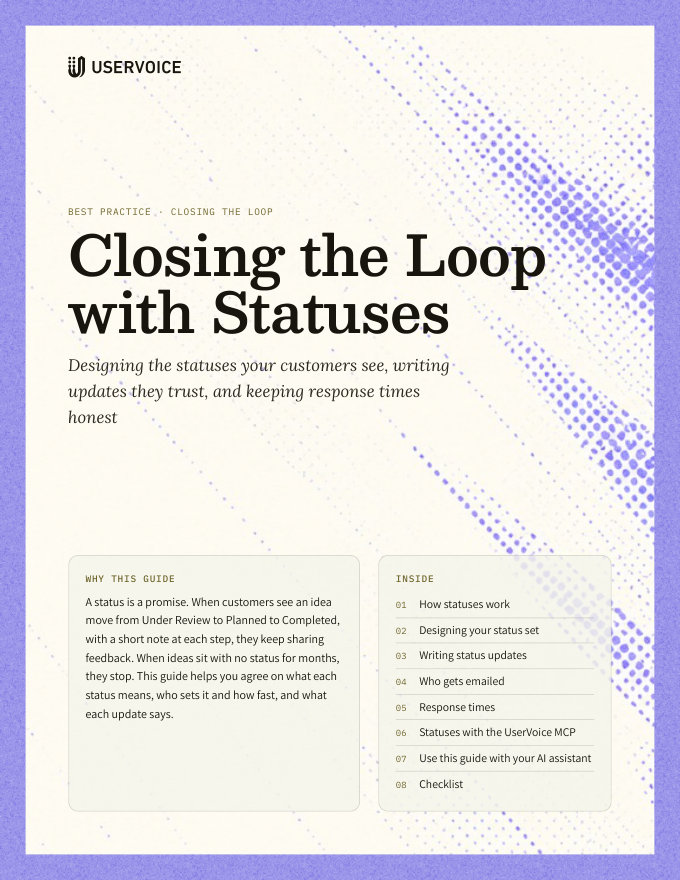
Closing the Loop with Statuses
Designing the statuses your customers see, writing updates they trust, and keeping response times honest.
On this page
A status is a promise. When customers see an idea move from Under Review to Planned to Completed, with a short note at each step, they keep sharing feedback. When ideas sit with no status for months, they stop. This guide helps you agree on what each status means, who sets it and how fast, and what each update says.
How statuses work
Every idea can carry two statuses. The public status tells customers where an idea stands. The internal status tracks your team’s own workflow, and customers never see it.
Shown on the portal, posts a message as the idea’s admin response, and can email supporters. It also decides whether people can still vote and comment.
Seen only by admins and contributors. Use it for triage steps your customers don’t need to follow, such as Needs info or In discovery.
The default public statuses
| Status | Type | What it means for the idea |
|---|---|---|
| Under review | Open | Still collecting votes and comments while you evaluate it |
| Planned | Open | Your team has committed to it |
| Started | Open | Work is underway |
| Completed | Closed | Shipped; voting closes, comments stay open |
| Declined | Closed | You don’t plan to build it; voting closes, comments stay open |
Two other sets to consider
The defaults suit most teams. If your process differs, one of these may fit better. Rename statuses in place rather than deleting them, so ideas keep their history.
Roadmap-led · for teams that publish a roadmap
| Status | Type | Use it for |
|---|---|---|
| Gathering feedback (default) | Open | New ideas, open for votes and comments |
| Under consideration | Open | Shortlisted for an upcoming planning cycle |
| Planned | Open | Committed and on the roadmap |
| In progress | Open | Being built now |
| Launched | Closed | Shipped; comments stay open for feedback on the release |
| Not planned | Closed | Reviewed and not on the roadmap |
Low-commitment · for long release cycles or no public dates
| Status | Type | Use it for |
|---|---|---|
| Open for votes (default) | Open | Every idea until your team has reviewed it |
| Reviewed | Open | Your team has read it and is tracking demand; no promise made |
| Needs more detail | Open | You’ve asked the submitter to describe the problem |
| Available | Closed | Shipped, or already possible today |
| Not a fit | Closed | Outside what the product will do |
Pick the set your team can keep honest. A roadmap-led set promises more and needs regular updates. A low-commitment set promises less, so lean on the message in each update to explain what’s happening.
What each status allows
Each public status has a permission setting that decides what customers can still do. Open statuses keep the idea in your portal’s Hot, Top, and New lists; closed statuses move it out, though it can still be found by status.
| Permission | What customers can do |
|---|---|
| Vote and comment (open) | Vote, comment, and follow the idea |
| Vote only (open) | Vote, but not comment |
| Comment only (closed) | Comment, but voting has closed. The default for Completed and Declined |
| None (closed) | Read the idea only |
When an idea closes in a forum with limited votes, its supporters get their votes back to spend on other ideas.
The default status
One open status can be the default. New ideas get it as soon as they’re submitted, along with that status’s template message, and no email goes out. Internal statuses can have a default too.
Changing a status’s type changes every idea in it. Switching a status from open to closed closes every idea that has it, and the reverse reopens them, without emailing anyone. Deleting a status moves its ideas, and their history, to the status you choose to replace it.
Designing your status set
Start from the defaults and change them only where your process differs. Customers learn your statuses by watching ideas move through them, so a short, stable set works better than a detailed one.
Five to seven public statuses covers most teams. Put finer workflow steps in internal statuses, where changing them doesn’t affect customers.
If Planned means committed, only use it for ideas on the roadmap. A status that sometimes means “maybe” teaches customers to ignore all of them.
“Gathering feedback” reads better on a portal than “Backlog.” Avoid internal terms, team names, and release codes.
A closed status like Declined or Not Planned lets you answer honestly. Without one, ideas you won’t build stay open forever.
Set the status on every new idea. Make Under Review, or your own equivalent, the default, so no idea sits on the portal with no status at all.
Agree on it with your team
Statuses only work when everyone who sets them means the same thing. Start from this table with your product team, and share it with Sales, Success, and Support so they can explain a status to a customer.
| Status | It means | Who sets it | Set within |
|---|---|---|---|
| Under review | Received and being evaluated | Automatic (default) | On submission |
| Planned | On the roadmap; we’re committed | Idea owner | When it’s scheduled |
| Started | Being built | Idea owner | When work begins |
| Completed | Shipped to customers | Idea owner | On release day |
| Declined | Not planned, with a reason | Idea owner | Within 30 days of a decision |
Give every idea an owner from the start. With Auto Assign Idea Owner, set an owner on each forum or category, and new ideas there are assigned to that admin the moment they’re submitted. A category’s owner takes priority over its forum’s, so the person closest to the work gets the idea.
Internal statuses for triage
UserVoice doesn’t create internal statuses for you. A small set that mirrors your triage process is a practical starting point:
- New as the internal default, so untriaged ideas are easy to find.
- Needs info when you’ve asked the submitter for more detail.
- Evaluating while a PM sizes the idea.
- Triaged once it has an owner and a public status that reflects your decision.
- Completed once it ships, alongside the public Completed status, so your internal view ends where the customer’s does.
- Won’t do alongside the public Declined status, to keep declined ideas out of your active triage columns.
Writing status updates
The message you post with a public status becomes the idea’s admin response, shown on the portal under the idea. It is often the only thing a supporter reads from your team, so it’s worth a sentence or two.
A good update
- Thanks the people who asked. One short line, not a paragraph.
- Says what was decided. Planned, shipped, or not planned, in plain words.
- Gives the reason or the detail. What shipped and where to find it, or why it isn’t a fit now.
- Says what happens next. When you’ll update again, or where to share related needs.
Set a template for each status
Under Settings › Ideas › Templated Status Messages, give each status a default message. It fills in whenever someone picks that status, so updates start from the same wording, and the person posting can still edit it. Internal statuses can have templates too.
Starter templates
Replace the brackets, and edit each update so it mentions the idea itself.
| Status | Template |
|---|---|
| Under review | Thanks for sharing this. Our product team reviews new ideas every week, and we’ll update this idea once we’ve made a decision. In the meantime, votes and comments from others help us understand how widely this is needed. |
| Planned | Good news: this is on our roadmap. We’ll post another update when work starts. Thank you to everyone who voted and shared how you’d use it. |
| Started | Our team has started building this. We’ll let you know here as soon as it’s available. |
| Completed | This is now live. [One line on what shipped and where to find it.] Thank you for asking for it, and let us know in the comments how it works for you. |
| Declined | Thank you for this suggestion. After reviewing it against our roadmap, we aren’t planning to build it. [The reason, in a sentence.] We’ll keep it on record and update this idea if that changes. |
You can fix a message after it’s posted. Edit it from the idea’s activity feed. Editing doesn’t send another email, so correct typos freely, but put real news in a new update.
Who gets emailed
A public status update emails people only in specific cases. Knowing who hears what lets you decide when an update is worth an email.
| Who | When they’re emailed |
|---|---|
| Supporters | When you tick Email on the update, if they’re still subscribed. Voting subscribes people by default, and they can unsubscribe from one idea or from all status updates. |
| Contributors | Always. These are team members who captured customer feedback on the idea, and the update shows how many will be notified. |
| Admins following all updates | When you tick Email, if they’ve turned on “All status updates.” |
| The submitter | Only if they’re subscribed to the idea. |
Watch how updates land. Status update emails include a quick thumbs up or down, and the counts appear on the update in the idea’s activity.
When to send the email
- Planned, Started, and Completed. These are the updates supporters waited for. Send them.
- Declined, with a reason. An honest no, with an explanation, builds more trust than silence.
- Bulk cleanups of old, low-support ideas. Each idea sends its own email, so someone who supported twelve of them receives twelve emails.
- Small corrections. Edit the existing message instead of posting a new update.
The Email box remembers your last choice. If your last update emailed supporters, the next one starts ticked too. Check it on every update, especially in bulk.
An update without a message clears the old one. If you change the public status and leave the message empty, the idea’s previous admin response disappears from the portal. Status updates can’t be undone, so write the message first.
Response times
Decide how quickly a new idea should get a response, then check it every week. A simple target, met consistently, matters more to customers than a fast one you miss.
days to triage a new idea: an owner and an internal status.
days for a public decision, even if the decision is “still under review.”
Check it on the Idea Status Board
The Idea Status Board shows your ideas in columns by status, public or internal, and keeps your filters in a link you can share with each owner.
- Open the Idea Status Board and switch to Internal. Filter Status changed to 7+ days ago and look at your New column.
- Switch to Public, filter Status changed to 30+ days ago, and group rows by Owner.
- Copy the link and share it with each owner, or review it together in a weekly triage.
Statuses with the UserVoice MCP
Connect UserVoice to Claude, ChatGPT, or Codex, and your assistant can find ideas that need a status, draft the messages, and set public and internal statuses, up to 25 ideas at a time. You approve every change before it happens.
Your assistant posts the status’s template unless you ask otherwise. It emails supporters only when you ask, and it won’t set a public status on an idea that isn’t public yet, such as one waiting in moderation.
Try it with your AI assistant
1 of 3 prompts in the PDFAttach the PDF to Claude, ChatGPT, or another assistant, then paste:
Using the UserVoice guide I attached, help me design our public and internal statuses. Ask me how our team plans and ships first, then propose each status with what it means, who sets it, and how fast.
Two more prompts and the checklist are in the full guide. Get it by email →
Read next
Get the full guide
We'll email you the 14-page PDF. It adds two things that aren't on this page:
- A eight-step checklist to put the guide into practice
- Three AI prompts for Claude, ChatGPT, or your assistant of choice, including one that uses the UserVoice MCP to work with your own feedback data