

Custom Questions on Every Idea Form: Get the Context You Need When an Idea Is Posted
Add a short set of structured questions to the idea form, so every idea arrives with the context your team needs to evaluate it.
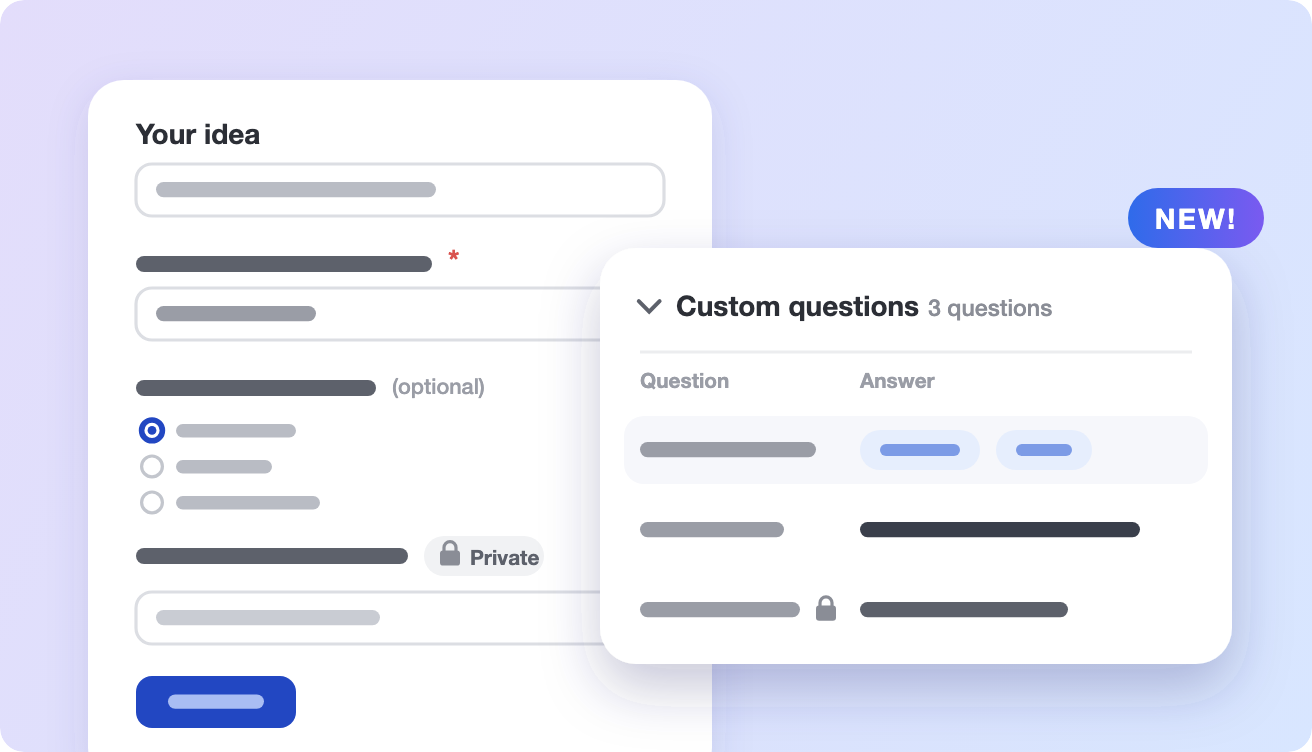
Every idea starts with a title and a few lines in the customer’s own words. “Add offline mode.” “Let me bulk edit tasks.” Those are real needs, but before your team can act on them, someone has to ask the follow-up questions. Which platform? How often does this come up? What are you doing today instead?
Now you can ask those questions up front. Custom questions add a short set of structured prompts to the idea form, so every idea arrives with the context your team needs to evaluate it.
Ask once, when the context is fresh
The best moment to learn why an idea matters is the moment someone posts it. They know their workflow, they know what’s blocking them, and they’re already writing. Custom questions meet them there.
A customer posting “Offline mode” on your portal might see:
- Which platform are you using? Web, iOS, or Android
- How often do you lose connection while working? Daily, Weekly, or Rarely
- What do you do today instead? A short text answer
Each answer is saved to a custom field on the idea. That means you can filter, segment, and report on answers the same way you work with any other field in UserVoice. Instead of a pile of free-text descriptions, you get ideas you can sort by platform, frequency, or anything else your team decides on.
On the idea sheet, answers have their own Custom questions section, right below the description. Open it to review the answers, and edit them in place if you can edit the idea.
One question, every place ideas come in
Ideas reach you from customers on your portal and from your own teams logging feedback on a customer’s behalf. Each question lets you choose who should answer it:
- External users: people posting ideas on your portal
- Internal users: your team, in the browser extension, the Contributor Console, and the admin console
- Or both
That makes custom questions just as useful for internal intake. Sales, Success, and Support can be asked for the context only they have, such as whether a request is tied to a renewal, and they’re asked the same way every time. Questions also appear when your team creates a new idea from the Create or Link idea flow while capturing feedback.
Set each question up the way you need it
Every question has its own settings, so you can match the form to the audience:
- Forums. Ask a question in all forums or only the ones you pick. A platform question can live on your mobile app forum without showing up on your API forum.
- Required or optional. Require an answer only when your team can’t act on an idea without it. Optional questions are labeled as optional on the portal form.
- Public or private answers. Private answers are seen only by the person who posted the idea and your team, and the portal form says so before anyone starts typing. Public answers appear on the idea for everyone who can see it.
- Supporting text. Add a line of context or instructions under the question, so people know what you’re looking for.
- Defaults for choice questions. When your team creates an idea in the admin console, multiple-choice questions start on the default options you set.
Questions use the same field types you already know, including multiple choice, yes/no, text, numbers, dates, and links.
Only the person who posts the idea answers its questions. People who vote on the idea later aren’t asked, so every idea carries one clean set of answers from the person closest to the request.
Change your questions with confidence
Your questions will change as you learn what’s useful. Custom questions keep a change history for each question, so you can see who changed what and when.
When a question has run its course, you decide what happens to the answers you’ve already collected. Delete the question and keep its existing answers on their ideas, or delete the answers along with it. New ideas stop asking the question either way.
Better ideas start with better questions
The goal isn’t a longer form. It’s fewer clarifying emails, faster triage, and ideas you can compare side by side. Start with one or two questions that would change a decision, keep most of them optional, and keep answers private unless there’s a reason to share them. Our guide, Custom Questions That Make Ideas Actionable, walks through which questions earn their place and how to scope them by forum.
Get started
Custom questions are available now. In the admin console, go to Settings, then Ideas, and open Custom Fields & Questions. Create a field, turn on Use as a question, and choose who answers it, which forums it appears in, and whether it’s required.
If you’d like to see how custom questions look on your own portal and in your team’s capture tools, book a demo and we’ll walk you through it.
Get a free 30-day trial after your demo, with your own customer feedback in a real account.
Book a demoMore product updates
All updates →

See what’s new on your own feedback
Get a free 30-day trial after your demo, see your own customer feedback in a real account.
Book a demo

